
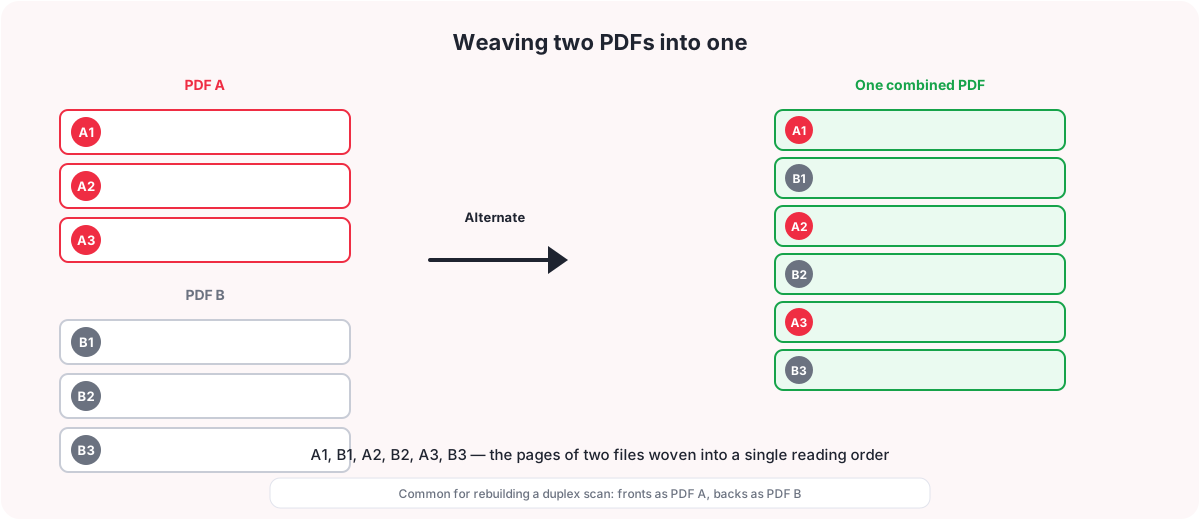
Scanned the fronts of a stack in one pass and the backs in another, and now you have two separate PDFs that need to become one document in the right reading order? Or maybe you have a question sheet and an answer sheet you want woven together, page by page. Either way, simply placing one file after the other will not do it — you need to alternate and mix pdf pages, interleaving them instead of stacking them.
Everything below uses the PDFCherry Alternate & Mix Pages tool, which weaves two PDFs together using a pattern you choose, then lets you fine-tune the exact page order before you download anything.
Quick Answer
- Open Alternate & Mix Pages and upload PDF A and PDF B.
- Pick a mixing pattern — Alternate, A-then-B, B-then-A, Pair pages, or a Custom pattern such as ABBA.
- If one file has more pages, choose to append the rest or stop at the shorter file.
- Check the live page grid and Output order preview, then adjust any page by hand if needed.
- Name the file and press Combine & Download.
Your original files are never changed — the result is always a new, separate PDF.
Watch the Video
Prefer to see it first? This video shows how to alternate and mix two PDFs, from uploading both files to downloading the interleaved result.
The written steps below cover the same ground, plus the details a video cannot show as easily, such as each mixing pattern and what happens when the page counts differ.
How to Alternate and Mix PDF Pages Online
Follow these steps in order. The whole job runs in your browser, with no software to install.
Step 1: Upload PDF A and PDF B
Open Alternate & Mix Pages and drag a file onto each of the two upload boxes, or press Choose PDF on each one to browse for it. PDF A is typically the fronts of a two-pass scan and PDF B the backs, but the tool does not require that — any two PDFs can be mixed. Each file is checked against a size limit shown on the page (50 MB at the time of writing) before it loads.
You should now see a filled-in file chip for both A and B, and the workspace opens to the mixing step.
Step 2: Choose a mixing pattern
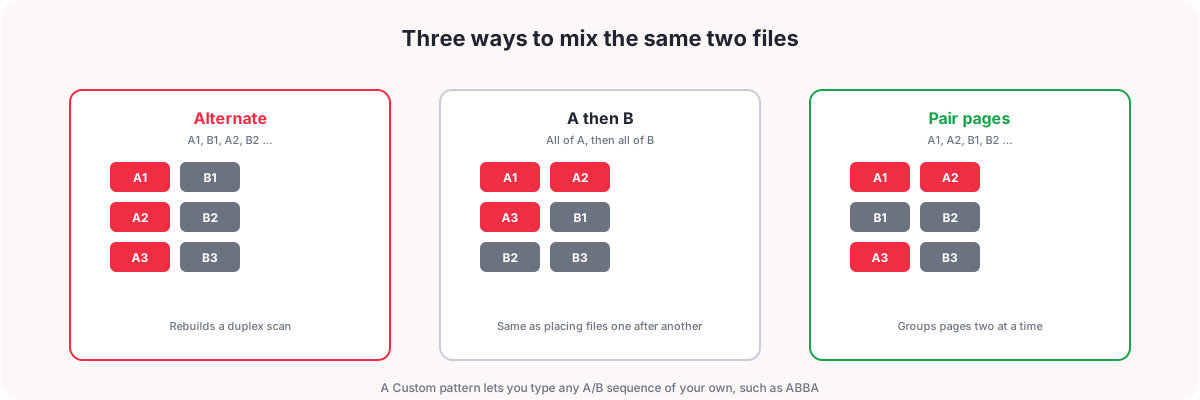
Pick one of five patterns:
- Alternate — A1, B1, A2, B2 … the classic front/back interleave.
- A then B — every page of A, followed by every page of B (equivalent to a simple merge).
- B then A — every page of B, followed by every page of A.
- Pair pages — two pages of A, then two pages of B, and so on (A1, A2, B1, B2 …).
- Custom pattern — type your own A/B sequence, such as ABBA, and it repeats across both files.
You also choose a starting file (A or B), which decides whether the very first page of the output comes from PDF A or PDF B.
Step 3: Set page ranges and reverse options (optional)
Open Advanced options to go further:
- Reverse PDF A and Reverse PDF B are independent checkboxes. If the backs of a scanned stack came out in reverse order because the stack was flipped over between passes, tick Reverse on that file before mixing.
- Pages of A and Pages of B let you use only part of a file, using a range like
1-5, 8. Leave a field blank to use every page of that file.
Step 4: Handle different page counts
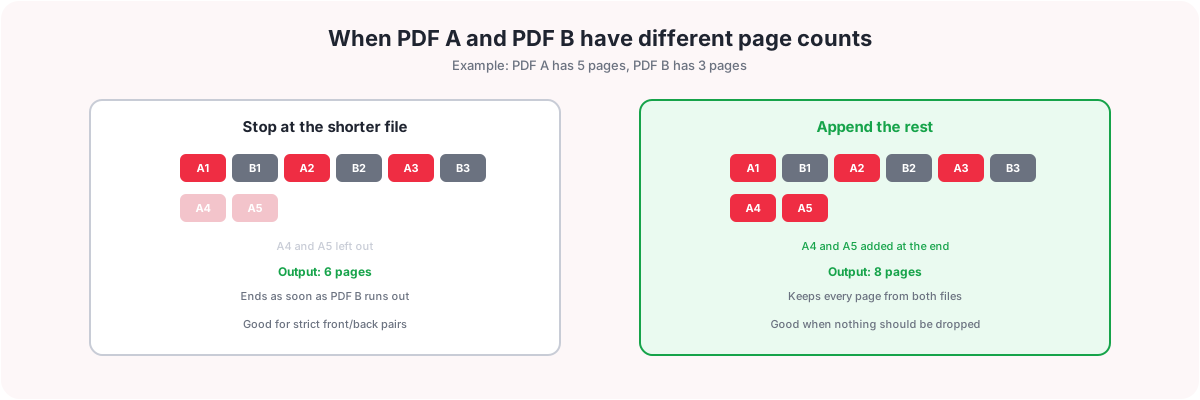
If PDF A and PDF B do not have the same number of pages, an extra choice appears:
- Append the rest — once the shorter file runs out, the longer file’s remaining pages are added at the end.
- Stop at the shorter file — the output ends as soon as the shorter file runs out, and the longer file’s extra pages are left out.
After changing any setting on this step, press Rebuild page list from these settings to apply it to the grid below.
Step 5: Fine-tune the page grid
The generated sequence appears as a page grid you can still edit by hand. Drag any page to a new position, or tick several pages to move them left/right, move them to a specific position, duplicate them, delete them, or rotate them 90 degrees at once. A live Output order list next to the grid tracks the exact sequence you will get, so you can check it before combining.
Step 6: Name the file and download
Type a name for the output file, then press Combine & Download. Once the new file is built, the results screen offers Download and Preview buttons, plus a Process Another option to start over. Your files are removed from the server automatically a short time after processing, so save your copy before moving on.
Which Mixing Pattern Should You Use?
- Alternate is the right choice for rebuilding a duplex scan done in two single-sided passes, or for weaving a question sheet with its answer sheet page by page.
- A then B or B then A simply place one file after the other — use these when you actually want a plain concatenation rather than an interleave, though Merge PDF is the more direct tool for that.
- Pair pages suits documents that come in two-page groups, such as a cover pair followed by a content pair.
- Custom pattern covers anything else — type any sequence of A and B letters (for example ABBA, AAB, or ABAB) and it repeats down both files.
What Happens When the Page Counts Do Not Match
Only two behaviours are available when PDF A and PDF B have different lengths: append the rest of the longer file at the end, or stop at the shorter file and leave the extra pages out. There is no third option, such as repeating the shorter file or inserting blank pages to fill the gap. If neither built-in behaviour gives you the exact result you need, fine-tune the generated page grid by hand afterward — drag, duplicate or delete individual pages until the order is right.
Why Interleave Two PDFs?
- Rebuilding a two-pass scan. Scanners without an automatic duplex feeder scan all the fronts, then all the backs after the stack is flipped, leaving two separate files that need weaving back into reading order.
- Question and answer sheets. Alternate a set of questions with a matching set of answers, one page of each at a time.
- Separator or divider pages. Mix a document with a set of blank or labelled divider pages, using Pair pages or a custom pattern to control how often a divider appears.
- Combining odd and even pages that were split earlier. If a document was previously separated into its odd and even pages, mixing them back together restores the original order.
- Comparing two versions side by side. Interleaving lets you flip page by page between two related documents instead of reading each one start to finish.
Alternate & Mix vs. Merge PDF
Merge PDF places whole files one after another — every page of the first file, then every page of the second. Alternate & Mix Pages instead weaves the two files together page by page according to a pattern you choose, and lets you edit the mixed result in a page grid before downloading. If you just need to combine files in sequence with no interleaving, Merge PDF is the simpler tool; if you need the pages of two files threaded together, use Alternate & Mix Pages.
Troubleshooting
| Problem | Why it happens | Solution |
|---|---|---|
| The pages come out in the wrong order after mixing | The backs of a two-pass scan are often captured in reverse order once the stack is flipped over. | Turn on Reverse PDF A or Reverse PDF B under Advanced options, press Rebuild page list, and check the Output order preview before downloading. |
| One file has more pages than the other and the output is missing pages | "Stop at the shorter file" was selected, so the longer file’s extra pages were left out on purpose. | Switch to "Append the rest" and rebuild the page list to keep every page from both files. |
| The custom pattern field will not accept what I typed | A custom pattern only accepts the letters A and B. | Re-type the pattern using only A and B, for example ABBA, then rebuild the page list. |
| The page range field is ignored | A blank page-range field always means "use every page" of that file, not "use no pages." | Type the exact pages you want, e.g. 1-5, 8, into the Pages of A or Pages of B field, then rebuild the page list. |
| One or both files will not upload — password protected | A password on either PDF blocks it from being processed. | Remove the password first with Unlock PDF on each file, then upload the unlocked copies. |
| A file will not upload at all | The file may not be a valid PDF, may be corrupted, or may be larger than the site’s per-file size limit. | Confirm the file opens normally elsewhere, and if it is oversized, shrink it first with Compress PDF. |
Frequently Asked Questions
How do I alternate and mix two PDFs online?
Upload both files to Alternate & Mix Pages, choose a mixing pattern such as Alternate or Pair pages, adjust any page ranges or reverse options you need, check the Output order preview, then press Combine & Download.
Can I mix PDF pages online for free?
Yes. Alternate & Mix Pages runs entirely in your browser, is free to use, and does not require creating an account.
What if PDF A and PDF B have different numbers of pages?
Choose "Append the rest" to add the longer file’s leftover pages at the end, or "Stop at the shorter file" to leave those extra pages out. You can also fine-tune the resulting page grid by hand afterward.
Can I type my own custom mixing pattern?
Yes. Choose the Custom pattern option and type any sequence of the letters A and B, such as ABBA, and it repeats across both files.
Can I reverse the order of just one of the two files?
Yes. Reverse PDF A and Reverse PDF B are independent checkboxes under Advanced options, so you can reverse either file, both, or neither.
Can I mix only part of a PDF instead of the whole file?
Yes. Enter a page range such as 1-5, 8 in the Pages of A or Pages of B field to use only those pages of that file; a blank field uses every page.
Can I mix more than two PDFs at once?
Not in a single pass. Mix your first two files, download the result, then upload that result as PDF A alongside a third file to mix again.
What is the difference between Alternate & Mix Pages and Merge PDF?
Merge PDF places whole files one after another with no interleaving. Alternate & Mix Pages weaves the two files together page by page according to a chosen pattern, and lets you edit the mixed result before downloading.
Can I still edit individual pages after choosing a mixing pattern?
Yes. The generated sequence appears in a page grid where you can drag pages to a new position, or select pages to move, duplicate, delete or rotate them, with a live Output order list showing the exact result.
Can I use this on mobile?
Yes. Alternate & Mix Pages works in a mobile browser on phones and tablets, with no app to install.
Is my PDF secure, and is it deleted afterward?
Both files are uploaded over a secure connection, processed to build the combined file, and the uploads and the result are removed from the server automatically a short time after processing.
Can I save the combined PDF straight to Google Drive, Dropbox or OneDrive?
Not with this tool. The results screen offers Download and Preview, plus Process Another to start again; downloading to your device and uploading it to cloud storage yourself is the way to get it there.
What to Do Next
Once your pages are combined in the right order, you may want one more step:
- Reorder PDF Pages to rearrange specific pages into any custom order
- Rotate PDF to fix any pages that came out sideways or upside down
- Merge PDF if you actually just need to combine whole files in sequence
- Split PDF to break the combined file into smaller pieces
- Extract Even or Odd Pages to pull the odd or even pages back out again
- Reverse PDF Pages if the whole document ends up back to front
- Compress PDF if the combined file needs to be smaller for sharing
You May Also Like
- How to Extract Odd or Even Pages From a PDF
- PDF Reverse Page Order: How to Reverse the Order of Your PDF Pages
- How to Reorder PDF Pages
- How to Replace a Page in a PDF
Ready to Mix Your PDF Pages?
Upload PDF A and PDF B, pick a pattern, and download. Free, with no sign-up.
Alternate & Mix PDF Pages