
Sometimes one page has to appear twice: a form that two people fill in, a cover you want to repeat, or a worksheet you need for every group. This guide shows how to duplicate a page in a PDF for free, so you end up with an exact copy of that page in a new file.
Everything below uses the PDFCherry Duplicate PDF Pages tool. It also covers what you will see at each step, what to do next, and what every message means.
How to duplicate a page in a PDF
- Open Duplicate PDF Pages.
- Upload your PDF with Choose PDF, or drag it onto the box.
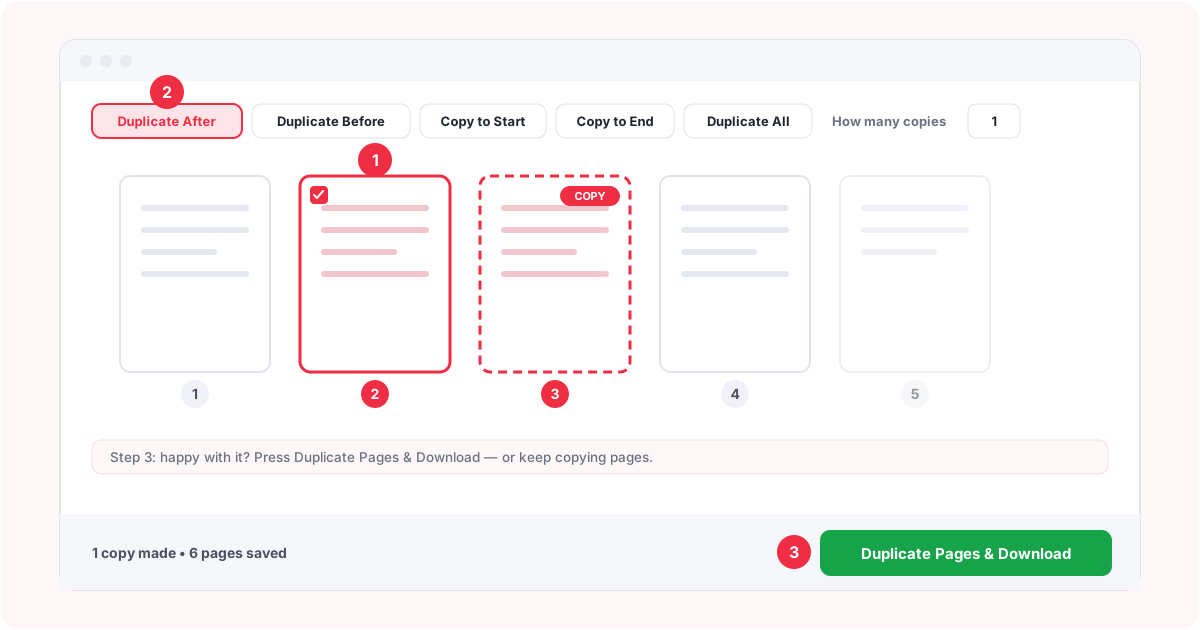
- Click the page you want to copy. A tick appears on it.
- Set How many copies, then press Duplicate After (or Duplicate Before).
- Press Duplicate Pages & Download and save your new PDF.
Free, no sign-up, nothing to install. Your original file is never changed.
Watch the Video
Prefer to see it first? This video shows the whole job from upload to download.
The written steps below cover the same ground, plus the parts a video cannot show easily: what each message means and what to do next.
What You Will See When You Open the Duplicate PDF Pages Tool
Knowing what each part of the screen is for makes the rest easy. Here is what you will find.
- The upload box. The first screen asks for your PDF. Drag it in, press Choose PDF or Browse files, or pull it from Google Drive, Dropbox or OneDrive.
- PDF thumbnails. Once the file opens, every page appears as a small picture with its page number. You can see the whole document before anything is sent anywhere.
- The three-step guide card. A card near the top reads Duplicate a page in 3 easy steps. It ticks off each step as you go, and you can hide it with the small cross.
- The hint line. One line above the pages always says what to do next, for example Step 1: click the page you want to copy.
- The bottom bar. It shows how many copies you have made and how many pages the finished file will have. The green Duplicate Pages & Download button lives here, and it stays switched off until you have made at least one copy.
How to Duplicate a Page in a PDF
Follow these steps in order. After each one, you will find what you should see if it worked.
Step 1: Upload your PDF
Open the tool and drop your file on the box, or press Choose PDF. A progress bar appears while the pages are read.
You should now see every page as a thumbnail, with the three-step guide above them. If you see a red message instead, jump to the troubleshooting table below.
Step 2: Find the page you want to duplicate
Look through the thumbnails and check the page number on each one. Not sure which page it is? Press the magnifier next to the page counter, or double-click a page, to see it full size.
Click the page to select it. If this worked, the page gets a cherry-red outline and a tick in its corner, and the hint line changes to Step 2. Click it again to deselect. Shift+click selects a whole run of pages.
Step 3: Choose how to duplicate the page
Now decide where the copy goes. These buttons are in the toolbar above the pages.
| Button | What it does |
|---|---|
| Duplicate After | Puts the copy directly behind the page you selected. |
| Duplicate Before | Puts the copy directly in front of it. |
| Copy to Start | Puts copies of the selected pages at the very beginning of the document. |
| Copy to End | Puts copies of the selected pages at the very end. |
| Duplicate All | Puts a copy behind every page. No selection needed. |
Each page also has its own Duplicate button on the card, which does the same as Duplicate After for that one page.
You should now see a new card appear in the grid, marked Copy, with a dashed cherry-red outline. That card is your duplicate. The bottom bar now reads something like 1 copy made, and the hint line moves on to Step 3.
Step 4: Choose the number of copies
The How many copies box sets how many copies each press makes. It takes a number from 1 to 100. Set it before you press a duplicate button.
Type a number outside that range and the screen tells you it has used the nearest valid number, for example You can make up to 100 copies at a time — using 100. Nothing surprising happens.
Step 5: Review and save
Before you save, take ten seconds to check:
- Every card marked Copy is where you meant it to be.
- The copy shows the right page. It looks exactly like the original.
- The bottom bar shows the page count you expect.
Something wrong? Press Undo to step back. Select a card marked Copy and press Remove Copy to take it out. Reset goes back to the original document. Preview shows the file you are about to get.
When it looks right, press the green Duplicate Pages & Download button.
What Happens After You Save
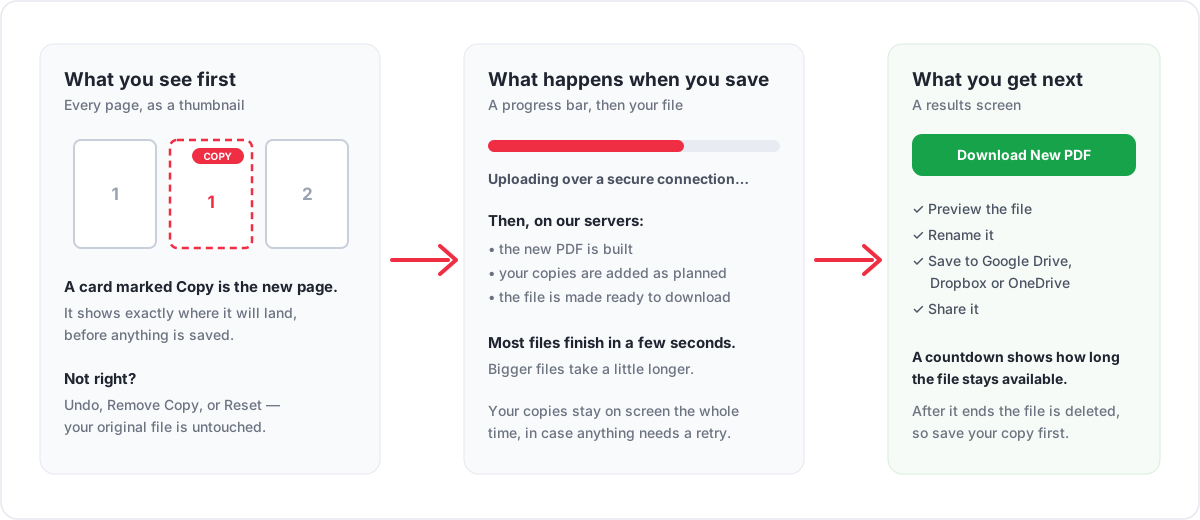
You do not need to guess whether it is working. Here is exactly what happens.
- Processing starts. A progress bar appears and your PDF is sent over a secure connection.
- The new file is built on our servers. Your copies are added exactly where the grid showed them. Most files finish in a few seconds, and bigger ones take a little longer.
- Your copies stay on screen. If anything needs a retry, you do not lose your work.
- The results screen appears. It shows a table with your new file: its name, size and page count.
You are done when you see the green download button. From the results screen you can:
- Download the new PDF with the green button.
- Preview it in a new tab first.
- Rename the file. The name you type is the name you get.
- Save it to Google Drive, Dropbox or OneDrive, or share it, using the Save the file to panel.
- Change settings and save again if something needs adjusting. Your pages are still there.
A countdown shows how long the file stays available. When it ends the file is deleted, so save your copy before then. Your original PDF is never changed.
Faster Ways to Duplicate PDF Pages
For longer documents, these save a lot of clicking.
Duplicate several specific pages
Select the pages you want (Shift+click for a run) and press Duplicate After once. A copy goes beside each of them. Or type the page numbers into the Pages to duplicate box, such as 2, 5, 7-9, and press Apply.
Duplicate every page
Press Duplicate All, or type every in the Pages to duplicate box and press Apply. Every page gets a copy right behind it. Set How many copies to 2 first and every page appears three times in a row.
Duplicate every second, third or fifth page
Type every 2 for every second page, or every 5 for every fifth. Any number from 1 to 1000 works.
Copy pages to the start or end
Select the pages, then press Copy to Start or Copy to End. Copies are gathered in their original order, which is handy for repeating a cover or a signature page.
Process several PDFs
Press Add Another File to open more PDFs. You can work on up to 20 files, 50 MB each. Each file keeps its own copies, and the results come back together as a ZIP.
Create separate PDFs
Switch on A separate PDF per page in Output Options to get every page of the finished document as its own PDF, copies included. Two more switches are there too: Compress the new PDF and Create ZIP file.
If Something Goes Wrong
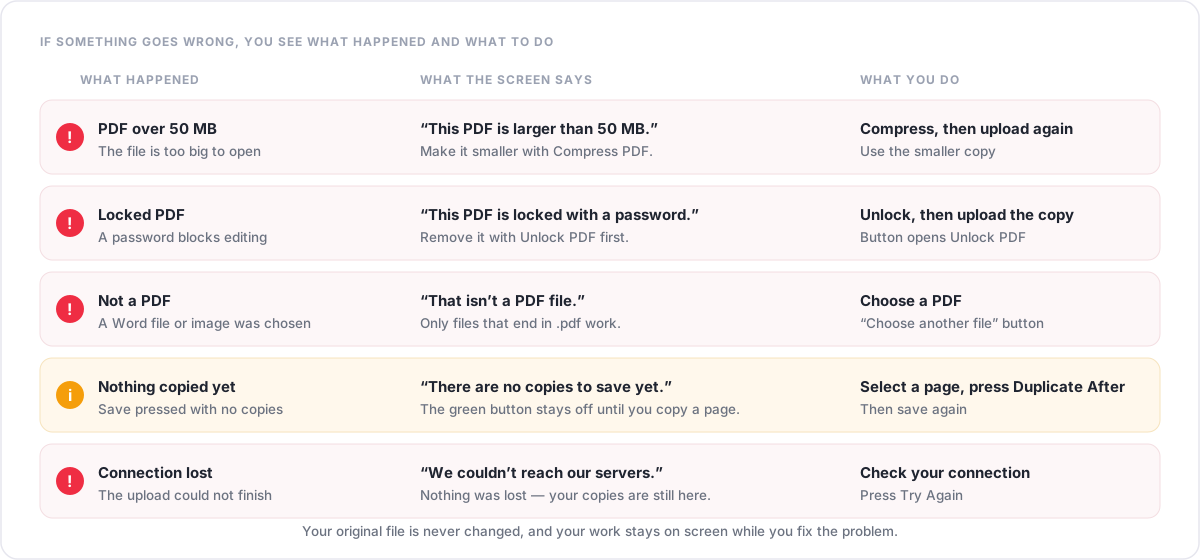
The screen always says what happened and what to do. It never throws away your work. Here are the messages you might see, exactly as they appear.
| Message | What it means | What to do |
|---|---|---|
| That isn’t a PDF file. | The file is a Word document, image or something else. | Choose a file that ends in .pdf. You should then see the page thumbnails. |
| This PDF is larger than 50 MB. | The file is over the size limit. | Make it smaller with Compress PDF, then upload the smaller copy. |
| This PDF is locked with a password. | A password blocks editing. | Remove it with Unlock PDF, then upload the unlocked copy. |
| We couldn’t open this PDF. | The file may be damaged or incomplete. | If it opens fine on your computer, save a fresh copy and upload that. If not, try Repair PDF. |
| This PDF has no pages. | The file opened but contains nothing to copy. | Choose a different file and try again. |
| That’s more than 20 files. | You chose more files than fit in one job. | The first 20 were added. Save these, then start another job. |
| Select a page first, then press Duplicate After. | You pressed a duplicate button with nothing selected. | Click a page. You should see a tick and a cherry-red outline, then press the button again. |
| There are no copies to save yet. | You pressed save before making a copy. | Select a page and press Duplicate After, then save again. |
| Enter a number from 1 to 100 — using 1. | The How many copies box was empty or below 1. | Nothing to fix. The screen has already used a valid number. |
| Use page numbers from 1 to N, for example 2, 5, 7-9, or type every 2. | The Pages to duplicate box has a page the file does not have, or a typo. | Correct the numbers and press Apply. N is your file’s page count. |
| We couldn’t reach our servers. | Your connection dropped during the upload. | Nothing was lost. Check your connection, then press Try Again. |
| Something went wrong on our side. | An unexpected error while building the file. | Your original file has not been changed and your copies are still on screen. Try again in a moment. |
The green save button stays off until you have made at least one copy, so you cannot save by accident.
Tips for Getting It Right First Time
- Read the page number under the thumbnail, not just the picture. Similar pages are easy to mix up.
- Set How many copies before you press a duplicate button.
- Look for the cards marked Copy before you save. They are exactly what you will get.
- Select several pages and press once to copy them all together.
- Use Preview to check the file list, especially with several PDFs.
- Open the finished PDF before you print or send it, and keep a copy of your original.
Why Would You Duplicate a PDF Page?
- A form page that several people need to fill in.
- A template page you want repeated to build a set of identical pages.
- An invoice or worksheet that has to appear once for each group or customer.
- Print-ready documents where a page must print twice, once for each copy of a handout.
- A divider or cover repeated before each section.
- A certificate or signature page needed once per person.
Is It Safe to Upload a PDF?
It is a fair question, because the file has to be sent to be processed. Here is exactly what happens. Page thumbnails are drawn on your own device. When you press save, your PDF is uploaded over a secure connection and the new file is built on our servers.
Uploaded files are removed automatically after a short time: within about 30 minutes for the file you upload, and within about an hour for the finished result. The results screen shows a countdown. Duplicating a page never changes your original PDF. Read the Privacy Policy before uploading anything sensitive.
What to Do Next
Once the copies are in place, you may want one more step:
- Reorder PDF Pages to move the copies somewhere else
- Insert Blank Pages to add empty pages beside them
- Delete PDF Pages to remove pages you no longer need
- Rotate PDF to fix a sideways page
- Split PDF to break the result into separate files
- Merge PDF to join it to another document
Frequently Asked Questions
How do I duplicate a page in a PDF?
Upload your PDF, click the page you want to copy, and press Duplicate After. Then press Duplicate Pages & Download to get the new file. It usually takes under a minute.
Can I duplicate more than one PDF page at once?
Yes. Select several pages, or Shift+click a run, and press Duplicate After once. You can also type a list such as 2, 5, 7-9 into the Pages to duplicate box and press Apply.
Can I duplicate the same page multiple times?
Yes. Set How many copies to any number from 1 to 100 before you press the button. Each press makes that many copies, and you can press again for more.
Can I place the duplicate before the original?
Yes. Press Duplicate Before instead of Duplicate After. The copy is put directly in front of the page you selected.
Can I move a duplicate to the beginning or end?
Yes. Select the pages and press Copy to Start or Copy to End. Copies are gathered at the very beginning or end, in their original order.
Can I duplicate every page in a PDF?
Yes. Press Duplicate All, or type every in the Pages to duplicate box. Type every 2 to copy every second page.
Can I duplicate pages using a page list?
Yes. Type page numbers and ranges such as 2, 5, 7-9 into the Pages to duplicate box and press Apply. A copy is placed behind each page you list.
Can I create separate PDFs for duplicated pages?
Yes. Switch on A separate PDF per page in Output Options. Every page of the finished document, copies included, becomes its own PDF, delivered together as a ZIP.
What is the maximum PDF file size?
50 MB per file, and up to 20 files at a time. For a larger file, make it smaller first with Compress PDF.
Is my uploaded PDF safe?
Files are uploaded over a secure connection, processed on our servers, and deleted automatically after a short period. The results screen shows a countdown. See the Privacy Policy before uploading anything sensitive.
Will duplicating a page change my original PDF?
No. You always get a new file back, and the PDF you uploaded is left exactly as it was.
What should I do if the PDF cannot be processed?
Read the message on screen, which says what happened. A locked file needs Unlock PDF, a very large one needs Compress PDF, and a damaged one may open after Repair PDF. Your copies stay on screen, so you can press Try Again.
Ready to Duplicate a PDF Page?
Open the tool, upload your PDF, copy the pages you need, and download the new file. Free, with no sign-up.
Duplicate a page in a PDF