
Compressing a PDF makes the file smaller so it is easier to email, upload, or store. Most of the size in a large PDF comes from images, so compression works by re-encoding those images at a lower resolution and quality. Text is left alone.
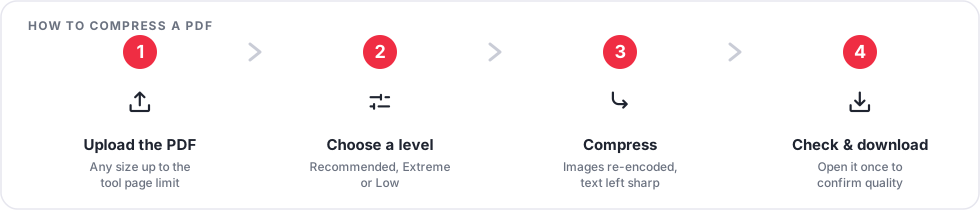
How to compress a PDF
- Open the Compress PDF tool and upload your file.
- Choose a compression level. Recommended is a good balance; Extreme makes the smallest file; Low keeps images closest to the original.
- Click the button and download the smaller file.
- Open the result and check the images look acceptable before you rely on it.
How much smaller will it get?
It depends entirely on what is inside the PDF:
- Scanned documents and photo-heavy files often shrink by 50 to 90 percent.
- Text-only PDFs may barely change, because there are no large images to compress. This is normal, not a fault.
- PDFs that were already compressed have little left to remove.
Getting the size you need
- Start with Recommended and only move to Extreme if the file is still too large.
- If the goal is an email attachment, aim for under 10 MB, which most mail servers accept.
- Remove unneeded pages first with Delete PDF Pages; fewer pages means a smaller file.
- If you only need the text, PDF to Text produces a tiny file.
Frequently asked questions
Will the text become blurry?
No. Compression targets images. Text and vector graphics stay sharp at every level.
My file did not get smaller. Why?
It is probably mostly text, or it was already optimised. There is simply little to compress in that case.
Is the original changed?
No. Compression always produces a new file. Your uploaded copy is deleted automatically afterwards.
Try it now with Compress PDF.