
Sometimes you only need part of a document: the signature page of a contract, one section of a report, or a single form from a large packet. Extracting those pages gives you a small, focused file to send or keep.
Pull specific pages into a new file
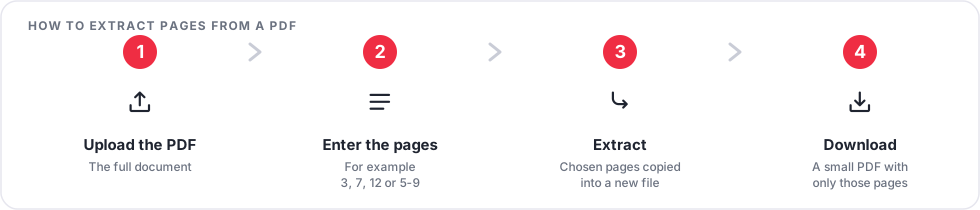
- Open Extract PDF Pages and upload the document.
- Enter the pages you want, for example
1, 4, 9-12. - Download a new PDF containing only those pages, in the order listed.
Extract, split, or delete: which one?
- Extract PDF Pages keeps a chosen set of pages and discards the rest. Best when you want a few pages out of many.
- Split PDF cuts one document into several files by range. Best when you need every part, separated.
- Delete PDF Pages removes a few pages and keeps everything else. Best when you want almost the whole document.
Tips
- Page numbers are counted from the start of the file, which may not match printed page numbers.
- List a page more than once if you need a duplicate in the output.
- To reorder while extracting, list the pages in the order you want them, for example
9, 3, 1.
Frequently asked questions
Does extracting change the pages?
No. Each extracted page is an exact copy at the same size and quality.
Can I extract a range that is not continuous?
Yes. Combine single pages and ranges, such as 1, 4, 9-12.
Is my file stored?
No. The upload and the new file are deleted automatically a short time after processing.
Open Extract PDF Pages to get started.