
Merging PDF files means combining two or more separate PDF documents into a single file, in whatever page order you choose. People merge PDFs to turn a scattered set of files — a resume and cover letter, a week of scanned receipts, five report chapters — into one document that is easy to send, print, or archive. This guide walks through the process step by step and explains what actually separates the best online PDF merger tools in 2026 from the rest.
Quick answer
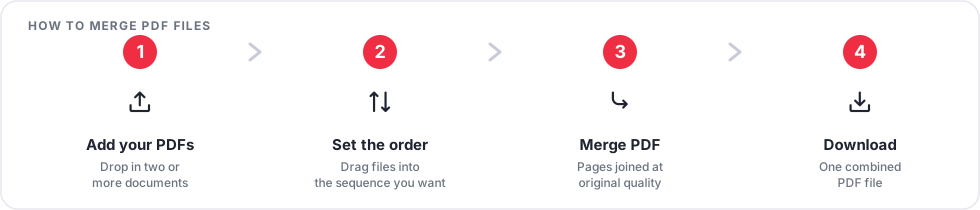
To merge PDF files online:
- Open an online PDF merger.
- Upload your PDF files.
- Arrange them in the order you want.
- Click Merge (or Combine).
- Download the merged PDF.
The exact screens and button labels vary from tool to tool, but this five-step flow is common to nearly all of them.
How to Merge PDF Files Online
Prefer to read? The steps below cover the same walkthrough.
Step 1: Choose a PDF merger
Pick a merger that runs in your browser, so there is nothing to install. Our Merge PDF tool is free and works on desktop and mobile.
Tip: If you will be merging sensitive documents, check the tool's privacy policy before uploading anything.
Step 2: Upload your PDF files
Drag and drop your files onto the page, click to browse your device, or import them from a cloud drive. Add every file you want in the final document — you can always add more before merging.
Tip: Rename files with a number prefix (01, 02, 03…) beforehand so a long list is easy to scan.
Step 3: Arrange the files
Drag files into the order you want them to appear, or use a sort option (by name, date added, or size) to arrange a long list in one click.
Tip: Double-check the order before merging — it is the single most common mistake people make.
Step 4: Merge the PDFs
Click Merge (sometimes labelled Combine). The tool processes your files and produces one combined PDF, keeping each page's original size and quality.
Tip: If the button stays disabled, you usually need at least two files added first.
Step 5: Download the final PDF
Download the merged file and open it to confirm every page is present and in the right order before you send or archive it.
Tip: Give the output a clear filename — "Merged_Document.pdf" is easy to lose track of later.
A practical example
Say you have three separate files: Resume.pdf, Cover-Letter.pdf, and Certificates.pdf. Uploaded in that order and merged, they become one file — Job-Application.pdf — that a hiring manager can open and read straight through without juggling three attachments. File order matters here: a cover letter that ends up after your certificates reads oddly, and some application systems only let the reviewer open the first attachment, so the most important document should usually come first.
Ready to Merge Your PDFs?
Combine multiple PDF files into one document in a few simple steps.
Merge PDF FilesHow to Merge Multiple PDF Files
Merging more than two or three files works the same way, with a bit more attention to organization:
- Select multiple PDFs at once. Most file pickers let you Ctrl-click (Windows) or Cmd-click (Mac) to select several files in one go, instead of adding them one at a time.
- Upload in batches for very large sets. If you are combining dozens of files, it is often easier to merge them in smaller groups first, then merge those results together.
- Check filenames before merging. Skim the uploaded list for duplicates or a file that does not belong — it is much faster to catch a mistake here than after downloading.
- Arrange the full list, not just the first few files. Long lists are easier to sort by name or date than to drag one by one.
- Merge, then review, then download. Open the result and page through it before you rely on it being correct.
How to Arrange PDF File Order
The order you set before merging is the order the pages appear in the final document — most tools do not let you reorder pages afterward without re-uploading. For a typical multi-part document, a sensible order looks like:
- Cover page
- Introduction
- Main document
- Supporting documents
- Appendix
Before you download, scroll through the file list (or use a preview feature, if the tool offers one) to verify the final order matches what you intended. It is much easier to fix the order before merging than to redo the whole job afterward.
How to Merge PDF Files Without Installing Software
A browser-based PDF merger runs entirely on a webpage, so there is nothing to download or install. You open the page, upload your files, and download the result — the same workflow works whether you are on Windows, macOS, Linux, or Chrome OS. This is useful when you need to combine a couple of files quickly, you are on a computer you do not own or control, or you simply do not want another desktop application taking up space and needing updates.
The trade-off is that your files need to be uploaded to the tool's servers to be processed, so it is worth understanding how a service handles your files before you rely on it — see Are online PDF merger tools safe? below.
How to Merge PDF Files on Android and iPhone
Merging PDFs on a phone uses the same browser-based workflow as desktop:
- Open the PDF merger in your phone's browser.
- Select the PDF files you want to combine — from local storage, downloads, or a connected cloud drive, depending on what your browser exposes.
- Upload the files.
- Arrange them in the order you want.
- Tap Merge.
- Download the merged file, or save it to your device or cloud storage.
Exactly which file sources are available (Files app, Google Drive, Photos, Downloads) depends on your browser and device, so the picker screen can look a little different on Android versus iPhone, or between Chrome and Safari.
Best Online PDF Merger Tools 2026: What to Look For
Rather than rank specific products, it is more useful to know what separates a solid tool from a frustrating one. Use this table as a checklist when comparing the best online PDF merger tools 2026 has to offer:
| Feature | Why It Matters |
|---|---|
| Ease of use | A clear upload area and obvious Merge button mean fewer mistakes and less time spent figuring out the interface. |
| Multiple file support | You should be able to add many files in one session, not merge two at a time. |
| File ordering | Drag-and-drop or sort options let you fix the page order before merging, instead of after. |
| Browser compatibility | A tool that only works in one browser is a problem the moment you switch devices. |
| Mobile support | Many merges happen on the go — the tool should work as well on a phone as on a desktop. |
| Processing speed | Slow processing is frustrating for a task that should take seconds, especially with larger files. |
| File size limits | Know the per-file and total limits before you start, so you are not stopped halfway through. |
| Privacy practices | Look for a clear statement on how uploaded files are stored, processed, and deleted. |
| Download experience | The merged file should download reliably, without extra pop-ups or unclear steps. |
| Error handling | A good tool tells you clearly when a file fails to upload or merge, instead of failing silently. |
| Pricing | Know upfront whether the tool is genuinely free or has hidden limits, watermarks, or paywalls. |
| No unnecessary registration | A tool you can use without creating an account is faster and asks for less of your personal information. |
Are Online PDF Merger Tools Safe?
Safety depends on the specific service, not on "online PDF tools" as a category. Before uploading anything, it is worth taking a few precautions:
- Review the provider's privacy policy to see how uploaded files are handled.
- Treat sensitive documents (contracts, tax forms, medical records) with extra care — consider whether the file needs to leave your device at all.
- Check how your files are processed: over an encrypted connection, and in a way that is not shared with other users.
- Look for a clear file-retention or deletion policy — a trustworthy tool tells you when uploaded and merged files are removed from its servers.
- Avoid uploading highly sensitive documents to a service you do not already trust, no matter how convenient it looks.
You can read PDFCherry's own Privacy Policy for details on how this site specifically handles uploaded files.
When Should You Merge PDF Files?
Merging comes up in a wide range of everyday situations, including:
- Job applications — combining a resume, cover letter, and certificates
- School assignments — joining separate chapters or worksheets into one submission
- Business reports — assembling sections written by different people
- Invoices — bundling several invoices for one client or period
- Contracts — combining a signed agreement with its appendices
- Project documentation — merging specs, plans, and sign-off sheets
- Scanned documents — joining pages scanned separately into one file
- Travel documents — combining tickets, itineraries, and confirmations
- Tax-related documents — assembling receipts and forms for filing
- Portfolio documents — combining work samples into a single, shareable file
Common PDF Merging Problems and Solutions
| Problem | Solution |
|---|---|
| Files upload slowly | Check your file sizes and internet connection; very large scans take longer to upload. |
| PDF order is incorrect | Arrange files into the order you want before clicking Merge — most tools do not let you reorder afterward. |
| Merged file is too large | Consider compressing the PDF after merging, for example with a Compress PDF tool. |
| A PDF cannot be uploaded | Check whether the file is a genuine, unencrypted PDF and not corrupted or renamed from another format. |
| Text or images look different | Review the final merged PDF page by page before sharing it, rather than assuming it matches the originals. |
PDF Merging Best Practices
- Rename files clearly before uploading, so the order is obvious at a glance.
- Put files in the correct order before merging, not after.
- Review every page of the merged file before sending or archiving it.
- Keep a copy of your original, unmerged files.
- Check the final file size, especially if you plan to email it.
- Use a service you trust for sensitive or confidential documents.
- Avoid duplicate pages by checking the file list before you merge.
- Verify the final filename so you (and anyone you send it to) can identify it later.
- Test the downloaded PDF — open it in a PDF reader, not just a browser preview — before sharing it.
Frequently Asked Questions
How do I merge PDF files?
Upload the files to an online PDF merger, arrange them in the order you want, then click Merge and download the combined file. See the step-by-step walkthrough above.
Can I merge PDF files online for free?
Yes — many online PDF mergers, including PDFCherry's Merge PDF tool, are free to use with no account required.
How do I combine multiple PDFs into one?
Add all the files you want to combine to the merger in one session, arrange them in order, and merge them together — the result is a single PDF containing every page from every file.
Can I merge PDFs on Android?
Yes. Open the merger in your Android browser, select your files, arrange them, merge, and download or save the result to your device or cloud storage.
Can I merge PDFs on iPhone?
Yes. The same browser-based workflow works in Safari or another mobile browser on iPhone — select files from the Files app or a connected cloud drive, then merge and download.
Do I need software to merge PDFs?
No. A browser-based PDF merger needs no installation — you upload, merge, and download entirely on the tool's website.
Can I rearrange PDF files before merging?
Yes. Most tools let you drag files into a new order, or sort them by name, date, or size, before you click Merge.
Is online PDF merging safe?
It depends on the specific service. Check its privacy policy, how it handles and deletes uploaded files, and avoid uploading highly sensitive documents to a tool you do not trust. See Are online PDF merger tools safe? above.
What should I do if my PDF will not upload?
Confirm the file is a genuine PDF, not corrupted, and under the tool's size limit. If it is password-protected, remove the password first — for example with an Unlock PDF tool — then try again.
Can I merge large PDF files?
Yes, as long as each file is within the tool's size limit. Larger files simply take a little longer to upload and process.
About this guide: This guide explains the general process of merging PDF files online and provides practical tips for arranging, reviewing, and downloading merged documents.
Merge Your PDF Files Online
Have multiple PDF documents that need to become one file? Open the PDF merger and arrange your files before creating the final document.
Merge PDFs Now