
A password on a PDF stops anyone without it from opening the file. It is a sensible step before emailing contracts, payslips, medical records, or anything else you would not want a stranger to read.
Add a password
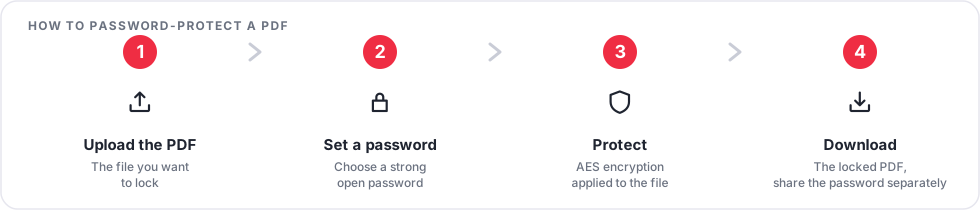
- Open the Protect PDF tool and upload your file.
- Enter a strong password. A long passphrase is easier to remember and harder to guess than a short complex string.
- Download the protected file and test it in a PDF reader.
- Send the password to the recipient through a separate channel, not in the same email as the file.
Change or remove a password
- Remove it: if you know the password, Unlock PDF produces a copy with no password. Only do this for files you own or are authorised to open.
- Replace it: Change PDF Password swaps an existing password for a new one in a single step.
Good habits
- Keep an unprotected master copy somewhere safe. If you forget the password, the file cannot be recovered.
- Do not reuse an important account password as a document password.
- A password controls who can open the file; it does not track what happens to it afterwards.
Frequently asked questions
What happens to the password I type in?
It is used only in memory for that one operation and is never logged, stored, or backed up.
Can you recover a password I have lost?
No. There is no way to retrieve or bypass a password on a file you cannot open.
Is the protected file kept on the server?
No. The upload and the result are deleted automatically a short time after processing.
Get started with Protect PDF.