
Drawing a black rectangle over a name or a number in a PDF markup tool does not remove anything. The text sits underneath the box and can be copied, searched, or revealed by deleting the shape. Proper redaction removes the content and then flattens the page so nothing is left behind.
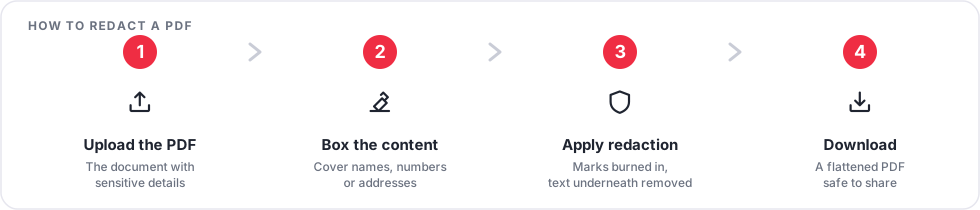
How to redact a PDF
- Open the Redact PDF tool and upload your document.
- Draw a box over each piece of information to hide: names, account numbers, addresses, signatures.
- Apply the redaction. The marked areas are painted out and the page is flattened, so the content under each box is gone from the file.
- Download the redacted PDF and check every page before you share it.
What to look for before sharing
- The same detail elsewhere. A name in a footer, a header, or a later page needs its own box.
- Metadata. The document title or author may still contain a name. Clear it with Remove PDF Metadata or Edit PDF Metadata.
- Attachments and layers. If the source file had comments or form fields, run Flatten PDF as well so nothing interactive remains.
- Copy test. Open the result, try to select and copy text from a redacted area, and confirm nothing comes through.
Frequently asked questions
Can the black boxes be removed to reveal the text?
No. After the redaction is applied the page is flattened, so the boxes are part of the page image and there is no separate text layer beneath them.
Is redaction the same as deleting a page?
No. Redaction hides parts of a page you keep. To drop whole pages, use Delete PDF Pages.
Does redaction change the rest of the document?
Only the pages you mark are flattened. Untouched pages are copied as they were.
Is my file stored?
No. The upload and the redacted file are deleted automatically a short time after processing.
Open Redact PDF to remove sensitive details properly.