
A scan comes back sideways. One page of a contract is upside down. A report mixes portrait pages with a wide financial table that will not sit the right way up. These are some of the most common problems people have with PDFs, and almost none of them need the document to be rescanned or rebuilt. Rotating the affected pages fixes the orientation and saves it into the file, so the document opens the right way up for everyone who receives it.
This guide explains what PDF rotation really does, which angle to use, how to rotate one page or every page, and when a different tool such as cropping or resizing is the right answer instead.
Quick answer
To rotate a PDF online:
- Open the Rotate PDF tool and add your file.
- Click the page thumbnails you want to turn, or tick Apply to all pages.
- Use Rotate left, Rotate right or 180° until the preview looks right.
- Click Rotate PDF & Download.
Your original file is never changed. You always get a new file back.
Watch the video guide
If you prefer to watch, this short walkthrough shows the whole job: adding a file, selecting the pages that are wrong, turning them, and downloading the corrected PDF.
Prefer to read? Everything in the video is covered below in more detail.
What does rotating a PDF mean?
Every page in a PDF carries a rotation value alongside its content: 0, 90, 180 or 270 degrees. A PDF reader draws the page content first and then turns it by that amount before showing it to you. Rotating a page changes that stored value. The text, images and vector drawings on the page are left exactly as they were.
This has two useful consequences. First, rotation is fast even on a long document, because nothing has to be redrawn. Second, the correction is part of the file, not a setting in your viewer, so the page opens the right way up in Acrobat, in a browser, on a phone and on the recipient’s computer.
It is worth separating a few ideas that are easy to mix up:
- Page rotation is the value described above. It is what this guide and the Rotate PDF tool change.
- Page orientation describes the result: portrait (taller than it is wide) or landscape (wider than it is tall).
- Rotating page content means redrawing the text and images at a new angle inside a page that keeps its size. That is a different, heavier operation and is rarely what you need.
- Page dimensions are the physical width and height, such as A4 or Letter. Rotating swaps how those dimensions are presented; it does not resize the page. To change the actual size, use Resize PDF Pages.
- Cropping trims away the outer part of a page. If the problem is a wide white border, that is a crop job, not a rotation job.
- Reordering changes the sequence of pages. Rotation never moves a page.
A simple way to picture it: page 3 of a five-page document is sideways while everything else is fine. You do not need to rebuild the document or rescan it. You turn page 3, and the other four pages are left untouched.
Why pages end up sideways or upside down
Orientation problems nearly always come from how a document was captured or exported, not from the PDF itself being broken. The usual causes:
- A sheet was fed into the scanner the wrong way round, so the page is upside down while its neighbours are correct.
- A wide document was scanned in landscape and saved into a portrait PDF, so it reads sideways.
- A phone was held sideways while photographing a page, and the scanning app kept the camera orientation.
- An automatic document feeder flipped alternate sheets, which is why upside-down pages often appear in a regular pattern.
- A spreadsheet or presentation was exported to PDF with a landscape page setup that does not match the rest of the file.
- Pages were combined from different sources, each with its own orientation.
- A file was downloaded from a portal where it had already been scanned badly by someone else.
In every one of those cases the content is intact. Only the orientation is wrong, and only the orientation needs fixing.
Who this helps
Rotation sounds like a small feature until you handle scanned paper regularly. These are the people who reach for it most.
Students
Lecture notes photographed in a hurry, assignment sheets scanned upside down, textbook pages captured sideways, project reports that mix a portrait write-up with a landscape chart. Fixing the orientation before submission means a tutor is not turning their head to read your work.
Teachers and educators
Worksheets, exam papers, classroom handouts and scanned answer sheets often arrive as a single batch from a feeder, with a few sheets the wrong way up. Correcting them once, before the file is shared with a class, saves every student the trouble.
Office employees
Scanned forms, expense receipts, signed internal documents and meeting papers. A quick rotation makes a file presentable before it goes into a shared drive or an email thread.
Businesses
Purchase orders, customer paperwork, signed agreements and business forms are frequently scanned by whoever is nearest the machine. Correct orientation is part of looking organised when a document reaches a customer or a partner.
Accountants and bookkeepers
Invoices, receipts, bank statements and tax documents arrive in every orientation imaginable, especially small till receipts photographed on a phone. Straightening them makes review and archiving far quicker.
Legal professionals
Contracts, agreements, court filings and evidence scans often have strict presentation expectations. A sideways exhibit page in an otherwise clean bundle is an avoidable distraction.
Administrative and healthcare staff
Intake forms, consent paperwork and general records are scanned in volume, so a handful of mis-fed sheets in a batch is normal. Rotation fixes those without touching the rest of the file.
Freelancers and remote workers
Client documents, signed forms and project paperwork usually travel by email. A correctly oriented PDF is one less thing for a client to comment on.
Researchers and archivists
Scanned papers, historical documents, wide tables and fold-out charts are frequently captured in landscape within a portrait document. Rotating those pages makes a long scan readable end to end.
Anyone using a phone scanner
Phone scanning is convenient, but orientation depends on how you were holding the device and whether auto-rotate was on. Mixed results in a single batch are extremely common, and rotation is the cure.
Rotation angles explained
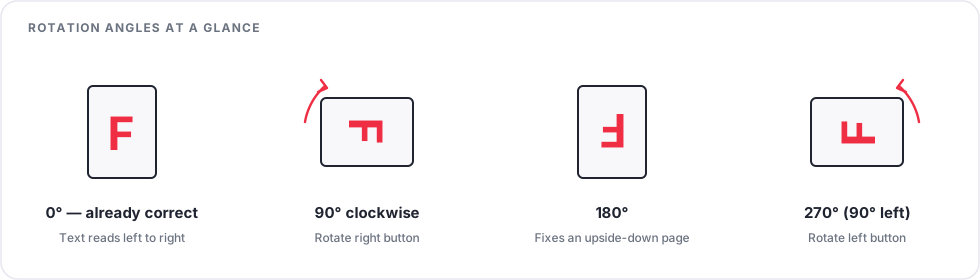
PDF rotation works in quarter turns. There are only three useful moves.
| Rotation | Button | Use it when |
|---|---|---|
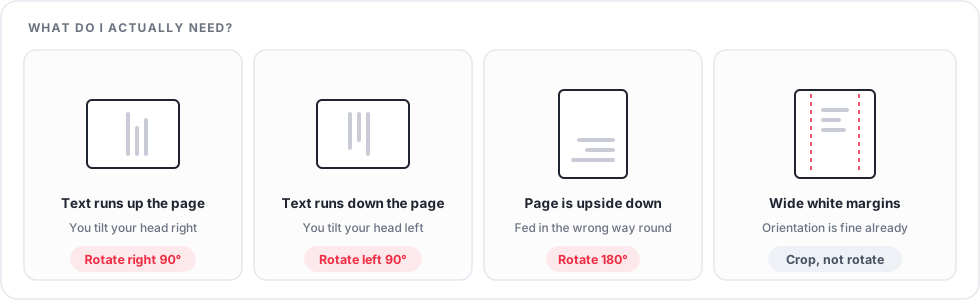
| 90° clockwise | Rotate right | The text runs up the page, so you tilt your head to the right to read it |
| 180° | 180° | The page is upside down; direction does not matter here |
| 270° clockwise (the same as 90° counter-clockwise) | Rotate left | The text runs down the page, so you tilt your head to the left to read it |
The right choice always depends on how the page looks now, not on how it was created. The quickest test is the head-tilt test: whichever way you have to tilt your head to read the page is the direction the page needs to turn.
If you pick the wrong direction, nothing is lost. Press the opposite button twice, or use Undo. Nothing is written to a file until you click the rotate button at the bottom of the screen.
How to rotate a PDF, step by step
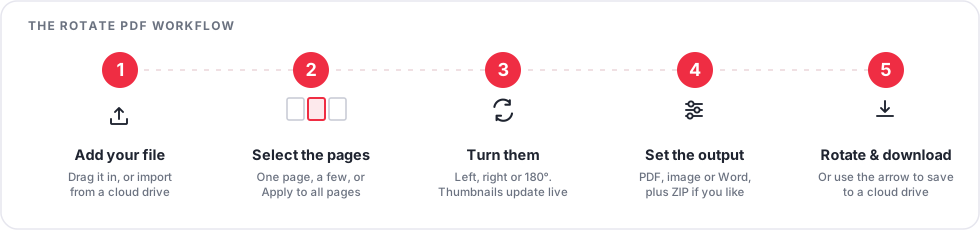
Step 1: Add your PDF
Open the Rotate PDF tool. Drag your file onto the upload box, or click Choose PDF file to pick it from your device. You can also import straight from Google Drive, Dropbox or OneDrive using the buttons under the upload box. More than one file can be added at once if you have a batch of scans to straighten.
Step 2: Let the pages load
A thumbnail is drawn for every page, right there in your browser. On a long document this takes a moment; the progress line tells you where it has got to. Once the grid is on screen you can see at a glance which pages are wrong, which is far more reliable than guessing page numbers from memory.
Step 3: Find the pages that need fixing
Scan down the grid. Each card shows its page number, so note the ones that look sideways or upside down. If most of the document is wrong, you will use Apply to all pages in a moment instead.
Step 4: Select the pages
Click a page to select it. Click more pages to add them. Hold Shift and click to select everything between two pages, which is the fast way to take a run such as pages 10 to 18. Select All and Clear Selection are in the toolbar, and the Apply to all pages tick box targets the entire document without selecting anything by hand.
Step 5: Turn the selected pages
Use Rotate left, Rotate right or 180°. The thumbnails turn immediately, so you can see the result before committing to it. Press the same button again to keep turning. L and R do the same job from the keyboard.
Step 6: Check the summary
The changes panel lists what you have set up, page by page. Read it once before you continue, especially on a long document. If something is wrong, use Undo to step back or Reset rotations to clear everything and start again.
Step 7: Set the output options
Most people leave this alone and get a PDF back. If you need images or a text-only Word file instead, or you want several files bundled into a ZIP, the options panel on the right is where you choose. There is more on this below.
Step 8: Rotate and download
Click Rotate PDF & Download. When processing finishes you get a results screen with your new file, where you can download it, rename it, preview it, or send it straight to a cloud drive. The arrow next to the button offers those destinations up front if you would rather skip the download entirely.
Step 9: Check the file you downloaded
Open the downloaded PDF in a normal reader, not just a thumbnail preview, and look at the pages you changed. This takes seconds and catches the rare case where you turned a page one click too far.
Rotating a single page
This is the most common job of all, and it is the simplest. Click that one page in the grid so it is the only page selected, then press the rotate button that matches the problem. Everything else in the document is untouched.
A worked case: a 30-page scanned contract where only page 19 is sideways, with the text running up the page. Click page 19, press Rotate right, confirm the thumbnail now reads normally, then rotate and download. Pages 1 to 18 and 20 to 30 keep exactly the rotation they already had.
Rotating several pages or the whole file
When more than one page is wrong, you have three routes depending on the pattern:
- Every page is wrong. Tick Apply to all pages, then press a direction once. This is typical of a document scanned entirely in the wrong orientation.
- A run of pages is wrong. Click the first page, hold Shift, click the last page, then press a direction. Good for pages 2 to 6, or a scanned appendix at the end of a report.
- Scattered pages are wrong. Click each one in turn to build the selection, then press a direction. Good for the alternate upside-down pages a document feeder sometimes produces.
All of these are a single operation. You do not need to process the file once per page.
Documents with mixed orientation
Some documents need different pages turned different ways in one pass. Because the rotation is stored per page, that is fine:
- Select page 6 and press Rotate right.
- Select page 7 and press 180°.
- Select pages 8 to 10 with a Shift-click and press Rotate left.
- Leave pages 1 to 5 alone, and rotate and download once.
The summary panel is worth a second look here, because this is the case where it is easiest to lose track.
One important distinction: a document that deliberately mixes portrait text pages with a landscape table is not broken. A wide table is meant to be landscape. Rotating it into portrait would make it unreadable. Only rotate a page when its content is turned the wrong way relative to the page, not because the page is a different shape from its neighbours.
Fixing scanned and phone-captured PDFs
Scanned documents are the single biggest source of rotation problems, and the reason is mechanical.
- Flatbed scanners capture whatever way the sheet was laid down. A wide page placed sideways to fit the glass becomes a sideways page.
- Automatic document feeders pull sheets in a fixed direction, so a stack loaded the wrong way round produces a whole batch of upside-down pages, and a partly reversed stack produces an alternating pattern.
- Phone scanning apps follow the camera, which follows how you were holding the device. Auto-rotate settings on a phone make this less predictable, not more.
- Camera photos converted to PDF carry the orientation that was recorded at capture time, which is not always what you see in your gallery.
Rescanning is almost never worth it. The pages themselves are usually perfectly readable, and a rotation pass takes under a minute even for a hundred-page batch. Rescanning also risks a worse capture, a different page count and a fresh round of checking.
One thing rotation will not fix: a page that is skewed, meaning tilted by a few degrees because the sheet was crooked on the glass. PDF rotation only works in quarter turns. A slightly crooked scan needs to be rescanned or straightened with a scanning app.
Real-world examples
Ten situations and what to do in each.
1. A 20-page phone scan where only page 19 is sideways
Click page 19 alone, press the direction that matches the head-tilt test, and download. Do not select everything; that would turn the 19 correct pages too.
2. A 30-page PDF where pages 5 and 6 are upside down
Click page 5, Shift-click page 6, press 180°. One pass, two pages fixed.
3. A business report with portrait text and one landscape financial table
Leave it alone if the table reads correctly when the page is wide. That is an intentional landscape page, not a mistake. Forcing every page into portrait would make the table unreadable.
4. A sideways scanned invoice
Turn it so the supplier details are at the top. An accounts team, an archive system and anyone reviewing it later all benefit, and it costs one click.
5. Handwritten notes where some pages are upside down
Load the file, click each upside-down page to build a selection, press 180° once, then download. Reviewing the thumbnails is faster than opening the file page by page.
6. A feeder batch where every second page is upside down
This is the classic double-sided scan with a reversed stack. Select the even pages by clicking them, press 180°, and the whole batch is consistent.
7. A signed agreement where the last page came back sideways
Fix it before you send the file on. A signature page is the one page a counterparty will definitely open.
8. Three documents being combined, one of which is sideways
Rotate that document first, then merge. See the section below for why the order matters.
9. A scanned exam paper with a landscape answer grid in the middle
Rotate only the grid page so it reads as landscape on screen. Students scrolling through it will not have to turn their laptop.
10. A research PDF with a fold-out chart captured sideways
Turn that page alone. The surrounding text pages stay exactly as the publisher set them.
Output options: PDF, images, Word and ZIP
The options panel controls what comes back to you.
- PDF is the default and what almost everyone wants. Pages are copied as they are, with the new orientation recorded.
- Image (JPG or PNG) renders each page as a picture, honouring the rotation you set. Useful for a slide, a chat message or a web page. Pick PNG for sharp text and line art, JPG for photographic scans and smaller files.
- Word (DOCX) extracts the text only. It is there for when you need to edit the words, not to reproduce the layout.
- Compression / Quality applies to image output. For PDF output nothing is recompressed, so the setting has no effect on quality.
- Preserve bookmarks keeps the clickable outline of a long document intact.
- Create ZIP file bundles the results into one archive. It is switched on for you when a job produces several files, such as multiple input files or one image per page.
The preview button next to the main action shows exactly which files a job will produce before you run it, which is worth a look the first time you use image output on a long document.
Rotate vs crop, resize, merge, split and compress
Rotation is often blamed for problems it cannot solve. This table maps the symptom to the right tool.
| Problem | What to use |
|---|---|
| A page is sideways | Rotate PDF |
| A page is upside down | Rotate PDF |
| Only page 5 is wrong | Rotate PDF, page 5 selected |
| Pages 2 to 6 are sideways | Rotate PDF, Shift-click the range |
| White margins are too wide | Crop PDF |
| Pages are the wrong physical size | Resize PDF Pages |
| Several files need to become one | Merge PDF |
| One file needs to become several | Split PDF |
| Pages are in the wrong order | Reorder PDF Pages |
| Pages need removing | Delete PDF Pages |
| The file is too large to email | Compress PDF |
| You need the content in another format | PDF to JPG or PDF to Text |
The two that get confused most often are rotation and cropping. If turning your head makes the page readable, it is a rotation. If the page reads fine but there is too much empty space around the content, it is a crop.
Rotate before or after merging?
Say you are combining three documents: A is correct, B is sideways, and C is correct.
Rotating B first is usually the better order. You are working with a small file, the pages that need attention are obvious, and the merged result is correct the moment it is created. If the merged file then goes straight to a client or a portal, there is no second step to forget.
Merging first and rotating afterwards makes sense when you do not yet know which pages are wrong, or when several documents each have a page or two out of place. One pass over the combined file is quicker than opening three files separately, and the page grid shows you every problem in one view.
Either order produces the same result. Pick whichever means less handling for the files you actually have.
Rotating PDFs before printing
Orientation and printing interact in ways that surprise people. A print driver has its own portrait and landscape setting, and most readers also offer scaling or auto-rotate options in the print dialog. A correctly rotated PDF gives the printer the right starting point, but it does not override what you choose in that dialog.
Practical advice:
- Fix the orientation in the file first, so the print preview reflects the real document.
- Always look at the print preview before sending a mixed-orientation document to a printer.
- If a landscape page prints cropped, check the scaling option in your reader rather than rotating the page again.
- For double-sided printing, get the orientation right first, since a wrong page will be wrong on both sides of the sheet.
Rotating PDFs before sharing
Once a file leaves your computer you have no control over how it is opened. A recipient might use Acrobat, a browser tab, a phone, a document management system or a government portal, and not all of them let the reader turn a page for viewing. Some portals reject or flag documents that are not oriented correctly.
It is worth a rotation pass before sending anything through email, WhatsApp, Microsoft Teams, Google Drive, OneDrive, a client portal or an official submission system. It costs a minute and removes an easy reason for a document to be sent back.
Does rotating reduce quality?
Rotating a PDF changes the orientation recorded for each page. The page content is not re-rendered, so text stays selectable and searchable, images are not re-encoded, and vector drawings stay sharp at any zoom. In practice that means:
- Text is unchanged, including any searchable layer from OCR.
- Images keep their original resolution.
- Page content is not moved, cropped or scaled.
- File size stays broadly the same. Rotation is not a compression step, so use Compress PDF if you also need a smaller file.
One exception worth knowing: if you choose image output instead of PDF, the pages are rendered into pictures. That is a conversion, and the quality setting then matters. Leave the format on PDF if you want the document to stay a document.
Privacy and file handling
Files are processed on the server and then removed. The upload and the rotated file are deleted automatically a short time after processing, and the results screen shows a countdown so you know how long your download link stays valid. Download your file before that timer runs out; after it expires the link no longer works and you would need to run the job again.
Full details are in the Privacy Policy.
As a general habit with any online service, think about the document before you upload it. For routine paperwork, scans and reports an online tool is a sensible choice. For material that is genuinely confidential, such as documents under a strict client or regulatory obligation, make sure the handling described in the privacy policy fits the rules you work under.
Before and after checklists
Before you rotate
- Note which pages are affected, and which way each one is turned.
- Check whether a page is genuinely sideways or simply a landscape page that belongs that way.
- Decide whether the whole document or only some pages need turning.
- Confirm the problem is orientation and not wide margins, which needs cropping.
- Keep the original if the document matters. You always get a new file, but a copy costs nothing.
After you rotate
- Open the downloaded file in a normal PDF reader.
- Check each page you changed, not only the first one.
- Confirm the text reads normally without tilting your head.
- Check that images and tables are the right way up too.
- Confirm the page order and page count are unchanged.
- Look at any landscape pages you deliberately left alone.
- Preview it before printing, and open it once more before sending it on.
Common problems and fixes
The downloaded PDF still looks sideways
Check you are looking at the new file rather than the original, which usually sits next to it in your downloads folder with a similar name. Then confirm the page you checked is one you actually selected. If both are right, open the file in a different reader to rule out a preview that ignores stored rotation.
Only one page is wrong. Do I have to rotate the whole document?
No. Select that one page. Rotating everything would turn the pages that were already correct.
The page is upside down. Which button?
180°. Two presses of rotate left or rotate right gets you to the same place if you prefer.
It rotated the wrong way
Press the opposite direction twice, or use Undo. If you already downloaded the file, run it through again; nothing is damaged by rotating twice.
My PDF has both portrait and landscape pages. Can I keep both?
Yes. Rotation is stored per page, so a document can mix orientations freely. Only turn the pages whose content is wrong.
The preview looked right but the download looks wrong
Make sure the job finished and you downloaded the new file, then reopen it in a full reader. Some thumbnail previews in file managers cache an old image; opening the file properly usually settles it.
It looks correct in one viewer and wrong in another
A few simple viewers and image previews ignore the rotation value stored in the page. Acrobat, mainstream browsers and standard operating system viewers all respect it, so treat those as the reference.
A page I selected did not rotate
The most likely cause is that the selection changed before you pressed the direction. Check the changes summary, which lists every page you have set up, and reselect if needed.
More pages rotated than I expected
Usually Apply to all pages was still ticked, or a Shift-click picked up a wider range than intended. Use Reset rotations and build the selection again.
My page has large white margins after rotating
Rotation does not add space; the margins were already there, and turning the page made them more noticeable. Trim them with Crop PDF.
The page is only slightly tilted
That is skew, not rotation. PDF rotation moves in quarter turns only, so a few degrees of tilt has to be corrected when scanning.
Can I rotate a scanned PDF?
Yes. Scanned pages are the most common thing people rotate, and the process is identical.
Can I rotate a large PDF?
Yes. Rotation itself is light work. On a very long document the thumbnails take longer to draw, but that is a display step, not the rotation.
The file will not upload
Check that it is a PDF and that it is within the size limit shown on the page. A password-protected file has to be unlocked first with Unlock PDF. A damaged file may need Repair PDF.
Frequently asked questions
What does rotating a PDF mean?
It changes the orientation stored for a page, so the page is displayed turned by 90, 180 or 270 degrees. The content on the page is not altered.
How do I rotate a PDF online?
Open the Rotate PDF tool, add your file, select the pages that need turning, press a direction, then click Rotate PDF & Download.
Can I rotate only one page?
Yes. Click that page in the grid so it is the only one selected, then rotate. Every other page keeps its current orientation.
Can I rotate several pages at once?
Yes. Click each page you want, or hold Shift and click to take a whole run, then press a direction once.
What does a 90-degree rotation do?
It turns the page a quarter turn. Rotate right is 90 degrees clockwise and fixes a page whose text runs up the sheet.
When should I use 180 degrees?
When the page is upside down. Direction does not matter at 180 degrees, so there is only one button.
What is 270-degree rotation for?
It is the same as 90 degrees counter-clockwise, which is the rotate left button. Use it when the text runs down the page.
Can I rotate a scanned PDF?
Yes, and it is the most common use. Scanned pages rotate exactly like any other page.
Does rotating a PDF reduce quality?
No. Rotation records a new orientation rather than re-rendering the page, so text and images are untouched. Choosing image output instead of PDF is a conversion and is a different matter.
Does rotation change the content of my PDF?
No. Text stays selectable, images keep their resolution, and nothing is moved or resized.
Can I keep portrait and landscape pages in the same file?
Yes. Orientation is per page, so a document can mix both. Only turn the pages that are actually wrong.
Should I rotate before merging?
Rotating first is usually easier when you already know which document is wrong. Merging first works well when you want to review everything in one page grid.
Can I rotate a PDF after merging?
Yes. Run the merged file through the rotate tool and fix whichever pages need it.
Is rotating the same as cropping?
No. Rotating turns the page; cropping trims the edges. Wide white margins are a cropping job.
Is rotating the same as resizing?
No. Resizing changes the physical page dimensions, such as moving to A4. Rotation leaves the dimensions alone.
Can I rotate a PDF on my phone?
Yes. The tool runs in a mobile browser, so you can fix a phone scan on the same device that produced it.
Do I need to install software?
No. Everything happens in your browser and on the server, with no desktop application to install.
Why is my PDF still sideways after rotating?
Check you opened the new file rather than the original, and that the page you are looking at was one you selected. If it still looks wrong, open it in a different reader.
Is my uploaded file stored permanently?
No. The upload and the rotated file are deleted automatically a short time after processing. The results screen shows how long your link stays valid. See the Privacy Policy.
Can I rotate one page in a very long document?
Yes. Find it in the page grid, select it, and rotate. Document length makes no difference to the result.
Can I rotate more than one file at a time?
Yes. Add several files and set the rotations for each. When a job produces more than one file the results arrive together in a ZIP.
Does rotating change my original file?
No. The original is never modified. You always get a new file back.
Related PDF tools
- Crop PDF — trim wide margins or a scanner edge.
- Resize PDF Pages — change the physical page size.
- Merge PDF — combine several documents into one.
- Split PDF — break one document into several.
- Reorder PDF Pages — put pages in the right sequence.
- Delete PDF Pages — remove pages you do not need.
- Compress PDF — reduce the file size for email.
Final takeaway
A sideways or upside-down page is a presentation problem, not a broken document. The content is intact, and rotating the affected pages saves the correct orientation into the file so it reads properly everywhere it is opened. You do not need to rescan, retype or rebuild anything. Select the pages that are wrong, turn them until the preview looks right, and download the corrected file.
About this guide: it explains how PDF page rotation works in general and how each option in the PDFCherry Rotate PDF tool behaves.
Ready to straighten your pages?
Add your file, turn the pages that are wrong, and download a PDF that opens the right way up.
Try the Rotate PDF tool