
Need to change a PDF to grayscale online? Upload the PDF, choose Grayscale or Black & white, check the preview, convert, and download the new file. It is free, needs no account, and your original file is never changed.
This guide shows exactly what you will see at each step, how to choose between grayscale and true black and white, and what to do if something goes wrong.
Convert Your PDF Now
- Upload your PDF: drag it onto the box or select Choose PDF.
- Choose Grayscale or Black & white: the preview shows the result.
- Convert: select Convert PDF and wait a moment.
- Download: select Download PDF.
PDF files only, up to 50 MB. Works in current versions of Chrome, Edge, Firefox and Safari, on a computer or phone.
Watch the Video
Prefer to watch it? This video walks through changing a PDF to grayscale online, from uploading the file to downloading the result.
The written guide below covers the same steps, plus grayscale vs black and white, error messages and troubleshooting in more detail.
Quick Answer
How do I change a PDF to grayscale online? Open the Change PDF to Grayscale tool, upload your PDF, choose Grayscale, and check the preview. Select Convert PDF, wait for “Your PDF is ready!”, then select Download PDF. Your original file stays unchanged, and text stays selectable while Keep text selectable is on.
How do I convert a PDF to black and white, not grayscale? Upload the PDF and choose Black & white instead of Grayscale. Every pixel becomes pure black or pure white, with no gray shades. For a scan with a gray or yellowed background, choose High-contrast black & white. Then convert and download.
What the Grayscale PDF Converter Does
It takes a colour PDF and makes a new PDF without the colour. You can:
- Convert colour pages to grayscale: every colour becomes a shade of gray.
- Turn a PDF black and white: every pixel becomes pure black or pure white.
- Convert only some pages: pages you don’t choose stay exactly as they were, in colour.
- Preview first: compare the original and converted page side by side before you convert.
The result is still a normal PDF that opens in any PDF reader. A new file is created for you to download; your original is not modified.
What to expect, honestly
- Grayscale with Keep text selectable on (the default) changes the colours directly, so text stays selectable and searchable and lines stay sharp. A few pages may use colour effects that can’t be changed this way, such as colour gradients. Those pages are converted as gray images instead, and the result tells you how many.
- Black & white modes, and Grayscale with Keep text selectable off, turn each converted page into an image. Text on those pages can no longer be selected or searched.
- The file size can go up or down. Pages turned into images are often larger than text. The result screen shows the original and new size so you can compare.
- The preview is a close approximation drawn at screen resolution. The downloaded file uses the resolution you choose.
Grayscale vs Black and White PDF: What Is the Difference?
People often use the two words for the same thing, but they produce very different files.
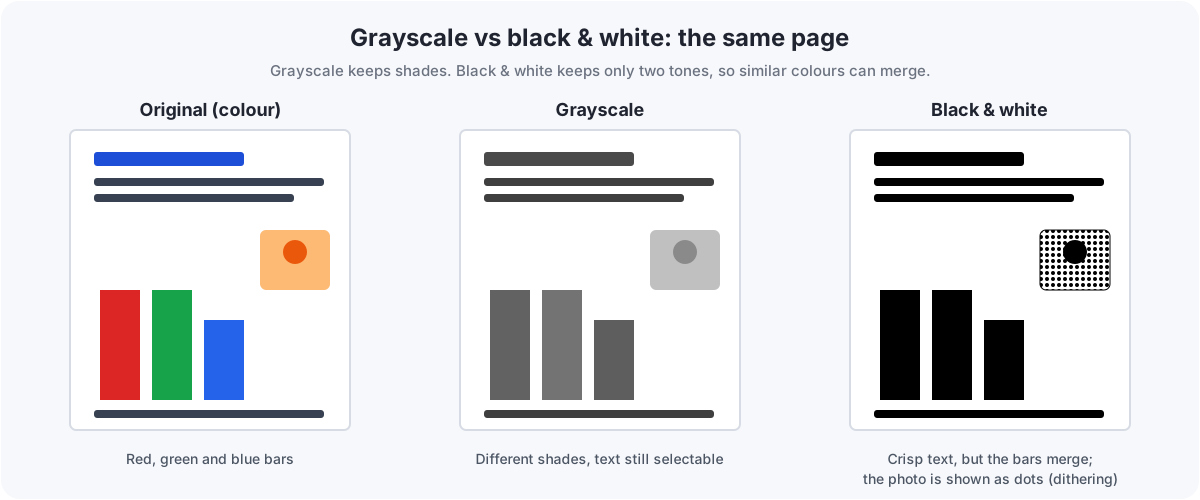
| Feature | Grayscale | Black & white |
|---|---|---|
| Tones used | Black, white and up to 256 shades of gray | Only pure black and pure white |
| Photos and screenshots | Keep their detail | Lose most detail; dithering shows shading as dots |
| Charts with several colours | Colours become different grays (some may look alike) | Colours often merge into the same black |
| Plain text | Clear | Very crisp and high contrast |
| Text stays selectable | Yes, with Keep text selectable on | No, pages become images |
| Best for | Photos, slides, reports, scanned photos | Text documents, forms, faxing, two-tone printing |
Can I convert a PDF to black and white, not grayscale, online?
Yes. The tool has two true black and white modes, separate from Grayscale:
- Black & white: picks the point that splits ink from paper on each page automatically. You can turn off Automatic threshold and set it yourself, and turn on Dithering so photos appear as a pattern of dots instead of solid black.
- High-contrast black & white: for scans and photocopies. It stretches the contrast and whitens the paper before converting, so a gray or uneven background comes out clean.
So if a portal or printer asks you to convert a PDF to black and white, not grayscale, choose one of these two modes rather than Grayscale.
How to Change a PDF to Grayscale Online, Step by Step
Step 1: Upload your PDF
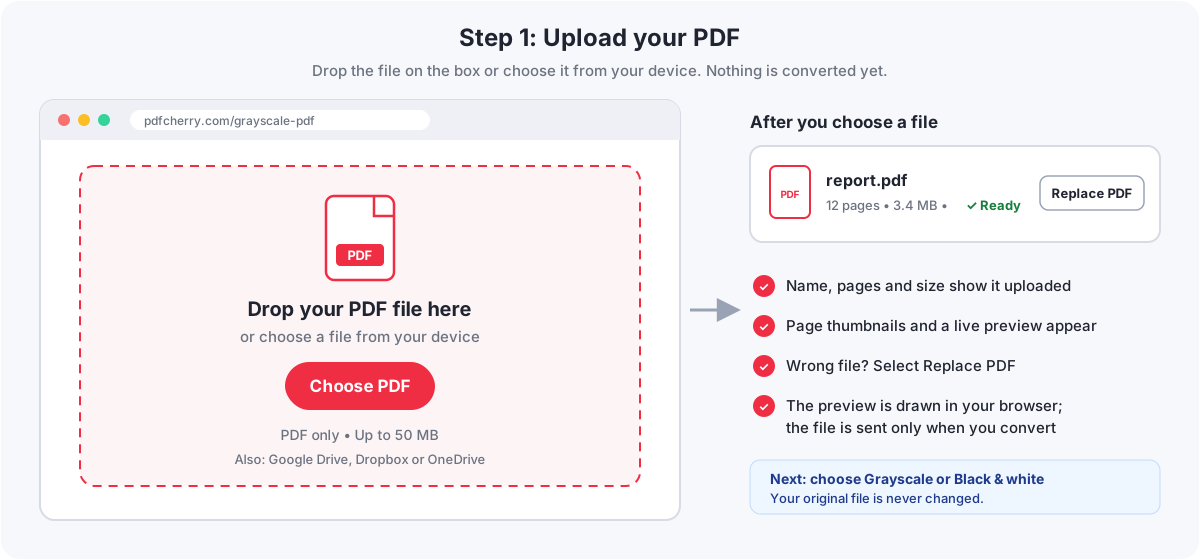
- Open the Change PDF to Grayscale page.
- Drag your file onto Drop your PDF file here, or select Choose PDF and pick it. You can also import from Google Drive, Dropbox or OneDrive where those buttons are shown.
- Only PDF files are accepted, up to 50 MB each.
Your browser reads the file straight away to count the pages and draw thumbnails. Nothing is converted, and the file is not sent anywhere, until you choose to convert.
Step 2: Choose Grayscale or Black & white
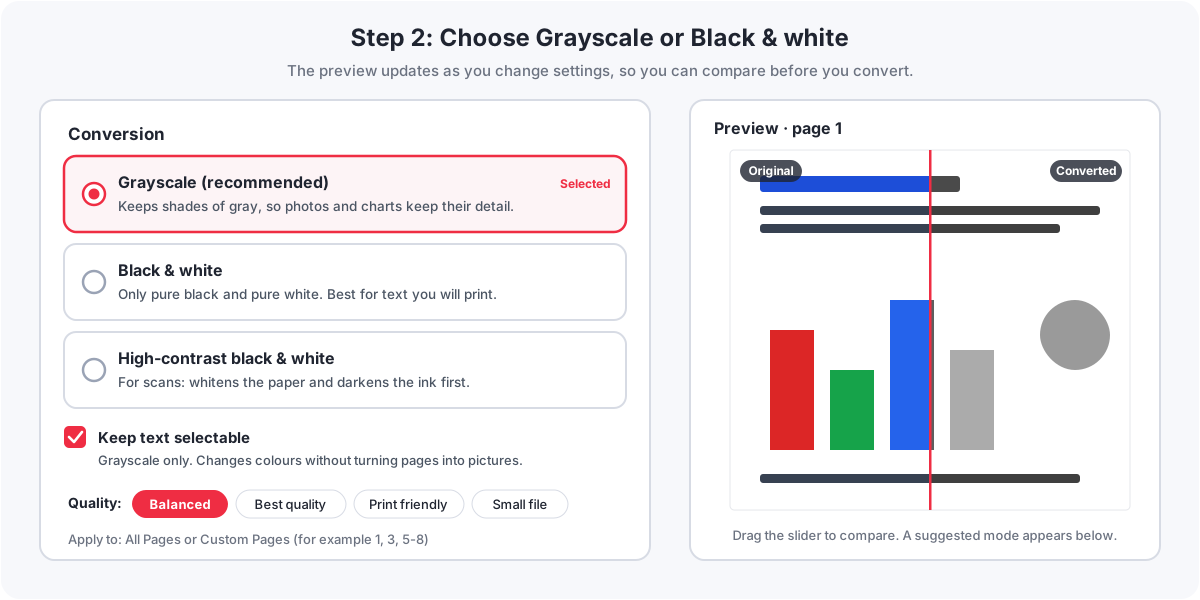
- Conversion: Grayscale (recommended), Black & white, or High-contrast black & white.
- Keep text selectable (Grayscale only): leave it on unless you specifically want every page flattened into an image.
- Quality: Balanced suits most files. Best quality uses 300 DPI, Print friendly 200 DPI, and Small file 96 DPI with stronger compression. These mainly affect pages converted as images.
- Apply to: All Pages, or Custom Pages such as
1, 3, 5-8. Under the preview, Convert only this page picks the page you are looking at. - Advanced settings (optional): resolution, brightness, contrast, background cleanup, and for Black & white the threshold and dithering.
Click a page thumbnail to preview it. Drag the slider to compare original and converted, or switch to Side by side. Under the preview you will see a suggested mode for that page; it is only a suggestion, and Use this applies it if you agree.
Step 3: Start the conversion
Select Convert PDF & Download. A short summary of your settings appears; select Convert PDF to start, or Go Back & Review to change something. Keep the page open until the conversion finishes.
Step 4: Review the result
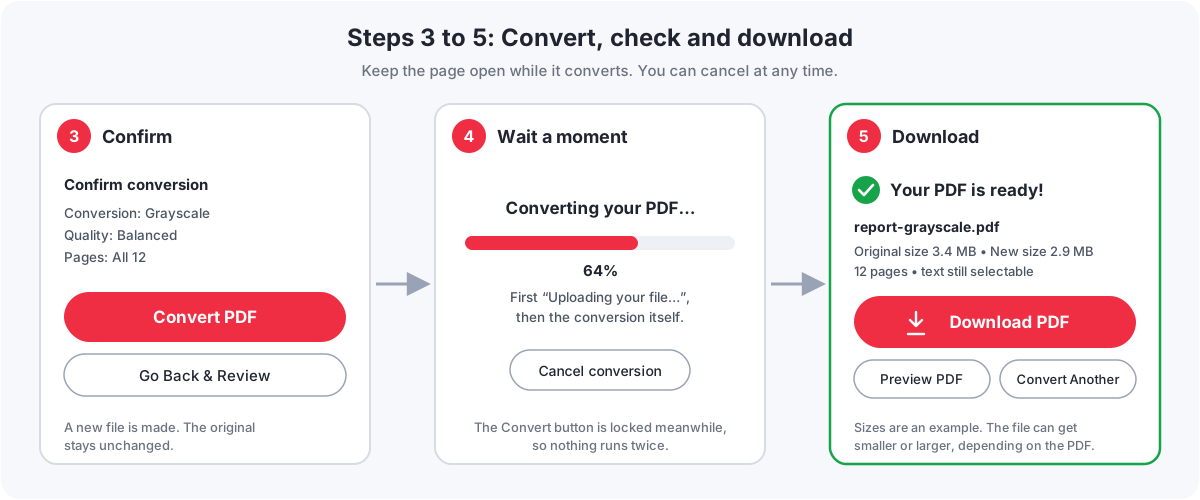
When it is done you see “Your PDF is ready!” with the new file name (for example report-grayscale.pdf or report-black-white.pdf), the original and new size, the page count, and a summary of what was converted. Preview PDF opens the finished file so you can check it before downloading.
Step 5: Download
Select Download PDF. You can also save it to Google Drive, Dropbox or OneDrive, copy a download link, email it or print it. Your original PDF is untouched, so you now have both versions.
What You See After You Upload
How do I know my PDF uploaded successfully? A file bar shows the file name, number of pages, size and ✓ Ready. Page thumbnails appear, and the preview shows page 1.
What should I click next? Choose a conversion mode, glance at the preview, then select Convert PDF & Download. The step note above the workspace always tells you which step you are on.
What if I uploaded the wrong PDF? Select Replace PDF to pick another file, or the × button to remove it. Nothing has been converted yet, so there is nothing to undo.
Can I change settings after uploading? Yes, as many times as you like before converting. Reset puts every setting back to the default.
What Happens While It Converts
- “Uploading your file…” Your PDF is sent over an encrypted connection. The percentage shows how much has been sent.
- “Converting your PDF…” The server converts the pages you chose. Then it reopens the new file to check that it opens and has every page; if that check fails, you get an error instead of a broken file.
- “Your PDF is ready!” The download screen appears.
While it runs, the convert button is locked so the same file is not processed twice. Large files, or many pages converted as high-resolution images, take longer. If you change your mind, select Cancel conversion: your file and settings stay on screen so you can adjust and try again.
When the Conversion Finishes
The result screen is built so you never have to hunt for the download:
- Download PDF is the main button.
- Original size, new size and change show whether the file got bigger or smaller.
- Result summary lists the mode, quality, how many pages were converted, whether text was kept selectable, the resolution used for any image pages, and that other pages were left unchanged.
- Change settings and run it again goes back to the workspace with the same file, for example to try Black & white instead.
- Convert Another PDF starts over with a new file.
Download soon. Converted files are deleted automatically, normally within 60 minutes. If the link has expired, just convert the file again.
If Something Goes Wrong
Every message says what happened and offers a next step. Your original file is never changed by a failed conversion.
| What you see | Why it happens | What to do |
|---|---|---|
| “Please upload a PDF file.” | The file is a different type, such as a Word file or image. | Choose a PDF. To convert a Word file or image first, use the matching PDF tool. |
| “This PDF is larger than 50 MB.” | The file is over the size limit. | Select Compress a PDF first, or split it with Split PDF and convert the parts. |
| “This PDF is password-protected.” | The PDF needs a password to open or edit. | Use Unlock PDF (you need the password), then upload the unlocked copy. |
| “We couldn’t read this PDF.” | The file may be damaged, incomplete or protected. | Download it again, or fix it with Repair PDF, then retry. |
| “This PDF has no pages.” | The file is empty. | Check you picked the right file and choose another. |
| “Upload failed. Check your internet connection and try again.” | The connection dropped while sending. | Select Try Again once your connection is back. |
| “We couldn’t finish this PDF.” | The conversion failed, or a page range was not valid, for example page 9 of an 8-page file. | Read the detail under the title, correct the page range if mentioned, and select Try Again. If it keeps failing, repair the PDF first. |
| “Preview isn’t available in this browser.” | An old browser can’t draw PDF pages. | Use a current version of Chrome, Edge, Firefox or Safari. |
| “Conversion cancelled.” | You selected Cancel conversion. | Your file and settings are still there. Select Try Again when ready. |
Large, Scanned, Image-Heavy and Password-Protected PDFs
Large PDFs
The limit is 50 MB per file. Bigger files can be reduced with Compress PDF or divided with Split PDF. Long documents simply take a little longer; the progress bar keeps moving while the work continues.
Scanned PDFs
A scan is already a picture of each page, so you can convert a scanned PDF to grayscale or black and white without losing anything you could select before. For scans with gray, yellowed or shadowy paper, try High-contrast black & white, or Grayscale with Background cleanup in the advanced settings. Neither makes scanned text searchable; that needs OCR, which is a separate step.
Image-heavy PDFs
Choose Grayscale to keep photo detail. If you need black and white anyway, turn on Dithering so shading appears as dots rather than solid patches. For smaller files, pick the Small file quality.
Password-protected PDFs
These can’t be converted directly. If you know the password, remove it with Unlock PDF, convert the unlocked copy, and add protection again afterwards if you need it.
Fillable forms and links
On pages that become images, form fields are flattened into the picture, so they can no longer be filled in. Fill the form first, or use Grayscale with Keep text selectable on.
Is the Original PDF Affected? Privacy and Security
- Your original file is never modified. The converted PDF is always a new, separate file.
- The preview happens in your browser. Your PDF is uploaded only when you start the conversion.
- Uploads use an encrypted HTTPS connection, and each job is processed in its own folder on our server.
- Files are deleted automatically, normally within 60 minutes of processing.
- No account is needed, so no personal details are attached to your file.
As with any online service, don’t upload documents you are not allowed to share with a third party. The Privacy Policy has the full details.
When to Choose Grayscale or Black and White
Common reasons to change a PDF to grayscale online are printing without colour ink, making a printer-friendly copy, cleaning up scanned forms, meeting a portal that asks for monochrome PDFs, and removing distracting colour from a document.
| Choose Grayscale when… | Choose Black & white when… |
|---|---|
| The PDF has photos, screenshots or shaded graphics | The PDF is mainly text |
| Charts use several colours that must stay distinguishable | You need strong, crisp contrast for printing or faxing |
| You want text to stay selectable and searchable | A form or portal asks for black and white specifically |
| You want a natural-looking print | Image detail does not matter |
For scans with a dull or uneven background, choose High-contrast black & white. Still unsure? Upload the file and check the suggestion under the preview, then compare both modes with the slider before converting.
On a Phone, With a Keyboard or a Screen Reader
- Phones and tablets: select Choose PDF to open your phone’s file picker; on iPhone, PDFs are usually in the Files app. On narrow screens the settings and preview stack into one column that fits the screen width, so you don’t need to zoom. Downloaded files go to Downloads on Android or Files on iPhone.
- Keyboard: every option is a standard button, radio button or checkbox, so Tab moves between them and Space or Enter selects. In dialogs, Enter confirms and Esc closes; ? opens the help panel.
- Screen readers: the current step and status hints are announced as they change, buttons have descriptive labels, and errors appear as alerts written in text, not shown by colour alone.
Troubleshooting Checklist
If the conversion isn’t working, work down this list:
- ✓ Make sure the file really is a PDF (the name ends in
.pdfand it opens in a PDF reader). - ✓ Check whether it asks for a password; if so, unlock it first.
- ✓ Check the size is under 50 MB.
- ✓ If you chose Custom Pages, check the pages exist in the file.
- ✓ Check your internet connection, then select Try Again.
- ✓ Try a current version of a different browser.
- ✓ If the PDF may be damaged, run it through Repair PDF, or export a fresh PDF from the original program, and retry.
- ✓ Text not selectable in the result? Use Grayscale with Keep text selectable on.
- ✓ Result too large? Choose Small file or a lower resolution, or compress the result.
Frequently Asked Questions
How do I change a PDF to grayscale online?
Open the Change PDF to Grayscale tool, upload your PDF, choose Grayscale, check the preview and select Convert PDF. When “Your PDF is ready!” appears, select Download PDF. It is free and needs no account.
Can I convert a PDF to black and white instead of grayscale?
Yes. Choose Black & white, or High-contrast black & white for scans. Both produce only pure black and pure white, with no gray shades.
What is the difference between grayscale and black and white?
Grayscale keeps shades of gray, so photos and charts keep detail. Black and white uses only two tones, which prints crisply but can lose light details and make different colours look the same.
Does converting change my original PDF?
No. A new file is created and your original stays exactly as it was. If you convert only some pages, the other pages in the new file are also unchanged.
Can I convert a scanned PDF to grayscale?
Yes. For scans with a gray or yellowed background, High-contrast black & white or the Background cleanup option usually gives a cleaner page. Conversion does not make scanned text searchable.
Can I convert a password-protected PDF?
Not directly. If you know the password, remove it with Unlock PDF first, then convert the unlocked copy.
Will grayscale reduce the PDF file size?
Not always. Removing colour from photos can make a file smaller, but pages converted as images are often larger than text. The result screen shows the original and new size. Choose Small file if size matters most.
Will text still be selectable after converting?
In Grayscale with Keep text selectable on, yes, except on any pages the result lists as converted as images. In both black and white modes, pages become images and text is no longer selectable.
Can I convert only some pages?
Yes. Choose Custom Pages and enter pages or ranges such as 1, 3, 5-8, or select Convert only this page under the preview.
What is the largest PDF I can convert?
50 MB per file. Compress or split larger PDFs first.
Is it safe to upload a PDF?
The file is sent over an encrypted connection, processed in its own folder and deleted automatically, normally within 60 minutes. No account is needed. Avoid uploading documents you are not permitted to share with an online service.
Why did my PDF conversion fail?
Usually the file is password-protected, damaged, over 50 MB, or the page range does not exist in the file. The error message says which, and offers the next step, such as Unlock PDF or Repair PDF.
Summary
To change a PDF to grayscale online, upload it, choose Grayscale, check the preview, convert and download. Choose Black & white when you need true two-tone pages, and High-contrast black & white for scans. Your original file is never changed, and you can always run the conversion again with different settings.
Ready to Convert Your PDF?
Free, no sign-up, and you can preview the result before you convert.
Change PDF to Grayscale