
Scan a stack of double-sided paper on a scanner that only reads one side at a time, and you usually get all the front sides first, then all the back sides second — one PDF where the pages are not in reading order at all. This guide covers how to extract odd or even pages from a PDF, and how to put a duplex-scanned document like that back into the right order using nothing but a browser.
Everything below uses the PDFCherry Extract Even/Odd Pages tool. You upload a PDF, choose whether you want the odd-numbered pages or the even-numbered pages, and download a new file containing only that set, in their original order.
Quick Answer
Open Extract Even/Odd Pages, upload your PDF, choose Odd or Even, then download the result. Page 1 always counts as odd, and the pages you keep stay in their original relative order — nothing is reordered, only some pages are removed.
Watch the Video
Prefer to see it first? This video walks through extracting odd or even pages from a PDF, from upload to download.
The written steps below cover the same ground, plus the parts a video cannot show as easily: what each summary number means and two full real-world workflows built on top of the same extraction.
What Does It Mean to Extract Odd or Even Pages?
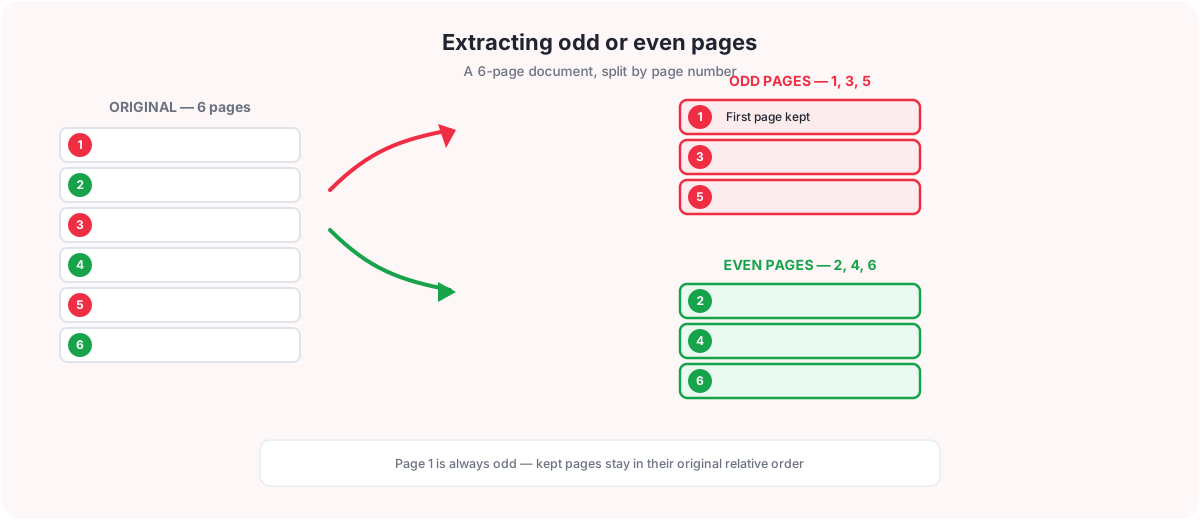
PDF pages are numbered starting at 1, the same way a PDF reader shows them in the page counter at the bottom of the screen. That numbering is what odd and even refer to here — page 1 is always odd, page 2 is always even, and so on, alternating all the way to the end of the document. There is no separate concept of odd and even specific to this tool; it is simply ordinary 1-based page numbering.
Take a plain 6-page document as an example:
- Odd pages: 1, 3, 5
- Even pages: 2, 4, 6
Extracting the odd pages produces a new 3-page PDF containing pages 1, 3 and 5, in that order. Extracting the even pages produces a different new 3-page PDF containing pages 2, 4 and 6, in that order. Either way, the pages you keep are not reshuffled — they simply drop the pages of the other parity and keep the rest exactly where they were relative to each other.
How to Extract Odd or Even Pages from a PDF
The process is short, whichever set you need.
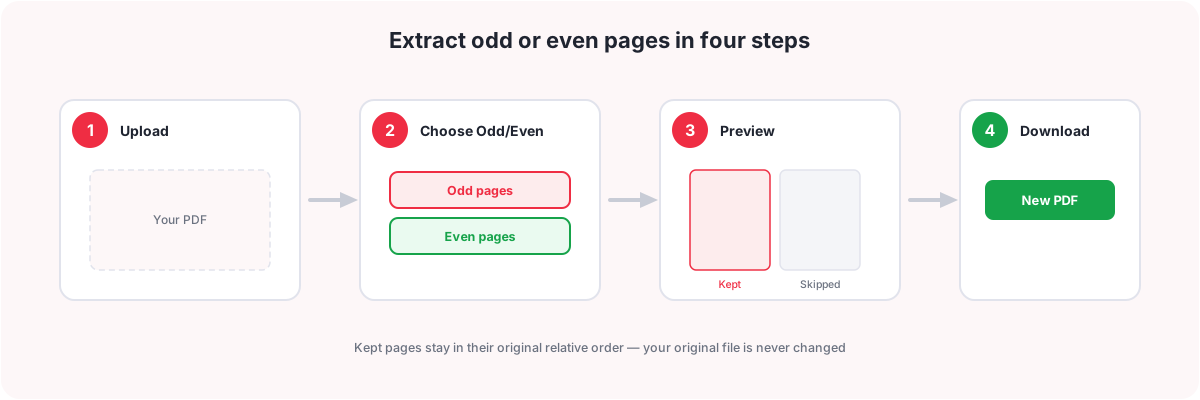
- Upload your PDF. Open Extract Even/Odd Pages and drag your file onto the upload box, or choose it from your device.
- Choose Odd or Even. Under Keep, pick the Odd pages pill or the Even pages pill for whichever set you want to keep.
- Check the live preview and the Extraction Summary. The pages that match your choice are highlighted and marked Kept right in the page grid, so you can see at a glance whether you picked the parity you actually meant — it is an easy thing to get backwards on the first try. Alongside the grid, the Extraction Summary panel spells out the total page count, which parity you are keeping, how many pages will be kept versus left out, and the exact kept page numbers, all before you commit to anything. A Preview file button is also available if you want to look at the source PDF itself first.
- Download the result. A new PDF is built containing only the pages you chose, in their original order. Your uploaded file is left untouched.
That is the whole job for a single extraction. If you need both sets — for example to work on the front sides and back sides of a scan separately, or to prepare a two-pass print job like the one described further down — run the tool twice: once choosing Odd, once choosing Even, saving each result as its own file.
Fixing a Duplex-Scanned PDF (Fronts and Backs Scanned Separately)
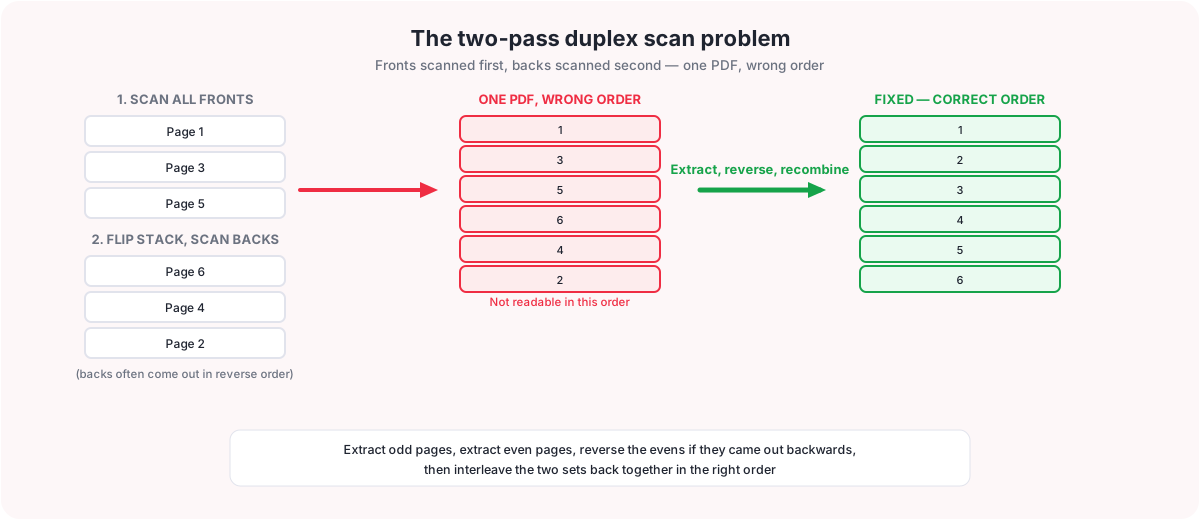
This is the single most common reason people go looking for an odd/even page tool in the first place, so it is worth walking through in full. Many scanners — especially simple flatbed or single-pass sheet-fed scanners — cannot scan both sides of a page in one pass. A common workaround is to scan a whole stack of double-sided paper twice: once for all the front sides, then the stack is flipped over and scanned again for all the back sides. Sometimes those two scans are saved as one combined PDF, and because the stack was physically flipped before the second pass, the back sides frequently come out in reverse order compared with the fronts.
The result is a single PDF where the pages are not in reading order: for a 6-page original document you might end up with something like fronts 1, 3, 5 followed by backs 6, 4, 2 — readable page by page only if you know the pattern, and useless if you try to read it straight through or send it to someone else.
Here is how to put a file like that back into the correct order using PDFCherry, combining three tools:
- Extract the odd pages. Open Extract Even/Odd Pages, upload the scanned PDF, choose Odd, and download the result. This gives you a PDF of just the front-side pages (or just the back-side pages, depending on which pass ended up in the odd positions), in the order they appear in the combined file.
- Extract the even pages. Run the tool again on the same original file, this time choosing Even, and download that result too. You now have two separate PDFs.
- Reverse one set if it came out backwards. If the back-side pages were scanned in reverse order, open Reverse PDF Pages on that file and flip it so its pages run in the same forward direction as the front-side file.
- Recombine the two sets in the correct order. Open Alternate & Mix PDF Pages, which takes one page from the first file, one page from the second, and repeats that pattern until both files are used up. Feed it the fronts file first and the (now correctly ordered) backs file second, and the result is a single PDF with every page back in its true reading order.
Which set to treat as fronts and which as backs, and whether the reverse step is needed, depends on exactly how your scanner or scanning workflow produced the file — check the first few pages of each extracted set against the physical document to confirm before recombining. Once the pattern is confirmed for one document from a given scanner, the same steps apply to every other document scanned the same way.
Printing Double-Sided on a Single-Sided Printer
The duplex-scan fix above starts from a document that is already scanned and needs to be put back in order. This section covers the opposite, equally common situation: you have a normal, correctly-ordered PDF and want a double-sided printout, but your printer has no automatic duplexer — it can only print one side of a sheet per pass. Extract Even/Odd Pages is exactly the tool for prepping that two-pass print job, and the process needs no other feature beyond the odd/even split this guide already covers.
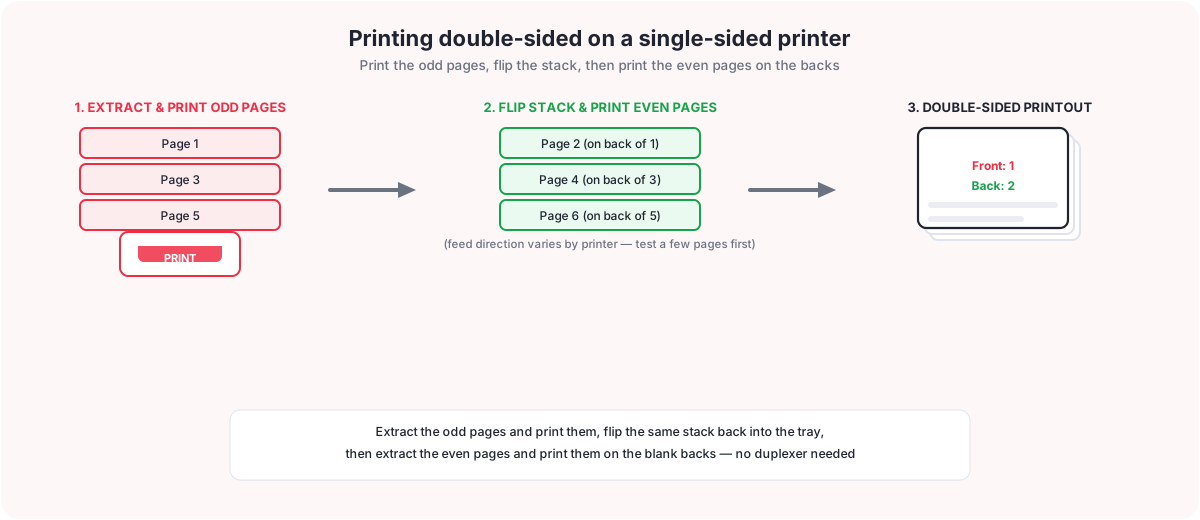
- Extract the odd pages and print them first. Open Extract Even/Odd Pages, upload your document, choose Odd, download the result, then print that file from your PDF viewer as you normally would. Page 1 lands on the first sheet, page 3 on the second sheet, and so on.
- Flip the same stack of paper and reload it into the printer. Take the sheets that just came out of the printer and put them back into the paper tray so the printer will print on the blank side this time.
- Extract the even pages and print them on the backs. Run the tool again on the same original file, choose Even, download that result, and print it onto the flipped stack. If everything lines up, page 2 ends up on the back of page 1, page 4 on the back of page 3, and so on — a fully double-sided printout with no duplexer required.
The one detail that varies from printer to printer is exactly how the stack needs to be flipped and reordered for the second pass — face-up or face-down, same order or reversed — because that depends on which direction your specific printer feeds paper from the tray. Before committing a whole document, it is worth running a short 2-3 page test through both passes so you can see how your printer handles it, then repeat the same flip for the full print job with confidence.
Troubleshooting
| Problem | Why it happens | Solution |
|---|---|---|
| Extracted the wrong parity by mistake | Odd and Even are easy to mix up, especially under time pressure. | Just run the tool again on the original file with the other choice selected. The original file was never changed, so there is nothing to undo. |
| The back-side pages came out in reverse order | The stack was physically flipped before the second scanning pass, which often reverses the order the back sides are captured in. | Use Reverse PDF Pages on the extracted set before recombining it with the other set. |
| Need the odd and even sets put back together afterward | Extracting splits a document into two files; recombining them into one readable document is a separate step. | Use Merge PDF to simply join the two files one after another, or Alternate & Mix PDF Pages to interleave them page by page back into their original reading order. |
| The second print pass came out upside down or on the wrong side | Every printer feeds paper from the tray a little differently, so the flip that works for one printer can be backwards or rotated on another. | Print a short 2-3 page test of both passes first. If pages come out rotated, fix the even set with Rotate PDF before printing it, or use Reverse PDF Pages if the sheets need to feed back in the opposite order. |
| The file will not upload — password protected | The PDF is locked with a password, which blocks processing. | Remove the password first with Unlock PDF, then upload the unlocked copy. |
| The file will not upload — too large | The file is over the size limit. | Shrink it first with Compress PDF, then upload the smaller copy. |
Frequently Asked Questions
Does page 1 count as odd or even?
Page 1 always counts as odd, the same way a PDF reader numbers pages. Page 2 is even, page 3 is odd, and so on, alternating for the rest of the document.
Can I extract both the odd and even pages separately?
Yes. Run the tool once choosing Odd and save the result, then run it again on the same original file choosing Even and save that result too. You end up with two separate PDFs.
Does extracting odd or even pages change the page order?
No. The pages you keep stay in the same relative order they had in the original document. Extraction only removes pages of the other parity, it does not reorder anything.
Can I recombine the odd and even pages afterward?
Yes. Use Merge PDF to join the two files one after another, or Alternate & Mix PDF Pages to interleave them page by page, which is the right choice when you are putting a duplex-scanned document back into its correct reading order.
Can I use this on a scanned PDF?
Yes. Scanned pages are ordinary PDF pages as far as this tool is concerned, and this is in fact the tool’s most common use case — separating or recombining the fronts and backs of a duplex scan.
Can I use this to print a document double-sided if my printer does not support duplex printing?
Yes. Extract the odd pages, print them, flip the stack back into the tray, then extract and print the even pages onto the backs. See the printing section above for the full walkthrough — the exact flip depends on your printer, so test a few pages first.
Is the original file changed?
No. The file you upload is left exactly as it was. You always get a new, separate PDF back.
Is extracting odd or even pages free?
Yes. Extract Even/Odd Pages is free to use and does not require creating an account.
Can I use this tool on mobile?
Yes. The tool runs in your browser on desktop, tablet, or phone, with nothing to install.
What if my scanner produced the back-side pages in reverse order?
This is common with a two-pass duplex scan, since the stack is physically flipped between passes. Extract the even (or odd) set that holds the back sides, then use Reverse PDF Pages on that file before recombining it with the fronts — see the duplex-scan section above for the full workflow.
Can I see exactly which page numbers will be kept before I download?
Yes. Once your file is uploaded and you have chosen Odd or Even, the Extraction Summary panel lists the total page count, how many pages will be kept, how many will be left out, and the exact kept page numbers, so you can double-check before extracting.
Is there a file size limit?
Yes, there is a per-file size limit. If your PDF is larger than that, shrink it first with Compress PDF, then upload the smaller copy.
Are my uploaded files kept or deleted?
Uploaded files and the result are deleted automatically a short time after processing. Nothing is stored longer than needed to build your file.
What happens if my PDF has no odd or no even pages to extract?
A one-page PDF, for example, has only an odd page and no even pages. If you choose the parity that does not exist in your document, the tool tells you there is nothing to extract rather than producing an empty file.
What to Do Next
Once you have your odd or even pages, you may want one more step:
- Extract Even/Odd Pages to pull the other parity into its own file
- Reverse PDF Pages to flip a set that came out backwards
- Alternate & Mix PDF Pages to interleave two sets back into reading order
- Merge PDF to join files one after another instead of interleaving them
- Extract PDF Pages to pull specific page numbers rather than by parity
- Split PDF to break a document into separate files another way
- Delete PDF Pages to remove specific pages you no longer need
You May Also Like
Ready to Extract Odd or Even Pages?
Upload your file, choose Odd or Even, and download. Free, with no sign-up.
Extract Odd or Even Pages Now