
Most people land here with one small job: a long PDF, and only a few pages of it actually matter. A single invoice out of a statement. One chapter out of a textbook. The signature page of a contract. Here is the short version first, then the detail.
Extract pages from a PDF in 5 steps
- Open Extract PDF Pages and upload your file.
- Look through the page thumbnails.
- Click the pages you want to keep. They turn red and get a tick.
- Click Extract Pages & Download.
- Check the new PDF and save it.
It is free, it runs in your browser, and your original file is never touched — you always get a new PDF back.
Watch how it works
If you would rather see it than read it, this runs through the whole job end to end.
Step by step, with pictures
1. Upload the PDF
Drag the file onto the box, or click Choose PDF. You can also pull it straight from Google Drive, Dropbox or OneDrive. Up to 20 files at a time, 50 MB each.
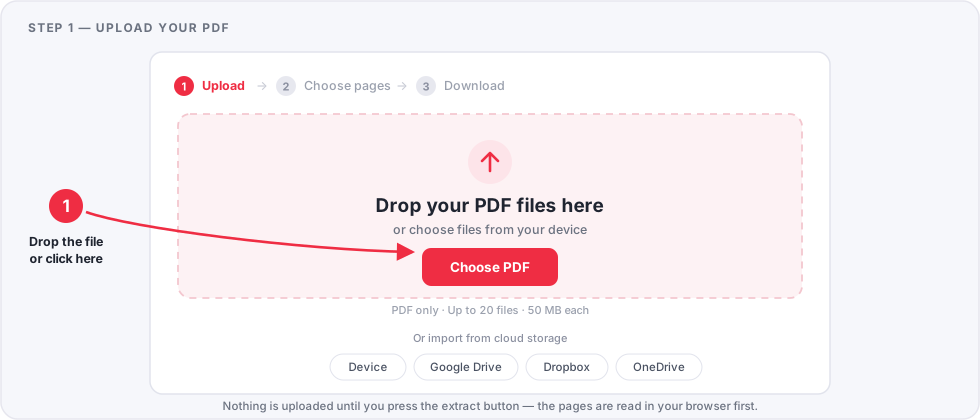
The pages are read in your browser to build the thumbnails, so you see the whole document before anything is sent anywhere.
2. Click the pages you want to keep
Every page appears as a thumbnail. Click one and it is selected; click it again and it is not. The counter and the green bar at the bottom always tell you exactly where you stand.
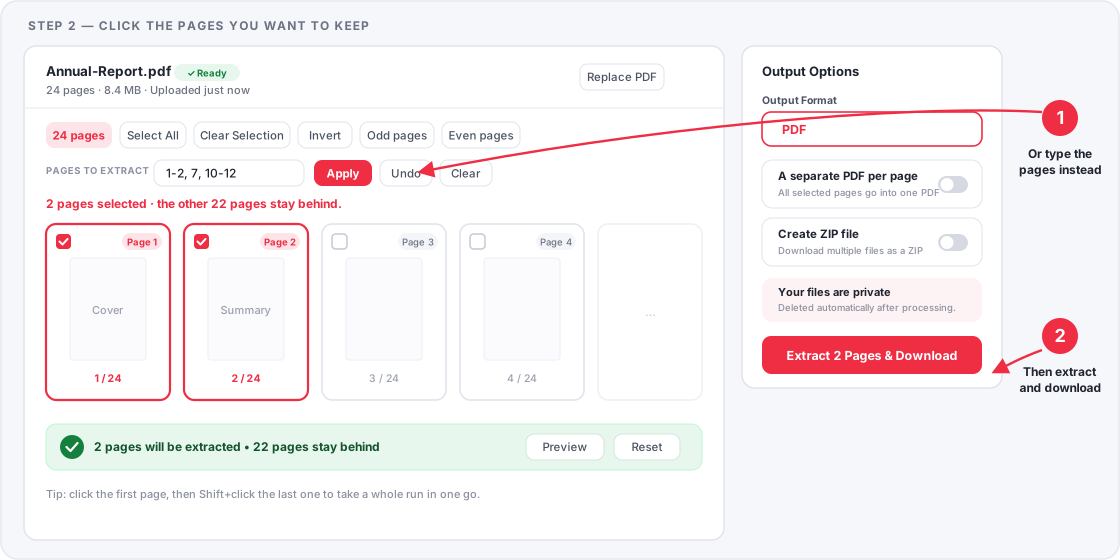
This is the bit people get backwards. You are choosing what to keep, not what to remove. If you want to throw a few pages away and keep the rest, Delete PDF Pages is the quicker tool — or select what you want here and press Invert.
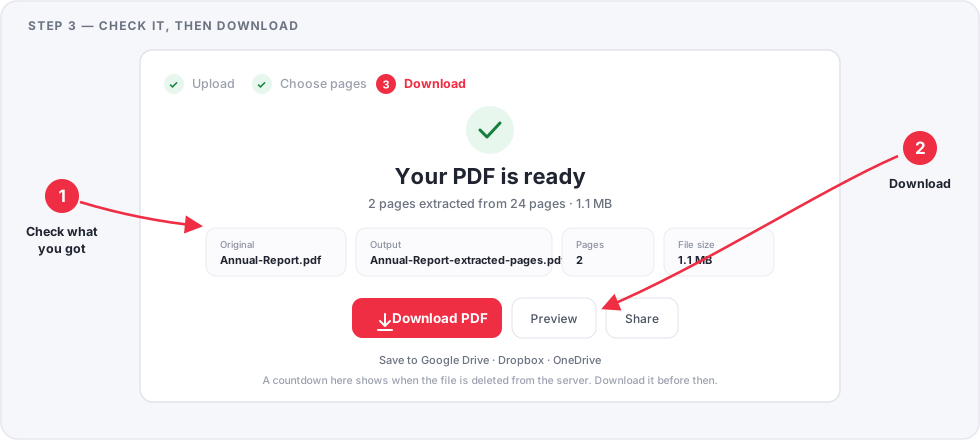
3. Extract and download
Press the red button. It tells you what it is about to do — Extract 2 Pages & Download — so there are no surprises. A moment later you get the finished file.
Four ways to choose pages
Different jobs want different methods. All four do the same thing underneath, so mix them freely.
- Click them. Best for a handful of scattered pages.
- Shift+click. Click the first page, hold Shift, click the last. The whole run between them is taken in one go.
- Type them. Put a list in the Pages to extract box —
1-3, 5, 7-9— and press Apply. The grid updates to match, so you can still see what you asked for. - Use a shortcut button. Select All, Clear Selection, Invert, Odd pages and Even pages sit along the top.
Got it wrong? Undo steps back one change at a time, and Clear starts the selection again. Nothing is built until you press the extract button.
The most common jobs, solved
| What you want | Fastest way |
|---|---|
| Just page 5 | Click page 5. That is the whole job. |
| Pages 1 to 10 | Click page 1, then Shift+click page 10. |
| Pages 2, 7, 12 and 20 | Click each one, or type 2, 7, 12, 20 and press Apply. |
| Every odd page | Press Odd pages. |
| Everything except the last two | Click the last two, then press Invert. |
| Each page as its own file | Select the pages, then turn on A separate PDF per page. |
One PDF, or one file per page?
By default every page you pick goes into a single new PDF, in its original order. Two settings in Output Options change that:
- A separate PDF per page gives you one file for each page you selected — handy when you are splitting receipts or certificates apart.
- Create ZIP file bundles the results into one download. When there is more than one file to send, this switches on by itself, because a browser can only save one file at a time.
What order do the pages come out in?
Original document order, always. If you pick pages 10, 3 and 7, the new PDF holds 3, 7, 10 — not the order you clicked them in. That is what nearly everyone expects, and it means a stray click cannot quietly scramble a document.
If you do need a different order, extract first, then open the result in Reorder PDF Pages and drag the pages where you want them.
Does extracting reduce the quality?
No. The pages you pick are copied across as they are, so text stays selectable and searchable, images keep their resolution, and links inside the kept pages keep working. It is a copy, not a re-render or a screenshot.
The new file is usually much smaller than the original, simply because it holds fewer pages. If you need it smaller still, run it through Compress PDF afterwards.
What happens to your file
Worth knowing before you upload anything personal:
- The upload travels over an encrypted HTTPS connection.
- Your original is never modified. Extraction reads it and writes a separate new file.
- Both files are deleted from the server automatically a short time after the job finishes. The result screen shows a live countdown telling you exactly how long you have.
- No account, no email address, no sign-up.
On a phone or tablet
It works the same way in a mobile browser — there is no app to install. The page grid reflows to fit the screen, the thumbnails stay big enough to tap accurately, and the selected count and extract button follow you down the page so you can act on them without scrolling back up.
Big PDFs
Thumbnails are drawn only as they scroll into view, so a long document does not lock up your browser while it loads. With a few hundred pages, typing the range in the Pages to extract box is usually faster than hunting for thumbnails — and if the file is over 50 MB, run it through Compress PDF first.
When something goes wrong
The tool says the PDF is password-protected
A PDF with an open password cannot be read until it is unlocked. Use Unlock PDF with the password, then come back and extract from the unlocked copy.
It says my page numbers do not exist
The numbers in the box are the PDF page positions, counting from 1 — not the numbers printed on the page. A report whose body starts at printed page 1 may well have a cover and a contents page before it, so printed page 1 could be document page 3. The thumbnails show the true positions.
I got the wrong pages
Nothing was changed, so there is nothing to undo. Press Extract more pages on the result screen to go back to the same document with your selection intact, fix it, and extract again.
The download did not start
Check whether your browser blocked it, then press Download PDF again. If the countdown has already run out, the file has been deleted from the server — upload the original and extract once more.
Related guides and tools
- How to Extract Pages from a PDF — the short reference version of this guide.
- Delete PDF Pages — when you want to drop a few pages and keep the rest. Guide: Delete a Page from a PDF Free.
- Split PDF — when you want to break one document into several files. Guide: Online Split PDF.
- Merge PDF — to join your extracted pages onto another document.
- Reorder PDF Pages — to put the pages in a different order afterwards.
Frequently asked questions
Is extracting pages really free?
Yes. There is no charge, no sign-up, no watermark on the result and no daily limit on how many PDFs you can work with.
Can I extract pages that are not next to each other?
Yes. Click any pages you like — page 2, page 7 and page 20 is perfectly fine — or type them as a list such as 2, 7, 20. They all land in one new PDF.
Can I extract just one page?
Yes. Click that single page and press the extract button. You get a one-page PDF containing exactly that page.
Can I save every page as its own file?
Yes. Turn on A separate PDF per page in Output Options. Each selected page becomes its own PDF and they arrive together as a ZIP.
Does my original PDF get changed?
No. Extraction only reads the file you uploaded and writes a new one. The original on your computer is untouched.
Will the extracted pages come out in the order I clicked them?
No — they keep their original document order. To arrange them differently, extract first and then use Reorder PDF Pages.
Can I preview the pages before extracting?
Yes. The thumbnails are the real pages of your document, and the Preview button shows what the finished file will contain before you commit to it.
Does this work on a phone?
Yes, in any current mobile browser. Nothing to install, and the layout adapts to the smaller screen.
What is the largest PDF I can use?
Up to 50 MB per file, and up to 20 files at a time. If yours is bigger, shrink it first with Compress PDF.
Can I extract pages from a password-protected PDF?
Not directly — the file has to be readable first. Remove the password with Unlock PDF, then extract from the unlocked copy.
What happens to my file after I download it?
Your upload and the result are both deleted from the server automatically a short time after processing. The countdown on the result screen tells you how long is left.
Ready to pull out the pages you need?
Upload your PDF, click the pages you want, and download them as a new file. Free, no sign-up, nothing to install.
Extract pages from a PDF