
A scanned page with a dark border down one side, a document exported with an inch of white space around every edge, or a PDF that just looks too small and floaty on screen — the fix for all three is the same. This guide covers how to crop a PDF, step by step, using nothing but a browser, and answers the questions people usually have once they start: can you crop only certain pages, does cropping actually delete anything, and does it make the file smaller.
Everything below uses the PDFCherry Crop PDF tool, which shows a live preview of exactly what will be trimmed from every page before you download anything.
Quick Answer
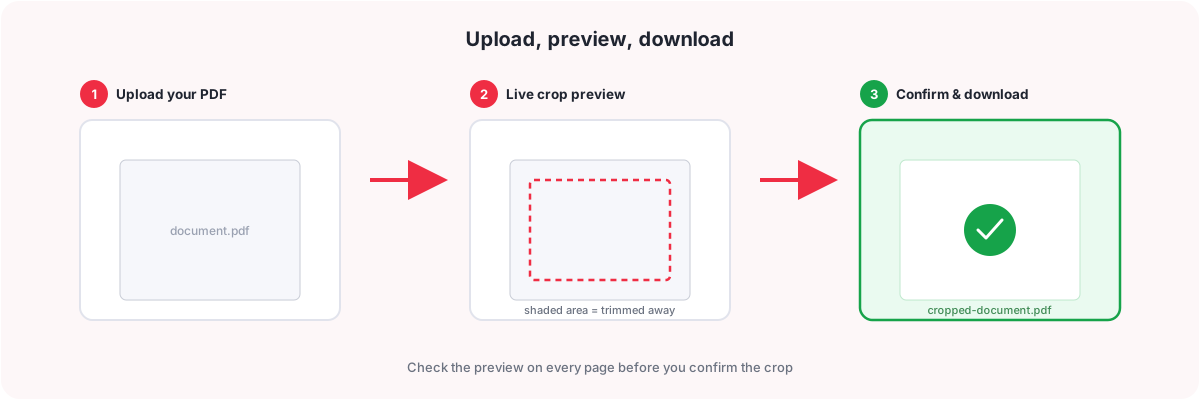
- Open Crop PDF and upload your file.
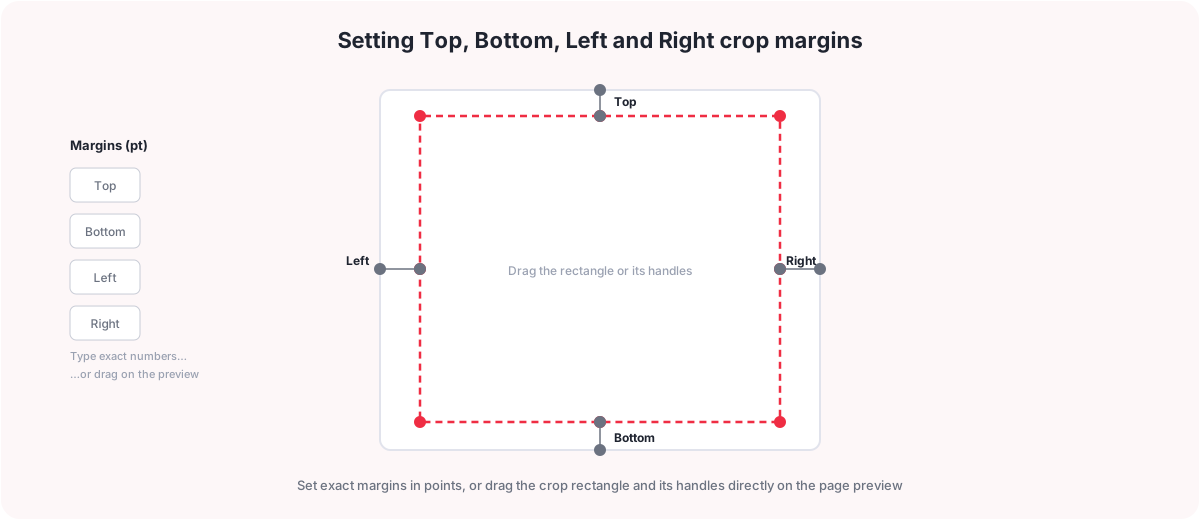
- Set the margins to trim — type exact Top/Bottom/Left/Right numbers, or drag the crop rectangle directly on the page preview.
- Check the live preview on each page so you know exactly what will be hidden.
- Confirm the crop.
- Download the cropped PDF.
One thing worth knowing before you start: cropping changes what is visible on the page — it does not necessarily delete the underlying content outside the crop area.
Watch the Video
Prefer to see it first? This video shows how to crop a PDF online from upload to download, including setting margins and previewing the result before you confirm.
The written steps below cover the same ground, plus the parts a video cannot show easily: what actually happens to the page behind the crop, and how to handle scanned or uneven pages.
What Does It Mean to Crop a PDF?
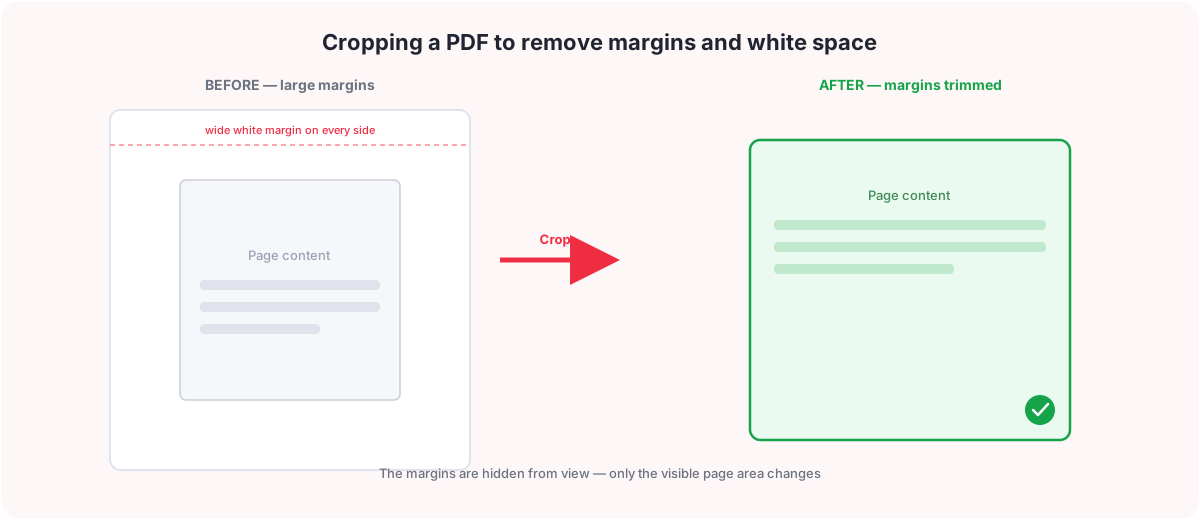
Cropping a PDF means changing the visible page area — the part of the page a viewer or printer actually shows — without touching the page’s underlying content. In PDF terms, every page has a full page size (its media box) and, separately, a crop box that can be set smaller than the full page. When you crop a PDF, a tool shrinks that crop box by the margins you choose, and viewers display only what falls inside it.
That is a genuinely different operation from deleting content. The text, images, and layout of the page are still there in the file; the crop box just tells a viewer which rectangle of the page to show. This is worth being precise about, because it is the single most common misunderstanding people have about cropping: trimming away white space or a scanner border is not the same as erasing whatever used to be in that area, and how strictly any given viewer, printer, or downstream tool respects the crop box can vary. If you genuinely need content gone rather than hidden, cropping is not the tool for that job — see the comparison further down.
Why Would You Need to Crop a PDF?
- Large margins. A document exported from a word processor or design tool sometimes carries wide, unused white space around every edge.
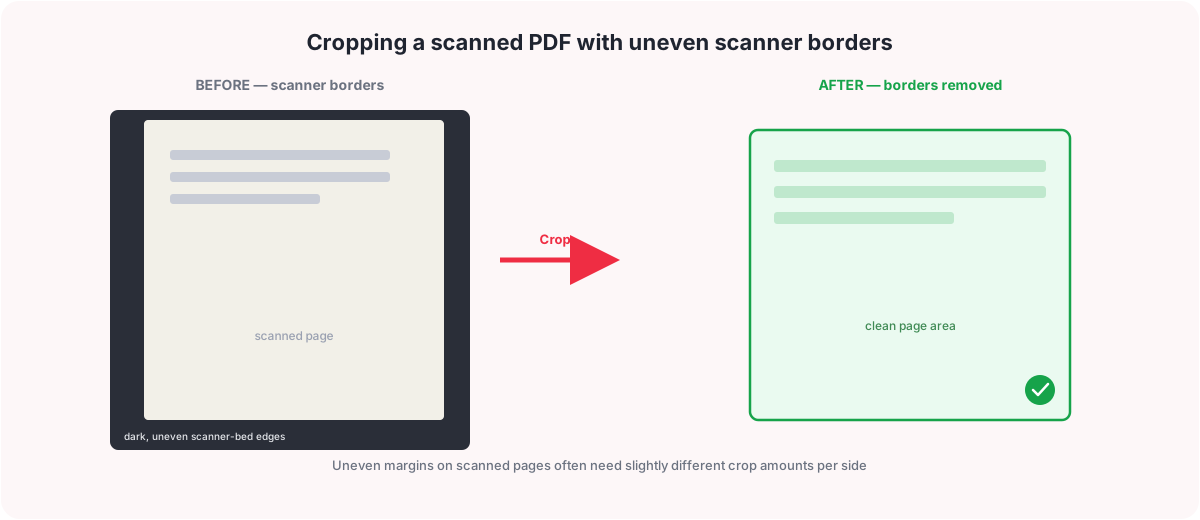
- Scanner borders. Flatbed and sheet-fed scanners often pick up a dark or grey band along one or more edges of the page.
- Cleaning up scans. Beyond borders, scans can include stray marks, shadows, or the edge of a scanner bed that were never part of the original document.
- Consistency across pages. Pages scanned or exported at slightly different times can end up with mismatched margins; cropping brings them back in line.
- Presentation and readability. Trimming excess space around the content can make a page feel less empty and easier to read on screen.
- Removing empty space. A page with one paragraph and a lot of surrounding blank area often reads better cropped tighter around the actual content.
- Print preparation. Some print workflows expect content positioned closer to the edge of a defined trim area rather than centred in a much larger page.
- Uneven individual pages. Occasionally only one or two pages in an otherwise fine document have an odd margin or border that needs fixing on its own.
How to Crop a PDF Online Using PDFCherry
Follow these steps in order. The whole job runs in your browser, with no software to install.
Step 1: Upload your PDF
Open Crop PDF and drag your file onto the upload box, or press Choose PDF to browse for it. You can also pull the file in from Google Drive, Dropbox, or OneDrive instead of saving it to your device first.
Step 2: Set the crop
You have two ways to set the crop, and you can mix them:
- Numeric margins. Type exact Top, Bottom, Left, and Right values in points into the margin fields (72pt = 1 inch, about 28.3pt = 1cm). This is the precise option when you know exactly how much to trim — for example, if the left side has scanner space, increase the left margin until the preview shows it fully trimmed.
- Drag on the preview. The large focused page preview shows a crop rectangle with resize and move handles directly on the page image. Click and drag an edge or corner to pull the crop line in visually, or drag inside the rectangle to move the whole selection. This works with a mouse and also responds to touch, so you can drag the crop area on a phone or tablet screen just as you would with a mouse on desktop.
Above the preview, the Pages control lets you choose All Pages to apply the same margins everywhere, or Custom Pages to type a page list or range (like 1,3,5-7) so only those pages are cropped.
Step 3: Preview the crop
As you type margins or drag the rectangle, a shaded overlay on the preview shows exactly what will be trimmed away, page by page. Use the page navigation to step through the document and confirm the crop looks right on pages other than the one currently shown — this matters most for scanned documents, where borders are rarely identical from page to page.
Step 4: Confirm and download
Once the preview looks right, confirm the crop. The tool builds a new PDF with the updated crop box on every affected page and shows a results screen with a download button, an in-browser preview, and options to save straight to Google Drive, Dropbox, or OneDrive. Your original uploaded file is never modified — cropping always produces a separate, new file.
Can You Crop Only Certain PDF Pages?
Yes. There are two ways to limit a crop to specific pages, depending on what you need:
- Same crop, custom pages. With Same crop for all pages selected as the crop scope, switch Pages to Custom Pages and enter a list or range like
1,3,5-7. One set of margins is applied only to the pages you named; every other page is left exactly as it was. - Crop pages individually. Switch the crop scope to Crop pages individually and every page gets its own, completely independent crop rectangle. Step through the filmstrip of thumbnails — pages that already have a custom crop set are marked, so you can see at a glance which ones you have adjusted. Set a crop on one page, and if several other pages need the exact same trim, use Copy this crop to all pages to apply it everywhere in one action, or Copy to other pages… to apply it to just a specific list. Reset this page clears a single page back to uncropped without affecting any other page.
The per-page mode is genuinely useful for real-world documents: a scan where only the cover page has extra scanner border, or a mixed batch where a handful of pages came out with different margins than the rest, without forcing one uniform crop onto pages that do not need it.
Does Cropping a PDF Delete the Content?
No — cropping and deleting are two different operations. Cropping sets a smaller crop box on the page so a viewer shows less of it; the page’s underlying content stream, including whatever sits outside the new crop area, is left in place by the tool. Whether that hidden area is easily recoverable depends on the PDF’s structure and on whatever software later opens or processes the file, so treat cropping as hiding, not guaranteed permanent removal, if the surrounding content is sensitive.
| Cropping a PDF | Deleting content | |
|---|---|---|
| What changes | The visible crop box on the page | The actual text, images, or pages themselves |
| What happens to the rest | Hidden from view, not necessarily removed from the file | Permanently removed from the document |
| Best for | Margins, white space, scanner borders, framing | Sensitive content, whole unwanted pages |
If you need to permanently remove entire pages rather than trim margins, use Delete PDF Pages instead.
Does Cropping a PDF Reduce File Size?
Not on its own. Cropping changes the visible area of a page, not how the page’s images and content are encoded, so the file size after cropping is usually about the same as before. If your goal is a smaller file rather than (or as well as) a tighter visible area, run the result through Compress PDF afterward.
Crop PDF vs Resize PDF vs Trim PDF vs Delete PDF Pages
These four terms get used loosely and it helps to pin down what each one actually means:
| Term | What it does |
|---|---|
| Crop | Hides the margin area outside a chosen rectangle by shrinking the page’s visible crop box. Page dimensions in the file metadata effectively shrink to the cropped area, but the original content is not rescaled or deleted. |
| Resize | Changes the actual page dimensions, typically by scaling the whole page (and its content) up or down to a new paper size, such as converting A4 pages to Letter. |
| Trim | In everyday use, people usually mean the same thing as crop — trimming white space or margins off the edges of a page. |
| Delete pages | Removes entire pages from the document, rather than changing what is visible on the pages that remain. |
To remove whole pages instead of trimming margins, use Delete PDF Pages.
How to Crop a Scanned PDF
Scanned documents bring their own set of problems: dark or grey scanner-bed borders, uneven edges from a page sitting slightly crooked on the glass, shadows near the spine of a bound original, unusually large margins compared to the printed content, and sometimes a mix of page sizes in the same batch. A few practical steps for cropping scans well:
- Zoom into the preview on a few representative pages first, so you can see exactly how far the border or shadow extends before setting any numbers.
- Start with a moderate margin on the worst-affected side rather than guessing an aggressive crop straight away.
- If the borders are uneven from page to page, switch to Crop pages individually instead of forcing one crop onto every page.
- Use Copy this crop to all pages once you find settings that work for the majority of pages, then fine-tune just the outliers.
- Watch the corners as much as the edges — scanner shadows often creep in diagonally rather than as a straight band.
- Before downloading, check that no text or image content near the edge of any page gets cut off by the crop you have set.
How to Crop a PDF Without Adobe Acrobat
You do not need Adobe Acrobat, or any desktop software at all, to crop a PDF. PDFCherry’s Crop PDF tool runs entirely in the browser: there is nothing to install, no account to create, and no desktop license to buy. It works across current, supported desktop and mobile browsers, though as with any browser-based tool, an older or unsupported browser may behave differently.
How to Crop a PDF on Windows, Mac, Android, and iPhone
The workflow is the same everywhere, because it all happens in the browser rather than in an installed app:
Windows
Open Crop PDF in any modern browser on Windows, upload your file, set the margins, and download — no installer needed.
Mac
The same tool works in Safari, Chrome, or another modern browser on macOS, with the same upload-crop-download steps and no Mac-specific app required.
Android
On a phone or tablet browser, the workspace adapts to the smaller screen, and the crop rectangle on the preview responds to a finger drag the same way it responds to a mouse on desktop, so you can adjust margins by touch.
iPhone / iPad
The same touch-friendly drag-crop works in Safari or another browser on iOS and iPadOS. As with any mobile browser tool, screen size makes fine, pixel-precise dragging a little harder than on a larger desktop display, so the numeric margin fields are a useful fallback for exact values on a small screen.
Common PDF Cropping Mistakes
- Cropping too aggressively. Trimming more than intended can cut into text or images near the edge of the content — always check the preview before confirming.
- Not checking every page. A margin that looks right on page 1 is not guaranteed to look right on every page, especially in scanned documents.
- Confusing cropping with deleting. Cropping hides content outside the crop area; it is not a substitute for actually removing sensitive content.
- Ignoring page orientation. A margin that makes sense on a portrait page can look wrong applied blindly to a landscape page mixed into the same document.
- Not checking the final file. Always open or preview the downloaded PDF before relying on it, rather than trusting the crop was correct from the settings alone.
Tips for Getting the Best Crop
- Start with a small margin and check the preview before committing to a more aggressive crop.
- Use the drag rectangle for a quick visual pass, then fine-tune with the exact numeric fields if you need precision.
- For scanned documents, expect to use different margins per side, and sometimes per page.
- Use Custom Pages when only a cover page or a handful of pages need cropping.
- Use Crop pages individually plus Copy this crop to all pages when most pages share a crop but a few outliers do not.
- Keep your original file until you have confirmed the cropped result looks right.
Frequently Asked Questions
How do I crop a PDF?
Open Crop PDF, upload your file, set the Top/Bottom/Left/Right margins by typing exact numbers or dragging the crop rectangle on the preview, check the live preview, confirm, and download the result.
Can I crop a PDF online for free?
Yes. Crop PDF runs entirely in your browser, is free to use, and does not require creating an account.
Can I crop only certain pages of a PDF?
Yes. Choose Custom Pages to apply the same crop to a specific list or range of pages, or switch to Crop pages individually to give each page its own independent crop, with a Copy this crop to all pages shortcut for pages that share the same margins.
Does cropping a PDF delete the content outside the crop area?
No, not by itself. Cropping sets a smaller visible crop box on the page; the underlying content outside that box is left in the file by the tool rather than stripped out. If you need content permanently removed, use a page-deletion tool instead of relying on cropping alone.
Does cropping a PDF reduce the file size?
Not meaningfully on its own, since cropping changes the visible area rather than how the page content is encoded. For a smaller file, run the cropped PDF through Compress PDF afterward.
What is the difference between cropping and resizing a PDF?
Cropping hides the margin area outside a chosen rectangle without rescaling the page content. Resizing changes the actual page dimensions, typically scaling the whole page up or down to a different paper size.
Can I crop a scanned PDF?
Yes. Scanned pages often have uneven borders from side to side and page to page, so it can help to use Crop pages individually rather than one crop for the whole document.
Do I need Adobe Acrobat to crop a PDF?
No. Crop PDF runs in your browser, with nothing to install and no desktop software required.
Can I crop a PDF on my phone?
Yes. The workspace adapts to smaller screens, and the drag-crop rectangle on the preview responds to touch, so you can adjust margins on a phone or tablet the same way you would with a mouse.
Will cropping change how many pages my PDF has?
No. Cropping only changes the visible area of the pages you choose — it never adds or removes pages.
Is my file safe when I crop a PDF online?
Your file is sent over an encrypted HTTPS connection and processed to build the cropped file. Uploaded files and results are deleted automatically after a limited retention period. See the Privacy Policy for full details.
Can I undo a crop after downloading?
There is no separate undo step once you have downloaded the file, but since your original upload is never modified, you can simply re-upload it and crop again with different margins.
Ready to Crop Your PDF?
Upload your file, set the margins, preview the result, and download. Free, with no sign-up.
Crop Your PDF OnlineMore PDF Tools You May Find Useful
- Crop PDF to trim margins and white space
- Compress PDF to shrink the file size
- Rotate PDF to fix sideways or upside-down pages
- Extract PDF Pages to pull specific pages into their own file
- Edit PDF Metadata to update a PDF’s title, author, and other details