
If a PDF contains comments, highlights, drawings or stamps that you want to keep visible but no longer editable, flattening turns those annotations into part of the page itself. The page looks the same, but nobody can select, move, change or delete the markups as comments any more.
This guide explains what that means for each kind of annotation and for form fields, how to flatten an Adobe PDF online without Acrobat, what to watch out for with signed documents, and how to check the result.
Flatten a PDF Now
Free, no account. PDF files up to 50 MB.
- Upload the PDF and see what it contains.
- Choose what to flatten: everything, annotations only or form fields only.
- Flatten, read the automatic checks, and download.
Watch the Video
Prefer to watch it? This video walks through flattening a PDF online, from uploading the file to checking and downloading the flattened result.
The written guide below covers the same steps, plus what happens to each kind of annotation, form fields, digital signatures and troubleshooting in more detail.
Quick Answer
What is PDF flattening? Flattening a PDF draws its annotations (comments, highlights, drawings, stamps) and, if you choose, its filled-in form fields into the page content, then removes them from the separate annotation layer. The page looks the same, but those items can no longer be edited, moved or deleted as comments or fields.
How do you flatten a PDF online?
- Open the Flatten PDF tool.
- Upload your PDF.
- Review what was found: annotations by type, form fields, links and any signature fields.
- Choose Everything, Annotations only or Form fields only.
- Select Flatten PDF & Download, then Flatten PDF to confirm.
- Read the checks and compare the original with the flattened pages.
- Select Download PDF.
What Does It Mean to Flatten a PDF?
A PDF page has two parts. The page content is the text, images and drawings that make up the document. On top of it sits an annotation layer: comments, highlights, sticky notes, stamps, pen drawings and form fields that your PDF reader draws over the page and lets you click, move, edit or delete.
Flattening takes items from that top layer and draws them into the page content. Each one keeps its exact appearance, because it is drawn from the same picture the reader was already showing. Then it is removed from the annotation layer. After that, a highlight is just yellow on the page, the same way a printed highlighter mark is part of the paper.
Flattening is not deleting. If you want the comments to disappear, you want to remove PDF annotations instead. Flattening keeps them on the page.
Why People Flatten PDFs
- Sending a final version. A reviewed contract, drawing or report arrives with every markup exactly where it was, and the recipient can’t accidentally drag a comment away or delete it.
- Submitting a completed form. Typed answers become part of the page, so they can’t be changed by accident and look the same in every viewer.
- Printing. Some printers, print shops and viewers leave comments and stamps out. Once they are part of the page, they always print.
- Uploading or merging. Some document systems and tools drop annotations. Flattened markups survive.
What Happens to Each Kind of Annotation
An annotation is anything added on top of a page with a PDF reader’s comment or markup tools. When you flatten an Adobe PDF online with PDFCherry, each kind is treated like this:
| Annotation | After flattening |
|---|---|
| Sticky notes (comments) | The note icon stays on the page. The note’s text only ever appeared in a pop-up window, so it is removed with the note. If the text must stay readable, add it as a text box before flattening. |
| Highlights, underlines, strikethroughs | Keep their colour and transparency, so the text underneath stays readable. They can no longer be recoloured or deleted. |
| Freehand drawings | Pen and pencil strokes become fixed lines on the page. |
| Shapes, lines and arrows | Rectangles, ovals, lines, arrows and polygons become fixed. |
| Stamps | Approved, Draft, Sign Here and image stamps become part of the page. |
| Text boxes and typewriter text | Stay as text you can still select and copy, but can no longer be edited as a comment. |
| Links | Stay clickable by default. Untick Keep links clickable to remove them. |
| File attachments | Off by default. If you include Other annotations, the paperclip icon stays but the attached file is removed. |
| Redaction marks | Left as they are. Drawing a redaction mark would cover content without removing it, so apply redactions with Redact PDF. |
Two kinds are always left alone and listed in the result: hidden annotations, which are not shown on the page anyway, and annotations that have no visible appearance at all, where there is nothing to draw.
What Happens to Form Fields
A fillable form field is also an annotation, but a special one: it has a value. When form fields are flattened, the value you typed or the box you ticked is drawn onto the page as ordinary content, and the field is removed. Empty fields leave their box outline, if they had one, and nothing else.
Flattening annotations and flattening form fields are separate choices:
- Everything flattens both.
- Annotations only fixes comments and markups but leaves the form fillable.
- Form fields only fixes the filled-in form but leaves comments editable.
Signature fields are never flattened. Some government and tax forms use a format called dynamic XFA, which can’t be flattened safely; you are told if your file is one, and can still choose Annotations only.
How to Flatten an Adobe PDF Online
PDFs made or edited in Adobe Acrobat or Acrobat Reader store comments and fields in the standard PDF way, the same as Preview, Foxit, Microsoft Edge and other apps. So you don’t need Acrobat to flatten them. (PDFCherry is not affiliated with Adobe.)
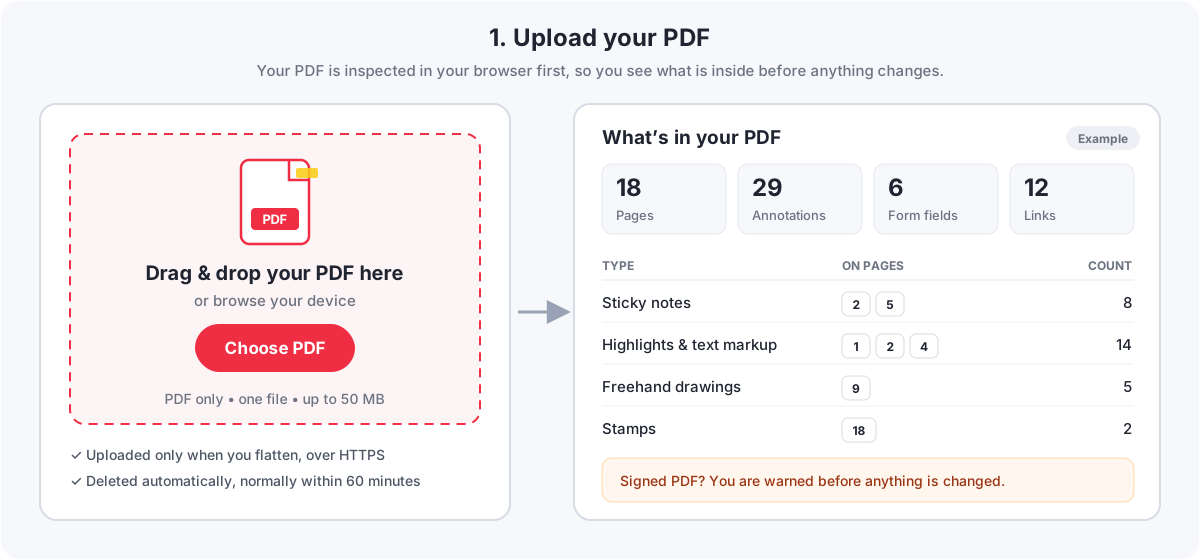
- Upload your PDF. Open Flatten PDF, then drag the file onto the box or select Choose PDF. One PDF at a time, up to 50 MB.
- Let it scan the PDF. Your browser reads the file and counts the annotations by type and page, plus form fields, links, bookmarks and signature fields. Nothing is uploaded yet.
- Review what was found. Select a page number in the list to look at that page. If nothing was found, the PDF may already be flattened, and the tool says so.
- Choose what to flatten. Everything is recommended. Untick any annotation type you want to leave editable.
- Select Flatten PDF & Download, check the summary, and select Flatten PDF to confirm. This is when the file is uploaded.
- Wait for the checks. The flattened file is reopened and checked automatically.
- Download the flattened PDF. It is named after your file, for example
contract-flattened.pdf.
How to Flatten PDF Annotations Online
If the PDF also has a form that should stay fillable, choose Annotations only. Each annotation type is listed with how many were found, so you can decide type by type:
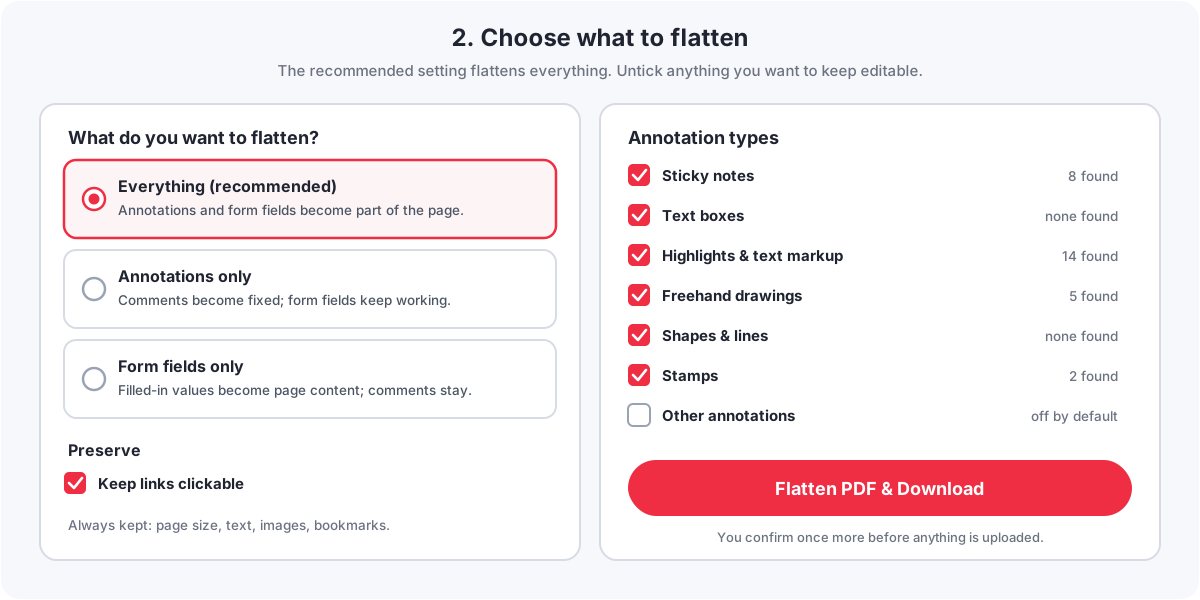
- To flatten comments in a PDF but keep reviewers’ highlights editable, tick only Sticky notes and Text boxes.
- To make PDF annotations non-editable before printing, leave every type ticked.
- To flatten stamps only, for example an Approved stamp, tick just Stamps.
Not sure what a type covers? Highlights & text markup includes underlines, strikethroughs and squiggles; Shapes & lines includes arrows and polygons; Text boxes includes typewriter text and insert marks.
What Happens When You Flatten a PDF?
- ✓ The annotations you chose become part of the page and look the same.
- ✓ Filled-in form fields, if you chose them, become plain content and stop being fillable.
- ✓ Page size, orientation, text, images, fonts and bookmarks stay as they were.
- ✓ Links stay clickable unless you choose to remove them.
- ✓ Your original file is not changed; you get a new file.
- ⚠ Sticky-note pop-up text and form field interactivity are removed, not hidden.
- ⚠ A digital signature stops validating, because the file has changed.
- ⚠ It can’t be undone in the flattened file, so keep the original if you may need it.
Flatten vs Delete, Lock and Print to PDF
| What you do | Still visible? | Editable as a comment? | Rest of the file |
|---|---|---|---|
| Flatten | Yes | No | Unchanged |
| Delete / remove annotations | No | No, it’s gone | Unchanged |
| Lock (a comment’s “Locked” property) | Yes | Not until someone unlocks it, which anyone can do | Unchanged |
| Print to PDF with comments | Usually | No | Rebuilt: links, bookmarks and form data are often lost |
| Password protection | Yes | Depends on the permissions set | Encrypted |
Flattening vs deleting annotations
Deleting removes the markups from the page entirely. Use it when the comments were only for internal review. Flatten when the recipient should see them. The tools are separate: Remove PDF Annotations deletes, Flatten PDF keeps.
Flattening vs locking annotations
In Acrobat, a comment’s properties include a Locked option that stops it being moved, resized or deleted. It is still a comment, and anyone can open its properties and untick it. Locking is a courtesy; flattening actually changes the file.
Flattening vs printing to PDF
Printing to a PDF printer with comments included also fixes markups in place, but it rebuilds the whole document from a print-out. Links, bookmarks and form data are usually lost, text may come out in a different order, and some printers leave comments out. Flattening changes only what you chose and leaves everything else alone.
Flattening vs password protection
Flattening is not a security feature. It stops markups being edited as comments, but text can still be copied and a PDF editor can still change page content. To control who can open or edit the file, add a password with Protect PDF after flattening.
Digital Signature Considerations
A digital signature covers the exact contents of the file at the moment it was signed. Flattening rewrites the file, so the signature stops validating, even though the signature field itself is left untouched. That is true of any tool, including Acrobat’s own flattening.
- If the PDF has a signature field, the tool warns you before anything happens and offers Download original, so you can keep the signed copy.
- Flatten first, sign after. If a document needs both, flatten the comments and form, then have it signed.
- If you received a signed PDF, don’t flatten the copy you need to keep as proof. Flatten a duplicate if you need one for printing.
PDF Quality and Accessibility
Quality: pages are not turned into images. Text stays selectable and searchable, images are not recompressed, and the markups are drawn from their own vector appearance, so they stay sharp at any zoom. The file size usually changes only slightly. If you actually want every page turned into a picture, that is a different tool, Rasterize PDF.
Accessibility: screen readers can announce comments and form fields as comments and fields. After flattening they are ordinary page content, and pop-up note text is gone. If the PDF must stay accessible, consider keeping an unflattened version for that purpose.
Privacy and Security
- The scan of your PDF, the page thumbnails, the before/after comparison and the flattened-PDF checker run in your browser.
- The file is uploaded only when you select Flatten PDF, over an encrypted HTTPS connection, and processed in its own job folder.
- The flattened file is deleted automatically, normally within 60 minutes. No account is needed.
- Password-protected PDFs are not processed. Unlock them first with Unlock PDF if you know the password.
How to Check if a PDF Is Already Flattened
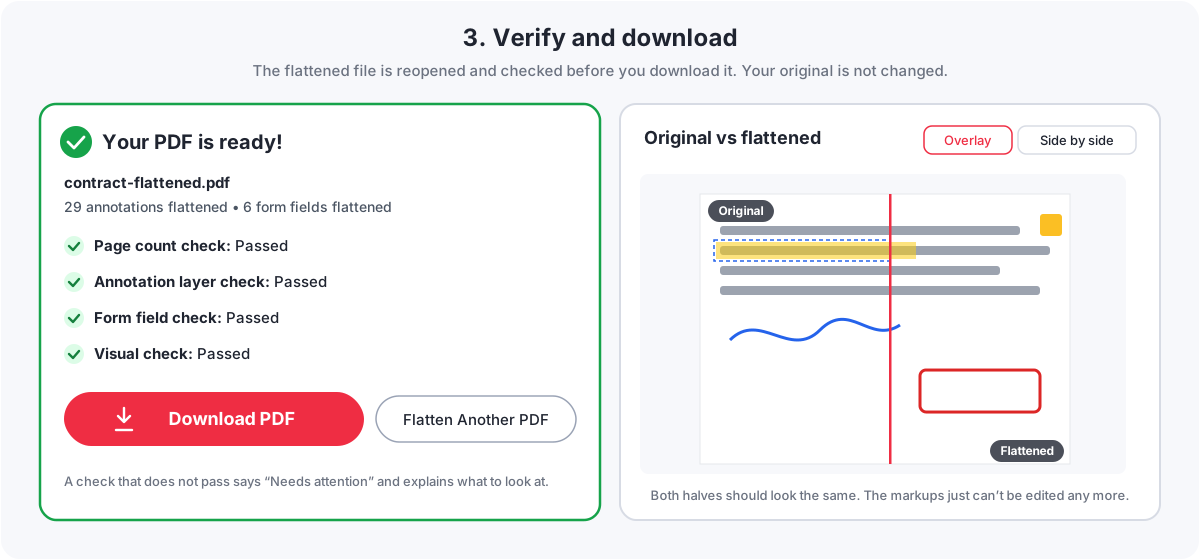
After you flatten, the result screen shows four checks:
- Page count check: the flattened file has the same number of pages.
- Annotation layer check: none of the annotations you chose are still interactive.
- Form field check: no fillable fields remain, when you flattened forms.
- Visual check: each page is drawn and compared with the original (up to the first 40 pages).
Each says Passed, or Needs attention with what to look at. You can also compare the pages yourself with the overlay slider or side by side.
For a PDF you received, use Check if a PDF is flattened. It reads the file in your browser and tells you either that it appears to be flattened or that it is not fully flattened, with what was found and a Flatten This PDF button. To check by hand in a PDF reader, open the Comments panel: a flattened file lists no comments, and clicking a highlight selects text rather than the highlight.
Links and bookmarks are normal. A flattened PDF can still have clickable links and bookmarks. They don’t mean the file isn’t flattened.
Common Errors and What to Do
| What you see | Why | What to do |
|---|---|---|
| “This PDF is password-protected.” | The file needs a password to open or edit. | Use Unlock PDF (you need the password), then flatten the unlocked copy. |
| “We couldn’t read this PDF.” | The file is damaged or incomplete. | Download it again, or open it in a PDF viewer and save a fresh copy, or fix it with Repair PDF. |
| “This PDF is larger than 50 MB.” | The file is over the size limit. | Select Compress a PDF first, or split it with Split PDF. |
| “No annotations or form fields were detected.” | There is nothing to flatten. | The PDF may already be flattened. Confirm with the checker. |
| “Nothing was flattened…” | None of the types you ticked are in the file. | Tick the types the scan found, or choose Everything. |
| “This PDF uses a dynamic XFA form…” | The form format can’t be flattened safely. | Choose Annotations only, or print the form to PDF from Adobe Acrobat or Reader. |
| “Upload failed.” | The connection dropped. | Check your connection and select Try Again. |
| A check says “Needs attention” | Something was left interactive or a page looks different. | Read the detail in the summary and compare that page. Hidden annotations and ones with no appearance are left on purpose. |
If a flatten fails, your original file has not been changed. You can always try again with different settings.
Frequently Asked Questions
What does flattening a PDF mean?
It moves annotations and, optionally, form fields from the editable layer on top of the page into the page content. They look the same but can no longer be edited, moved or deleted as comments or fields.
How do I flatten an Adobe PDF?
Upload it to the Flatten PDF tool, review what it contains, choose Everything, and select Flatten PDF. In Acrobat itself, flattening is a Pro feature found in Print Production’s Preflight fixups; Acrobat Reader can’t flatten.
Can I flatten PDF annotations online without flattening the form?
Yes. Choose Annotations only. Comments and markups become part of the page while the form fields keep working.
Does flattening remove comments?
The comment stays visible on the page, but it is no longer a comment you can open, reply to or edit. Sticky-note text that only appeared in a pop-up is removed, so add important notes as text boxes before flattening.
Can I flatten PDF highlights?
Yes. Highlights, underlines and strikethroughs keep their colour and transparency, so the text underneath stays readable and selectable.
Does flattening make a PDF uneditable?
Only the flattened markups and fields. The document can still be edited with a PDF editor and its text can be copied. Use a password if you need to restrict that.
Can I flatten a PDF without Adobe Acrobat?
Yes. The Flatten PDF tool runs in your web browser on a computer or phone, free and without installing anything.
Does flattening reduce quality?
No. Pages are not converted to images, so text and pictures are untouched, and markups are drawn as sharp vector graphics.
Can I flatten form fields?
Yes, with Everything or Form fields only. Typed values and ticks become page content. Signature fields are left as they are, and dynamic XFA forms can’t be flattened.
Does flattening invalidate a digital signature?
Yes. Any change to a signed file makes the signature stop validating. Keep the signed original, and flatten before signing rather than after.
How do I know if a PDF is flattened?
Use Check if a PDF is flattened on the Flatten PDF page, or open the Comments panel in your PDF reader: a flattened file lists no comments and has no fillable fields.
Can I undo PDF flattening?
Not in the flattened file. Once a markup is part of the page it can’t become a comment again. Your original is never changed, so keep it.
Summary
To flatten an Adobe PDF online, upload it, see what it contains, choose what to flatten, and let the checks confirm the result before you download. Flatten when markups should stay visible but fixed; delete them when they shouldn’t be seen; add a password when you need security; and flatten before signing, not after.
Related tools: Compress PDF to shrink the result, Merge PDF to combine it with other files, Split PDF to send only some pages, and Protect PDF to add a password.
Ready to Flatten Your PDF?
See what’s inside first, choose what to flatten, and check the result. Free, no sign-up.
Flatten PDF Annotations