
Splitting a PDF means dividing one document into two or more separate PDF files. You might need only a few pages from a long report, want each chapter of an ebook as its own file, or have a scan where every page is a different invoice. Instead of copying pages by hand, a PDF splitter does it in a few clicks. This guide shows how to split a PDF, explains each split method, and helps you pick the right one.
Quick answer
To split a PDF online:
- Open the Split PDF tool and upload your file.
- Choose a split method: ranges, selected pages, every page, every N pages, file size, bookmarks, specific pages or blank pages.
- Pick the output format and, if you like, a naming pattern.
- Click Split PDF & Download.
Many files come back as one ZIP, so you download them in a single step.
Watch the video guide
If you prefer to see it done, this short walkthrough shows how to upload a PDF, pick a split method and download the results.
Prefer to read? The rest of this page covers the same steps in more detail.
What does splitting a PDF mean?
Splitting takes one PDF and produces several smaller ones. The original file is not changed; you get new files containing the pages you asked for. For example, a 50-page Project_Report.pdf can become five 10-page files, one file per chapter, or a single file holding only pages 3 to 8.
People usually split PDFs to:
- Share only what is needed, such as one contract clause or one certificate from a combined file.
- Separate scanned batches, so every invoice, receipt or form is its own document.
- Meet upload limits on email or application portals that reject large attachments.
- Organise long documents like manuals, textbooks and reports into chapters.
How to split a PDF, step by step
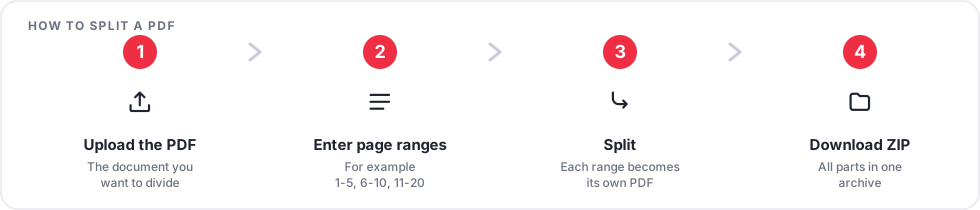
Step 1: Upload your PDF
Open the Split PDF tool. Drag your file onto the upload box or click Choose PDF file. You can also import from a cloud drive if you have it connected. Once the file loads, you will see a thumbnail of every page.
Step 2: Choose how to split
Pick one of the split methods in the settings panel. Each is described below. If you are unsure, the comparison table further down helps you decide.
Step 3: Set the output options
Choose whether you want PDF, image or Word output, and adjust extras such as a file naming pattern or bookmark handling.
Step 4: Split and download
Click Split PDF & Download. When processing finishes, download your files. If more than one file was created, they come together as a single ZIP.
The eight ways to split a PDF
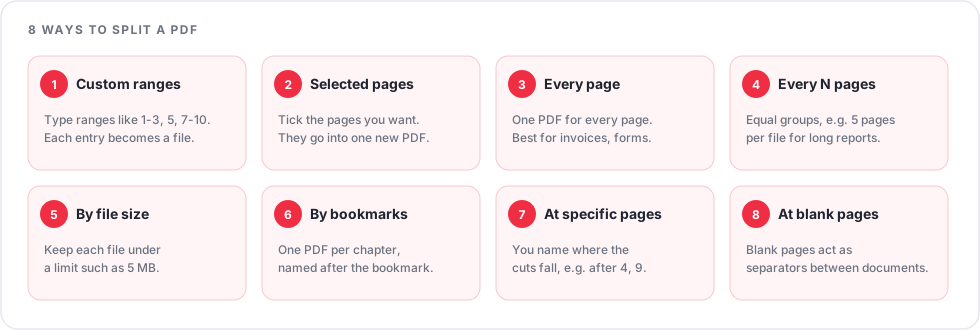
1. Custom ranges
Type the pages you want, separated by commas. Use a dash for a range, for example 1-3, 5, 7-10. Each entry becomes its own file, so that example produces three PDFs: pages 1 to 3, page 5, and pages 7 to 10. There are also presets for common patterns like odd or even pages. Best for reports, applications and pulling out named sections.
2. Extract selected pages
Click the page thumbnails you want, or type the page numbers, and everything you picked goes into one new PDF. Best when you need a handful of scattered pages, such as pages 2, 7, 15 and 22, in a single file.
3. Split every page
Creates one PDF for every page. A 10-page document becomes 10 files. Best for scanned invoices, receipts, forms, certificates and other batches where each page is its own record.
4. Split every N pages
Divides the document into equal groups. A 20-page PDF split every 5 pages gives four files: pages 1-5, 6-10, 11-15 and 16-20. Best for long reports, manuals and course material.
5. Split by file size
Enter a maximum size in megabytes and the tool builds files that stay under that limit where possible. Useful when an email service or upload form rejects large attachments. A single page that is already larger than your limit cannot be divided further.
6. Split by bookmarks
If your PDF has bookmarks (a clickable outline of chapters), this mode makes one PDF per bookmark, named after it. It only works when the document actually contains bookmarks. If it has none, the option will not be available, and you can use ranges instead.
7. Split at specific pages
You name the page numbers where the cuts fall. The document is divided after each one. It is a quick way to make two or three parts without typing every range.
8. Split at blank pages
Some scanning workflows put a blank sheet between documents. This mode detects blank pages and uses them as separators. You can choose to remove the blank pages or keep them in the output.
Practical examples
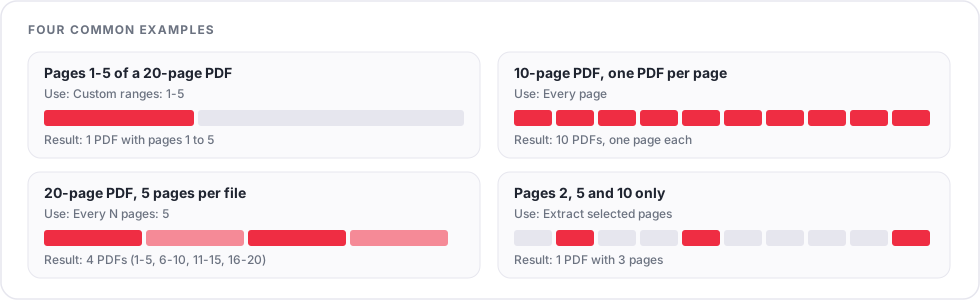
| Your goal | Method | What you enter | Result |
|---|---|---|---|
| Pages 1 to 5 of a 20-page PDF | Custom ranges | 1-5 | One PDF with 5 pages |
| Every page of a 10-page PDF as its own file | Split every page | Nothing | 10 PDFs |
| A 20-page PDF in 5-page parts | Split every N pages | 5 | 4 PDFs |
| Only pages 2, 5 and 10 | Extract selected pages | Tick the three pages | One PDF with 3 pages |
A common mix-up: typing 2, 5, 10 in custom ranges makes three separate files, one page each. If you want those three pages together in one file, use Extract selected pages instead.
Which method should I choose?
| If you need to | Use |
|---|---|
| Take specific sections, each as its own file | Custom ranges |
| Gather scattered pages into one file | Extract selected pages |
| Get a separate PDF for every page | Split every page |
| Cut a long document into equal parts | Split every N pages |
| Fit an email or upload limit | Split by file size |
| Separate chapters of a structured document | Split by bookmarks |
| Cut a document into a few parts at known pages | Split at specific pages |
| Separate scanned documents divided by blank sheets | Split at blank pages |
Output format, ZIP and file names
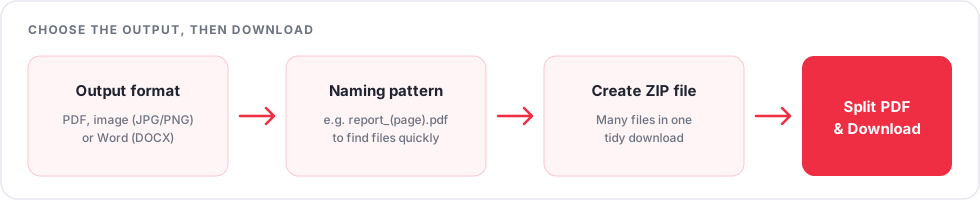
- Output format: keep pages as PDF, export them as JPG or PNG images, or use Word (DOCX) output. PDF pages are copied as they are, so nothing is recompressed.
- Create ZIP file: packages all the split files into one download. This is handy when the split produces dozens of files.
- Output naming pattern: use
(page)as a placeholder for the page number, for exampleinvoice_(page).pdf, so files are easy to find later. - Preserve bookmarks and metadata: switches let you keep or drop the bookmarks and document properties in the output files.
- Extras: you can also add a password or a watermark to the results if you need to.
How to split a large PDF
Start with what you actually need, because that decides the method:
- Need particular pages? Use custom ranges or selected pages.
- Need equal parts? Use every N pages.
- Need to get under a size limit? Use split by file size.
Very large files take longer to upload and process, and there is a maximum upload size shown on the tool page. If the file is over the limit, try compressing it first with Compress PDF.
Splitting a PDF on your phone
The tool runs in a normal mobile browser, so there is nothing to install. Open the page in Chrome or Safari, tap to choose your PDF, pick a method and download the result. Selecting pages by tapping thumbnails works well, and typing a range such as 1-5 is often quicker on a small screen.
Privacy: what to know before you upload
Online tools process your file on a server, so treat the upload the way you would any file you send over the internet. PDFCherry states that files are transferred over an encrypted connection and deleted automatically after a short time; the exact retention period is shown on the tool page. Even so, avoid uploading highly confidential documents, such as identity papers or sensitive legal and medical records, unless you are comfortable with the privacy practices of the service. Read the privacy policy if you need more detail.
Common problems and fixes
| Problem | What to try |
|---|---|
| The file will not upload | Check that it is a real PDF and under the size limit. If it is password-protected, unlock it first with Unlock PDF. |
| The wrong pages were selected | Use Reset, then re-enter the range. Check whether page numbers printed on the page match the PDF page order, as they can differ. |
| Too many output files | Each comma-separated range makes its own file. Use Extract selected pages to keep pages together, or a larger N. |
| Downloading many files is awkward | Leave Create ZIP file on to get one download. |
| Split by bookmarks is unavailable | The PDF has no bookmarks. Use ranges or split at specific pages. |
| A file is still over the size limit | One heavy page can exceed your limit. Compress the PDF first, then split. |
| Pages are in the wrong order | Fix the order first with Reorder PDF Pages, then split. |
Frequently asked questions
How do I split a PDF into individual pages?
Upload the PDF, choose Split every page and click Split PDF & Download. You get one PDF per page, packaged as a ZIP by default.
How do I extract certain pages from a PDF?
Use Extract selected pages and tick the pages you want, or use Custom ranges such as 2-4. Extracted pages are saved as a new PDF.
Can I split a PDF into two files?
Yes. For a 20-page PDF, use Split at specific pages with page 10, or enter the ranges 1-10, 11-20.
Does splitting change my original PDF?
No. The tool creates new files from the pages you choose. Your original stays as it was.
Can I split a PDF without Adobe Acrobat?
Yes. An online splitter works in your browser, so no desktop software is needed.
Can I download all the split files at once?
Yes. With Create ZIP file switched on, all results arrive in a single ZIP archive.
About this guide: it explains the general process of splitting PDF files online and how each option in the PDFCherry Split PDF tool behaves.
Ready to split your PDF?
Upload your file, choose a method, and download your new PDFs in a few clicks.
Try the Split PDF tool