
If a PDF is too big to upload, attach to an email, or submit to a form, you do not need to install anything — you can compress PDF online in a browser and get a smaller file in a couple of minutes. This guide covers how Adobe Acrobat online compress PDF tools generally work, the exact steps for compressing a PDF with a free online compressor, what actually happens to quality when you compress, and what to do when the file is still too large afterwards.
It also covers the error states that trip people up — a PDF that will not upload, a compression that fails, a download that will not start — and a problem that often comes before any of this: an unwanted blank page in a Google Docs file you are about to export to PDF in the first place.
See the Quick Answer Compress a PDF Now
Quick Answer
- Open an online PDF compression tool — Adobe Acrobat’s own compress-PDF page, or a free alternative such as PDFCherry’s Compress PDF.
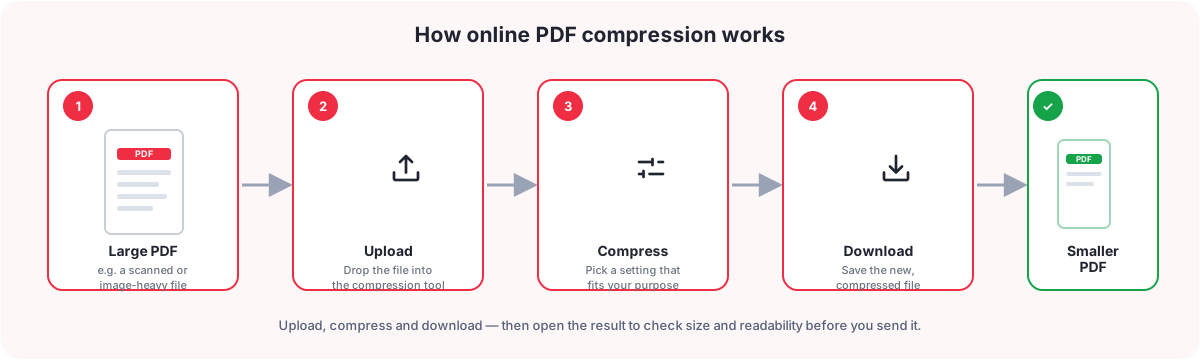
- Upload the PDF you want to shrink.
- Choose a compression setting if the tool offers one — for example a quality level, or a target file size.
- Start compression and wait for it to finish.
- Download the compressed PDF.
- Check the final file size and open the PDF to confirm it still reads and prints the way you need.
Steps 1–2 and 5–6 are true of essentially every online PDF compressor, Adobe Acrobat included. Step 3–4 is where tools differ most — button names, the number of quality levels, and whether a target-size option exists all vary by product and by version, so treat any specific label below as an example rather than a guarantee of what you will see.
Watch the Video
Prefer to watch it? This video walks through compressing a PDF online — uploading the file, choosing a compression setting, and downloading the smaller result.
The written guide below covers the same ground, plus the error states and quality trade-offs a video cannot show as easily.
What Is Online PDF Compression?
Online PDF compression is the process of reducing a PDF’s file size in your browser, without installing software, by re-encoding the images inside it and tidying its internal structure — while keeping the same pages, text and layout. Adobe Acrobat online compress PDF is Adobe’s own browser-based version of this; it sits alongside many other free online compressors that do essentially the same job.
Because every tool processes your file on a server rather than on your device, two things are worth checking before you rely on one for anything sensitive: whether the file is deleted afterwards, and how long that takes. Read the specific tool’s privacy information rather than assuming — PDFCherry, for example, deletes processed files automatically a short time after processing, and says so on the Compress PDF page itself.
Adobe Acrobat online vs. a free alternative. This guide is not a step-by-step walkthrough of Adobe’s current interface, because exact labels and options can change between versions and plans, and some features may require a paid plan or a free account. The general shape — upload, choose a setting, compress, download — applies to Acrobat and to free alternatives alike. Where this guide gives exact click-by-click steps and exact error wording, it is describing PDFCherry’s free Compress PDF tool, which needs no account.
How to Compress a PDF Online, Step by Step
Step 1: Open the compression tool
What to do: go to an online PDF compressor. If you want a free option that needs no sign-up, open Compress PDF.
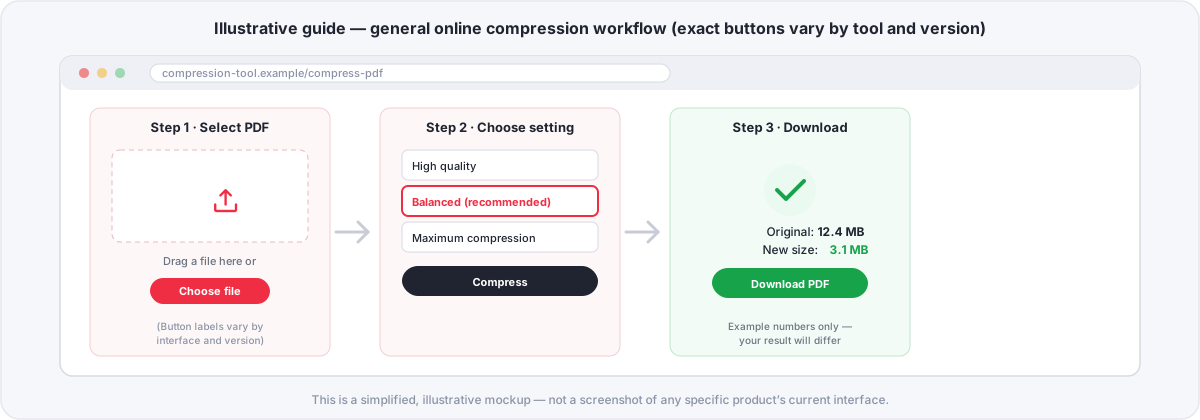
What to expect: an upload area, usually with a button to browse your device and a drag-and-drop zone.
Next: select or drop your PDF.
Common mistake: opening a tool that converts or edits PDFs rather than compressing them, and wondering why the file size does not change.
If something goes wrong: if the page will not load at all, check your internet connection and reload; if it loads but looks broken, try a current version of Chrome, Edge, Firefox or Safari.
Step 2: Upload the PDF
What to do: drag the file into the upload area, or choose it from your device.
What to expect: a short upload progress indicator, then the file name, page count and size appear once it has been read.
Next: the tool may analyse the file and show you what is inside it — on PDFCherry’s Compress PDF, this is the analysis card, which shows the file size, page count, an estimated reduction, and a recommended setting before you compress anything.
Common mistake: uploading a Word document, image, or scanned photo instead of a PDF. Only PDF files can be compressed this way; convert the file to PDF first.
If something goes wrong: if the upload stalls, check your connection and try again; if it is rejected immediately, confirm the file is actually a PDF and under the tool’s size limit (PDFCherry accepts PDFs up to the limit shown on the Compress PDF page).
Step 3: Choose a compression setting
What to do: pick the setting that matches what you are using the PDF for.
What to expect: the exact choices vary by tool. PDFCherry’s Compress PDF offers four modes — High Quality (contracts, legal documents, printing), Balanced (the recommended default, for email and general sharing), Maximum Compression (upload limits and email attachments, where images may look softer when zoomed in), and Custom (choose image quality, resolution and colour mode yourself). It also offers a compress to a target size toggle with quick choices — under 20 MB, 10 MB, 5 MB, 2 MB or 1 MB — plus a custom MB field, for when you need the result under a specific limit rather than a specific quality level.
Next: start the compression.
Common mistake: always picking the strongest setting “to be safe.” Start with Balanced, check the result, and only move to Maximum Compression if the file is still too large.
If something goes wrong: if a target size looks unreachable (for example, a 40 MB scanned PDF into 1 MB), the tool should say so rather than silently failing — a target is best-effort, trying increasingly strong settings and stopping as soon as it is met or the strongest setting has been tried.
Step 4: Start compression
What to do: confirm the setting and begin.
What to expect: a progress indicator while the file is processed. Larger or more image-heavy PDFs take longer than short text documents.
Next: a results screen with the new file size, once compression finishes.
Common mistake: closing the tab while it is still processing, then wondering why nothing downloaded.
If something goes wrong: if it stalls for an unusually long time, or fails outright, try again once; if it fails a second time, the PDF may be unusually complex, corrupted, or password-protected (see Errors below).
Step 5: Download the compressed PDF
What to do: use the download button on the results screen.
What to expect: the original size, the new size, how much was saved, and the percentage reduction, shown side by side. On PDFCherry you can also preview the result, compare the original and compressed pages before and after, or save the file directly to Google Drive, Dropbox or OneDrive instead of downloading it locally.
Next: open the downloaded file.
Common mistake: assuming the download started when only the results page loaded. Check your browser’s downloads list or folder.
If something goes wrong: if the download does not start, try the button again, or use Preview and save the file from there; check that your browser is not blocking the download.
Step 6: Check the final file size and quality
What to do: open the compressed PDF and look through the pages that matter most — especially any with photos, scanned text, or fine print.
What to expect: the page count and text should be unchanged; images may look slightly softer depending on the setting you chose.
Next: upload, email, or submit the file, now that you have confirmed it.
Common mistake: sending the compressed file without opening it first, and finding a problem only after it has already been sent.
If something goes wrong: if quality dropped more than you wanted, go back and recompress the original file with a higher-quality setting — recompressing an already-compressed PDF tends to lose more quality for less extra size saved.
What Should Happen at Each Step
Here is the same journey from the interface’s point of view — useful if you want to know whether what you are seeing is normal.
| User action | User expects | UI feedback | Next step |
|---|---|---|---|
| Before upload | A clear place to add a file | An upload area with a “choose file” option and drag-and-drop | Select or drop a PDF |
| During file selection | Confirmation the right file was picked | The file name appears, often with a loading indicator | Wait for it to be read |
| After upload | To see the file is ready to compress | File name, size and page count shown; sometimes an analysis of the file | Choose a setting |
| During processing | To know it is working, not stuck | A progress bar or percentage | Wait for completion |
| Compression completed | To see the result immediately | Original size, new size and reduction shown; a download button appears | Download, preview, or compress again with a different setting |
| Compression failed | To know what happened and what to try | An error message naming the likely cause | Fix the cause (see Errors) and retry |
| Download completed | The file to be on their device, matching what was shown | Browser download notification or saved file | Open and check it |
| Download failed | A way to try again without starting over | An error message, with the result still available to retry | Retry the download, or use Preview |
| File still too large | A next step, not a dead end | The achieved size shown against the target, if one was set | Try a stronger setting or follow What if the PDF is still too large? |
| Quality is too low | A way back to a better-quality version | None automatically — this is for the user to judge by opening the file | Recompress the original with a higher-quality setting |
Errors and What to Do About Them
A good error message says what happened, why, and what to do next — not just “Something went wrong.” The messages marked as the actual message below are what PDFCherry’s Compress PDF shows today for its own upload and processing checks; the rest are suggested wording for situations a browser or network produces outside any one tool’s control, since the exact wording Adobe Acrobat online or any other specific product shows can change and was not reproduced here.
| Situation | Likely cause | Message | What to do next |
|---|---|---|---|
| Unsupported file | The file is not a PDF, or is a document/image mistakenly selected | Actual message: “Only PDF files are allowed.” | Convert the file to PDF, then upload it. |
| File is not really a PDF | The file has a .pdf name but is not valid PDF data | Actual message: “The uploaded file is not a valid PDF.” | Re-export or re-download the original file as a PDF and try again. |
| Empty file selected | A 0-byte file was chosen, often by accident | Actual message: “An uploaded file is empty.” | Check you selected the right file. |
| File too large | The PDF is above the tool’s upload limit | Actual message: “File exceeds the maximum allowed size.” | Check the limit shown on the tool’s page; if your file is close to it, try splitting it first with Split PDF. |
| Password-protected PDF | The PDF needs a password to open its content | Actual message: “This PDF is password protected. Remove the password and upload it again.” | Remove the password with Unlock PDF if you have the right to, then upload it again. |
| Corrupted or unusual PDF | The file cannot be parsed, or uses an unsupported structure | Actual message: “We couldn’t process this PDF. The file may be corrupted, password protected, or in an unsupported format.” | Try a different copy of the file, or re-export it from the original source. |
| Upload failed | A dropped connection mid-upload | Suggested message: “Your PDF couldn’t be uploaded. Check your internet connection and try again.” | Check your connection and retry. |
| Slow or unstable connection | A weak Wi-Fi or mobile signal during upload or download | Suggested message: “This is taking longer than expected. You can keep waiting or try again on a more stable connection.” | Wait, or move to a better connection and retry. |
| Processing timeout | A very large or complex file taking too long | Suggested message: “This is taking longer than usual. Please keep this tab open, or try again with a stronger compression setting.” | Wait, or try a smaller file / stronger setting. |
| Browser problem | An outdated or unusual browser | Suggested message: “This page needs a current browser. Try the latest version of Chrome, Edge, Firefox or Safari.” | Update or switch browser, then reload. |
| Download failed | A network blip after processing finished | Suggested message: “Your download didn’t finish. Please try again.” | Press Download again, or use Preview and save from there. |
| Compressed file is still too large | The content is mostly high-resolution images or scans | Suggested message: “This PDF is still larger than your target. Try Maximum Compression, or remove any pages you do not need.” | See What if the PDF is still too large?. |
| Quality reduced too much | A very strong setting applied to a file where sharpness mattered | Suggested message: “None shown automatically — open the file and compare it with the original.” | Recompress the original with a higher-quality setting, such as High Quality or Balanced. |
| Wrong file selected | A different file was chosen by mistake | Suggested message: “Is this the right file? [file name], [size].” | Use a “replace file” option if offered, or start over. |
How Much Can a PDF Be Compressed?
There is no single percentage that applies to every PDF, and this guide will not promise one. How much a file shrinks depends on what is actually inside it:
- Images — a PDF built mostly from photos or screenshots usually compresses more than a text-only PDF, because images carry far more data per page.
- Scanned pages — a scanned document is really a sequence of full-page images, so it behaves like an image-heavy PDF even though it looks like text.
- Image resolution — images saved at a very high resolution for print have more room to shrink than images already saved small for screen use.
- Fonts — embedded fonts add some size, but compression tools generally leave text and fonts alone; the saving mostly comes from images.
- Embedded content — attachments, form fields, or layered content can add size that behaves differently from a plain image.
- Existing compression — a PDF that has already been compressed once has less room left to shrink further; compressing it again may barely help.
- Document structure — some PDFs carry extra internal data (old revisions, unused objects) that a compressor can clean up with no visible change at all.
In practice: a short text document might shrink only a little, because there is not much to compress. A scanned 40-page report full of high-resolution images is far more likely to shrink substantially. Use the estimate most tools show before you compress as a guide, not a guarantee, and judge the real result after you have it.
Quality vs. File Size: Choosing a Setting
A smaller file is not automatically a better one. Higher compression produces a smaller file, but image-heavy PDFs can lose visible sharpness, and very aggressive settings make that more obvious when you zoom in or print. Match the setting to what the document is actually for:
| Use case | Priority |
|---|---|
| Email attachment | Smaller file, within the recipient’s attachment limit |
| Online form or portal upload | Meeting that site’s exact size limit |
| Printing | Preserving image and text quality |
| Scanned document | Keeping the text clearly readable |
| Long-term archive | A balance of size and quality, not the smallest possible file |
A practical approach: start with a balanced or recommended setting, open the result, and look specifically at pages with photos, diagrams, or small print. If those still look fine and the file is small enough, you are done. If not, decide which matters more for this particular document — file size or sharpness — and adjust from there.
What if the PDF Is Still Too Large?
If the compressed file still will not meet the limit you need, work through these in order:
- Try a stronger setting if the tool allows it, such as Maximum Compression instead of Balanced.
- Remove unnecessary pages with Delete PDF Pages — a cover letter or instructions page you do not need to keep adds size for no benefit.
- Remove blank pages with Remove Blank Pages, especially after a Google Docs or Excel export (see the next section).
- Reduce oversized images before creating the PDF, if you control the source document — a very high-resolution photo rarely needs to stay that large once it is on a page.
- Re-export the source document with a lower image quality or resolution setting, if your word processor or design tool offers one, rather than compressing the export repeatedly.
- Check whether the PDF is mostly scanned images. Scanned PDFs compress differently from typed documents, and may need a stronger setting or OCR to get both a smaller file and a document you can still select text from.
- Check the actual upload limit you need to meet. Limits vary by website, email provider and organisation, so confirm the real number rather than guessing.
- Split the file with Split PDF, if the destination accepts more than one file.
Before You Create the PDF: Removing a Blank Page in Google Docs
If your PDF came from exporting a Google Doc, a blank page problem is often easiest to fix before export, in the document itself, rather than after compression. The two fixes below solve the large majority of cases; for the complete walkthrough, including section breaks, tables pushing content onto a new page, and an Excel printing comparison, see the full guide: How to Remove Blank Page in Google Docs and Blank Pages in Excel.
Diagnose before you delete
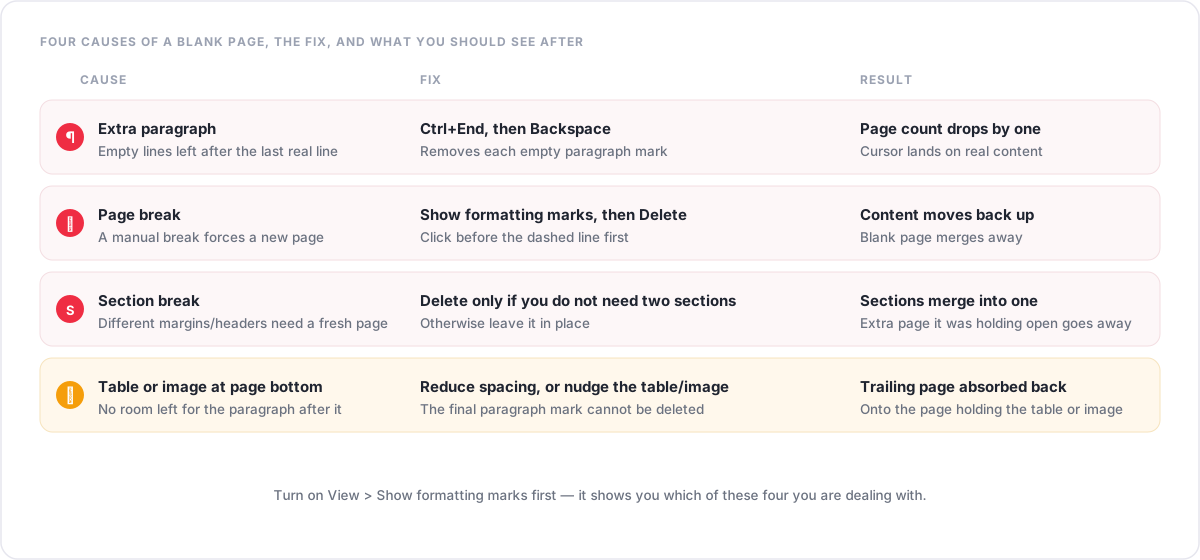
A blank page is caused by something sitting in the document — it is worth finding out which, rather than just pressing Backspace repeatedly:
- Extra paragraph marks or empty lines left after your last line of real content.
- A page break, which forces everything after it onto a new page even if nothing is there yet.
- A section break, used to change margins, headers or page numbering partway through the document — this can need an extra page to take effect.
- A table or image near the bottom of a page, pushing the paragraph mark that follows it onto a page of its own.
- Large spacing above or below a heading or image, which can tip content over onto the next page.
Fix it: two methods that solve most cases
- Jump to the end and delete. Click anywhere in the document, press Ctrl+End (Cmd+End on Mac) to reach the very end, then press Backspace until the blank page collapses and the page count in the bottom-left corner drops by one.
- Show formatting marks to see what Backspace cannot remove on its own. Go to View > Show formatting marks (sometimes labelled Show non-printing characters — the exact wording can vary by browser and version). This reveals paragraph marks and page/section break lines. Click directly in front of the mark causing the blank page and press Delete.
Do this before exporting, and the blank page will not appear in your PDF at all — there is nothing left to compress away afterwards.
Google Docs → PDF → Compress Workflow
Putting the two guides together, a practical order of operations looks like this:
- Finish editing in Google Docs.
- Remove any unnecessary or blank pages in the document itself (see above).
- Export or download the document as a PDF.
- Check the PDF’s file size.
- If it is too large, compress the PDF online.
- Download the compressed PDF.
- Open it and verify the pages, text and images.
- Upload, email, or submit it.
Removing unnecessary content before compressing matters because compression works on what is actually in the file — a blank page or a page you do not need still gets uploaded, processed and counted in the final size, even though it adds nothing useful.
Thinking About a Target File Size
People often need a PDF under a specific number — 2 MB, 5 MB, or 10 MB are common targets, usually because of an email attachment limit or a website’s upload limit. This guide will not state a universal limit, because they vary by email provider, website, and organisation and change over time. Before compressing to a specific target, check the destination’s exact current requirement rather than assuming a round number, then use a target-size option if the tool offers one (PDFCherry’s Compress PDF has quick 1/2/5/10/20 MB chips plus a custom field for this).
Before/After Checklist
Before compression
- ☐ Check the current file size
- ☐ Remove unnecessary pages
- ☐ Remove blank pages
- ☐ Confirm the PDF opens correctly
- ☐ Note which pages have important images or small text
After compression
- ☐ Check the final file size
- ☐ Open the PDF
- ☐ Check text readability on every page type
- ☐ Check images, especially any with fine detail
- ☐ Confirm the page count has not changed
- ☐ Check any links or form fields still work
- ☐ Confirm it meets the destination’s size limit
Troubleshooting Table
| Problem | Likely reason | What to try |
|---|---|---|
| PDF will not upload | Wrong file type, or a file that is not actually a valid PDF | Confirm it is a PDF, re-export it if unsure, and try again |
| Compression fails | A password-protected, corrupted, or unusually complex file | Remove the password with Unlock PDF, or try a different copy of the file |
| PDF is still too large | Mostly large images or scanned pages | Try a stronger setting, remove unneeded pages, or split the file |
| Text or images look blurry | A very strong compression setting was applied | Recompress the original with a higher-quality setting |
| A blank page remains in the PDF | Extra spacing, a page break, or a section break in the source document | Fix it in the source document before export, or use Remove Blank Pages |
| Download does not start | A browser or network issue | Retry the download, check your connection, or use Preview and save from there |
Frequently Asked Questions
How do I compress a PDF online?
Open an online PDF compressor, upload the PDF, choose a compression setting if one is offered, start compression, then download the result. Check the final size and open the file before you send or upload it.
Is Adobe Acrobat online PDF compression free?
This guide does not state Adobe’s current pricing, since plans and free-usage limits can change. Check Adobe’s own site for its current terms. If you want a free online compressor with no account needed, PDFCherry’s Compress PDF is free to use.
How do I reduce PDF file size without losing quality?
No compression setting is completely lossless for image-heavy PDFs, but choosing a higher-quality setting (such as High Quality or Balanced rather than Maximum Compression) keeps more detail. Compress the original file rather than an already-compressed copy, and check the result on pages with photos or fine print.
Why is my PDF still large after compression?
The PDF is probably built mostly from high-resolution images or scanned pages, which have more room to shrink with a stronger setting. Try Maximum Compression, remove pages you do not need, or check whether the file was already compressed once before.
How do I compress a scanned PDF?
Upload it to an online compressor the same way as any other PDF. Scanned pages are really full-page images, so they often shrink more than typed documents, but very strong settings can make small text harder to read — check a few pages after compressing.
How do I remove a blank page from Google Docs?
Press Ctrl+End to reach the end of the document, then press Backspace until the blank page collapses. If that does not work, turn on View > Show formatting marks to find and delete the page break or section break causing it. Full steps are in the complete guide.
Can I compress a PDF before emailing it?
Yes. Compress it first, download the result, then attach the compressed file to your email instead of the original.
How do I make a PDF smaller than 5 MB?
Use a compressor with a target-size option, if one is offered, and choose or enter 5 MB. If the result is still larger than you need, try a stronger setting, remove unnecessary pages, or split the file into smaller parts.
Does PDF compression reduce quality?
It can, mainly in images, depending on the setting chosen. Text and document structure are generally preserved. Choose a setting based on what the document is for, and check the result before relying on it.
What should I do if my PDF will not upload?
Confirm the file is actually a PDF (not a Word document or image saved with a .pdf name), check it is under the tool’s size limit, and check your internet connection. If it is password-protected, remove the password first.
People Also Ask
- What is the difference between compressing and converting a PDF? Compressing keeps the file as a PDF and shrinks it; converting changes it into a different format entirely.
- Does compressing a PDF remove pages? No — compression keeps every page; removing pages is a separate step, done with Delete PDF Pages if you want a shorter document.
- Can I compress a PDF on my phone? Yes, through a mobile browser, the same way as on a computer; some device-specific apps also offer compression.
- Why do two compressors give different results on the same file? They use different settings and algorithms, so file size and quality trade-offs vary between tools.
- Is it safe to compress a sensitive PDF online? Check the specific tool’s privacy policy and file-retention statement before uploading anything sensitive.
- Can I undo a compression? Not on the compressed file itself — keep your original PDF and recompress it again if you need a different result.
- Does compressing a PDF affect searchable text? Properly encoded text generally stays selectable and searchable; only images are re-encoded.
- Why does my scanned PDF look blurry even before I compress it? That is usually the scan resolution, not compression — check the original scan quality separately.
What to Do Next
- Compress PDF to shrink a file now, with High Quality, Balanced, Maximum Compression and Custom modes, plus a target-size option
- Merge PDF to combine files before compressing them together
- Split PDF if a destination accepts multiple smaller files instead of one large one
- Delete PDF Pages to remove pages you do not need before compressing
- Remove Blank Pages to clear out blank pages left over from an export
- Unlock PDF if a password-protected PDF you own needs to be compressed
You May Also Like
- How to Remove Blank Page in Google Docs and Blank Pages in Excel
- How to Merge PDF Files
- How to Split a PDF
- How to Delete Pages from a PDF
Conclusion
Compressing a PDF online — whether with Adobe Acrobat online or a free alternative — comes down to the same few steps: upload, choose a setting that matches your purpose, compress, and check the result before you send it. If the file came from Google Docs, fixing a blank page in the document itself before you export saves you a step later. And if the compressed file is still too large, you now have a specific list of things to try next rather than guessing.
Ready to Compress Your PDF?
Upload your file, pick a setting or a target size, and download. Free, with no sign-up.
Compress PDF Now