
Every PDF carries information about itself that never appears on its pages: who wrote it, what it was called, which app made it, and when. Most of it is filled in automatically, so it is easy to send a document without realising it still holds your name, your company or an old working title.
This guide explains what PDF metadata is, how to check what a file contains, how to remove PDF metadata step by step, and how to confirm it is really gone. It also covers what removing metadata does not do, because hidden content such as comments and attachments is a separate matter.
Remove PDF Metadata Now
Free, no account. PDF files up to 50 MB.
- Upload the PDF and see what its metadata reveals.
- Choose to remove all of it, everything except the title, or only the fields you pick.
- Verify the before-and-after result, then download.
Quick Answer
How do you remove PDF metadata? Open the file in a PDF metadata remover, review the properties it contains (author, title, subject, keywords, creator, producer, dates and XMP metadata), choose what to remove, save a new copy, and check the new copy’s properties before you share it. The pages themselves do not change.
- Open Remove PDF Metadata and upload your PDF.
- Review the metadata found and what each property can reveal.
- Keep Remove all metadata, or choose the fields to remove.
- Select Remove Metadata & Download, then confirm.
- Check the before-and-after table and the checks.
- Download the cleaned PDF.
What Is PDF Metadata?
PDF metadata is information stored inside the file that describes the document rather than forming part of it. It sits in two places:
- Document properties (technically the document information dictionary): a short list of fields such as Title, Author, Subject, Keywords, Creator, Producer, Creation date and Modification date, plus any custom fields an app adds, such as Company.
- XMP metadata: a more detailed block that usually repeats the same properties and can add document IDs and an edit history. Many readers show it in an “Additional metadata” or “Advanced” panel, if at all.
Two of the field names confuse most people. Creator is the app the original document was written in, such as a word processor. Producer is the app or library that turned it into a PDF. Neither is a person.
Why PDF Metadata Matters
None of it is printed, but anyone who opens the file can read it in their PDF reader’s Document Properties, and search engines and document portals read it too. Some everyday examples, with made-up details:
- A freelancer exports a proposal from a template a previous client made. The Author field still shows that client’s employee.
- A report is retitled for publication, but its Title property still says “Restructuring plan – DRAFT, do not circulate”.
- A job application PDF shows an author name that is the applicant’s work computer account, revealing their current employer.
- A document shared publicly shows creation and modification dates that contradict the date printed on the cover.
Most metadata is harmless. The point is not that it is dangerous, but that it is easy to check, and easy to remove when it says something you did not mean to share.
What Information Can PDF Metadata Contain?
| Property | Example (fictional) | What it can reveal |
|---|---|---|
| Author | Jane Example | A person’s name or computer account name. Often filled in automatically. |
| Title | Pricing draft v7 | An internal or earlier working title, which can differ from the heading on page 1. |
| Subject and Keywords | Confidential; project Atlas | What the document is about, sometimes with internal terms. |
| Creator | Example Writer 5 | The app the original was written in, sometimes with its version. |
| Producer | Example PDF Library 2.1 | The app or library that made the PDF. |
| Creation and modification dates | 12 Jan 2026, 09:14 | When the document was made and last changed. |
| Custom properties | Company: Example Ltd | An organisation, a manager or a client. |
| XMP document IDs and history | A long unique ID | That two files are versions of the same document. |
How to Check PDF Metadata
You can view PDF metadata in two ways:
- In your PDF reader. Open the file and choose File > Properties, or press Ctrl+D (Cmd+D on a Mac) in most readers. The Description tab lists the main properties. XMP metadata is often hidden or shown only in an advanced view.
- With a metadata viewer. Check a PDF’s metadata reads the document properties, custom properties and XMP metadata in your browser, without uploading the file, and explains what each one can reveal. It also lists hidden content such as comments, attachments and layers.
Check a file before you remove anything. If it has no metadata worth removing, you are done.
How to Remove PDF Metadata
Here is how to remove metadata from a PDF with the free PDF Metadata Remover. It works in any current browser on a computer or phone.
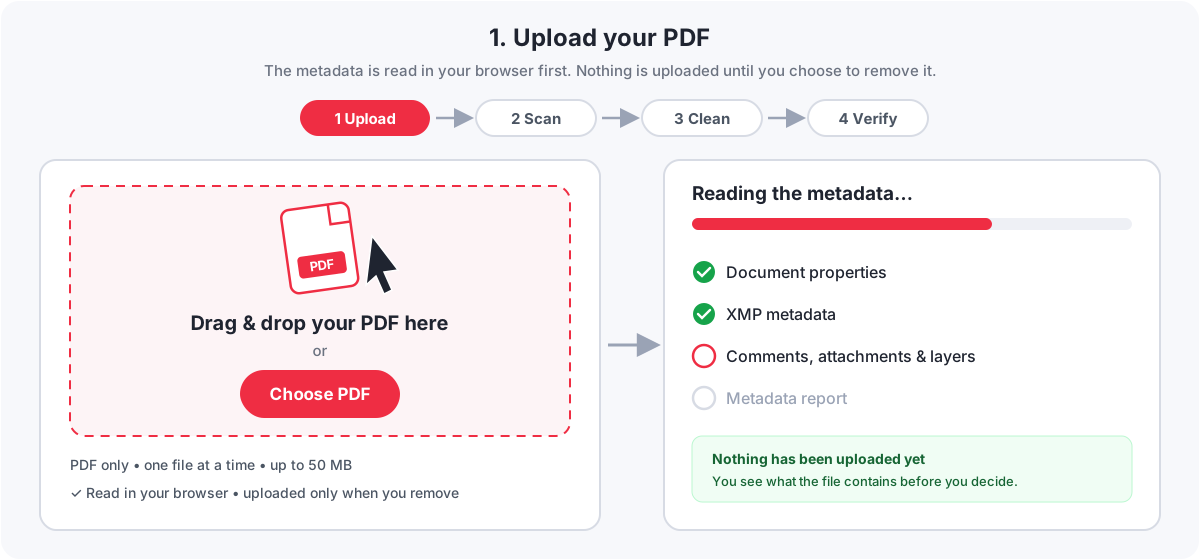
- Upload your PDF. Drag the file onto the box or select Choose PDF. One PDF at a time, up to 50 MB.
- Let it read the metadata. Your browser reads the document properties and XMP metadata, then checks the pages for comments, form fields, attachments and layers. Nothing is uploaded yet.
- Review what was found. Each property is listed with its value and what it can reveal, with a plain-language privacy exposure level (a guide, not a security rating).
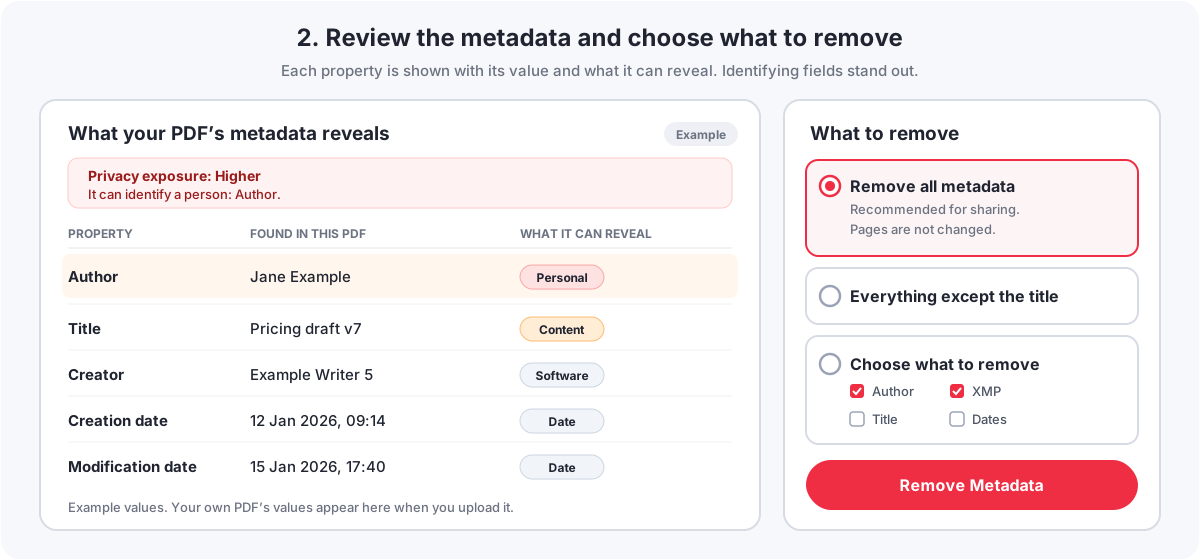
- Choose what to remove. Remove all metadata is the right choice for most files. Everything except the title keeps the title readers show in the window or tab. Choose what to remove lets you pick individual fields.
- Remove it. Select Remove Metadata & Download and confirm. The PDF is uploaded over an encrypted connection and a new copy is made; your original is never changed.
- Check the result. The new file is checked automatically, and your browser reads it again to show each property before and after.
- Download the cleaned PDF. It is deleted from the server automatically, normally within 60 minutes.
How to remove the author from a PDF
Choose Choose what to remove and keep Author and XMP metadata ticked. Many apps write the author into the XMP metadata as well, so removing only the Author property can leave a copy behind. If that happens, the result’s metadata check says so.
How to remove the creation date or creator
Tick Creation date, Modification date, Creator or Producer, again together with XMP metadata, which keeps its own copy of the dates and the creating app. Removing all metadata clears them all at once.
How to remove PDF properties but keep the title
Choose Everything except the title. The title is useful to keep: readers show it in the window or tab, and screen readers announce it.
How to Verify That Metadata Was Removed
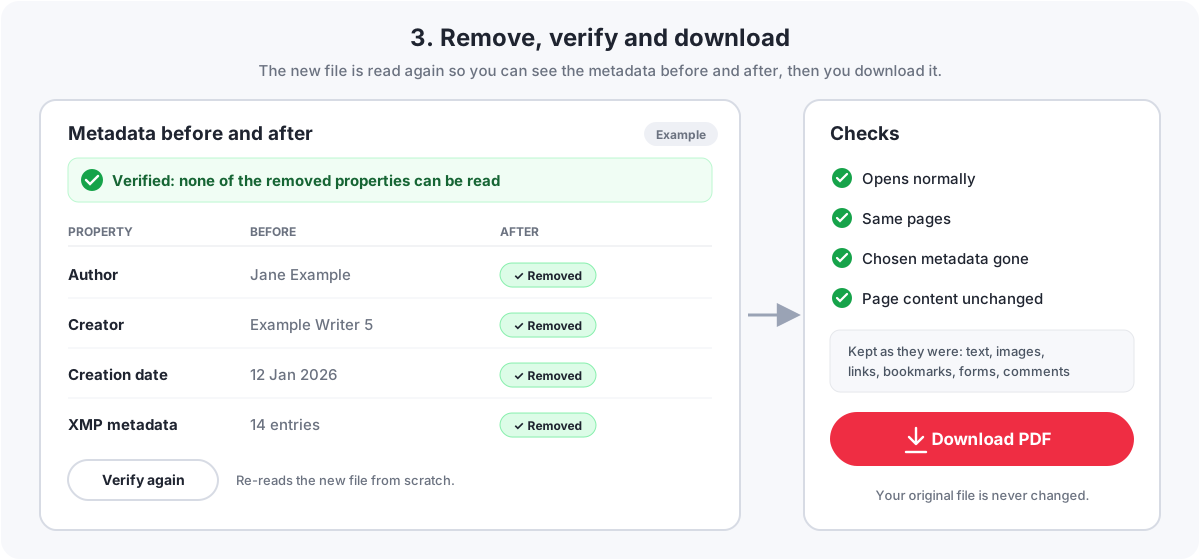
- Read the checks. After removing, the result lists four checks: the new PDF opens, it has the same pages, none of the chosen properties remain, and every page’s content, links, bookmarks and form fields match the original. Each says Passed or Needs attention with the reason.
- Look at the before-and-after table. Every property is read again from the new file and marked Removed, Kept or Still present.
- Select Verify again to download the new file afresh and read it once more.
- Check the downloaded file yourself. Open it in your reader’s Document Properties, or drop it into Check a PDF’s metadata. Make sure you opened the new file, not the original.
A date still showing is not always metadata. File managers and email apps show the date the file was saved or received on your device. That date is not stored in the PDF and changes whenever the file is copied.
Does Removing Metadata Change the PDF?
The pages do not change. These are kept exactly as they were, and the content check compares each page with the original:
- Text, images, fonts and layout
- Page count, size and orientation
- Links, bookmarks, form fields and comments
- The language setting and tags that screen readers use
A few things do change, and it is better to know them in advance:
- Digital signatures stop validating. Any change to a signed file breaks the signature. You are warned when a PDF has a signature field.
- PDF/A files lose their PDF/A declaration if XMP metadata is removed, because that is where it is stored. The file still opens normally. Keep XMP metadata if an archive requires PDF/A.
- The file is saved fresh. Earlier versions kept inside the file by incremental saves, which can hold old metadata, are dropped. The file size can change slightly.
- The document ID is replaced with a new random one when you remove all metadata, so the copy can’t be matched to the original by its ID.
Metadata vs Hidden Content
Removing metadata does not remove everything hidden in a PDF. Metadata describes the document; hidden content is part of it, just not obvious on the page.
| Item | Metadata? | How to remove it |
|---|---|---|
| Author, title, subject, keywords, creator, producer, dates | Yes | Remove PDF Metadata |
| XMP metadata, metadata on pages and images | Yes | Remove PDF Metadata |
| Comments, highlights, reviewers’ notes | No | Remove PDF Annotations |
| Attached files, JavaScript, page thumbnails | No | Clean PDF |
| Filled-in form values | No | Flatten PDF makes them plain page content |
| Names or details printed on a page | No | Edit the source document, or black out whole pages with Redact PDF |
| Hidden layers, content outside the visible page | No | Not removed by these tools; fix it in the source document |
The metadata remover lists the hidden content it finds next to the metadata, with a link to the right tool, so you don’t have to guess.
Common Problems
- “There’s no metadata to remove.” Not an error: the file has none of the properties you chose. It may already be clean. The message lists what it does have, and you can download your original as it is.
- “This PDF is password-protected.” Unlock it with Unlock PDF (you need the password), remove the metadata, then add a password again with Protect PDF if you need one.
- “We couldn’t read this PDF.” Part of the file may be damaged. Fix it with Repair PDF, or open it in a reader and save a new copy, then try again.
- “This PDF is larger than 50 MB.” Make it smaller with Compress PDF first, or send only the pages you need with Split PDF.
- The author still shows. If you chose your own fields, the XMP copy may still hold it. Remove XMP metadata too.
- The metadata came back. Editing or re-saving the file in another app adds a Producer and new dates. Remove metadata as the very last step.
PDF Privacy Checklist: Before You Share a Sensitive PDF
- Check the author, company and title in the metadata.
- Remove the metadata you don’t want to share.
- Review comments and annotations and remove internal ones.
- Look for attachments, form data and hidden layers.
- Read the pages themselves for names, account numbers and signatures.
- Rename the file if its name gives anything away.
- Check the cleaned file once more, and open it before you send it.
Frequently Asked Questions
How do I remove PDF metadata?
Upload the PDF to a metadata remover, review the properties it contains, choose what to remove, and save a new copy. With PDFCherry, keep Remove all metadata selected, select Remove Metadata & Download, check the before-and-after table, then download.
How do I remove the author from a PDF?
Select Choose what to remove and tick Author together with XMP metadata, which often holds a second copy of the author. Or remove all metadata.
How do I remove PDF properties?
Document properties are the metadata. Removing all metadata clears every property; Everything except the title keeps only the title.
What is PDF metadata?
Information stored in the file about the document: title, author, subject, keywords, the apps that made it, creation and modification dates, and often an XMP block with document IDs and edit history.
Can PDF metadata contain personal information?
Yes. The Author field often holds a name or computer account name, and custom fields can name an organisation. Software names and dates are less personal.
Does removing metadata change the PDF?
The pages do not change: text, images, links, bookmarks, forms and comments are kept and compared with the original. A digital signature stops validating, and a PDF/A file loses its PDF/A declaration if XMP metadata is removed.
Can I remove metadata from multiple PDFs at once?
Not with PDFCherry yet. Process them one after another; each result has a button to start on the next PDF.
How do I check PDF metadata?
Open Document Properties in your PDF reader (usually Ctrl+D or Cmd+D), or use Check a PDF’s metadata on the Remove PDF Metadata page, which reads the file in your browser without uploading it.
Can I remove metadata from a password-protected PDF?
Unlock it first with the password, remove the metadata, then protect it again if you need to.
Does removing metadata remove comments?
No. Comments are content, not metadata. Use Remove PDF Annotations to delete them, or Flatten PDF to fix them onto the page.
Does removing metadata remove hidden content?
No. Attachments, form data, JavaScript and hidden layers are not metadata. The metadata remover lists what it finds and links to the tool that removes each one.
How can I verify that metadata was removed?
Read the checks and the before-and-after table in the result, select Verify again, and open the downloaded file’s Document Properties or check it with Check a PDF’s metadata.
Is it safe to upload a private PDF?
With PDFCherry, the metadata is read in your browser first, and the PDF is uploaded only when you remove the metadata, over an encrypted connection. It is processed in its own folder and deleted automatically, normally within 60 minutes. Your original is never changed.
Does removing metadata make a PDF anonymous?
No. The text, images, comments and file name can still identify a person or organisation. Removing metadata is one step; check the rest of the document too.
Summary
To remove PDF metadata, check what the file contains, remove the properties you don’t want to share (all of them, in most cases, together with the XMP copy), and verify the new file before you send it. Metadata is only one kind of hidden information, so review comments, attachments and the pages themselves as well.
Related: How to edit PDF metadata if you want to set a title or author rather than remove it, Clean PDF for attachments and scripts, and Protect PDF to add a password before you send the file.
Ready to Remove Your PDF’s Metadata?
See what it reveals first, choose what to remove, and verify the result. Free, no sign-up.
Remove PDF Metadata