
A report built for A3 paper that now needs to print on A4. A scanned batch where half the pages came out Letter and half came out A4. A file that has to match one specific paper stock before it goes to a printer. All of these are really the same job: changing the actual page dimensions of a PDF, not just how it looks on screen. This guide covers how to resize PDF page size online, using nothing but a browser, and it also clears up the single most common mix-up people run into along the way — resizing a PDF’s page size is not the same thing as reducing its file size.
Everything below uses the PDFCherry Resize PDF Pages tool, which places every page onto a new page of the size you choose, scaled to fit and centred.
Quick Answer
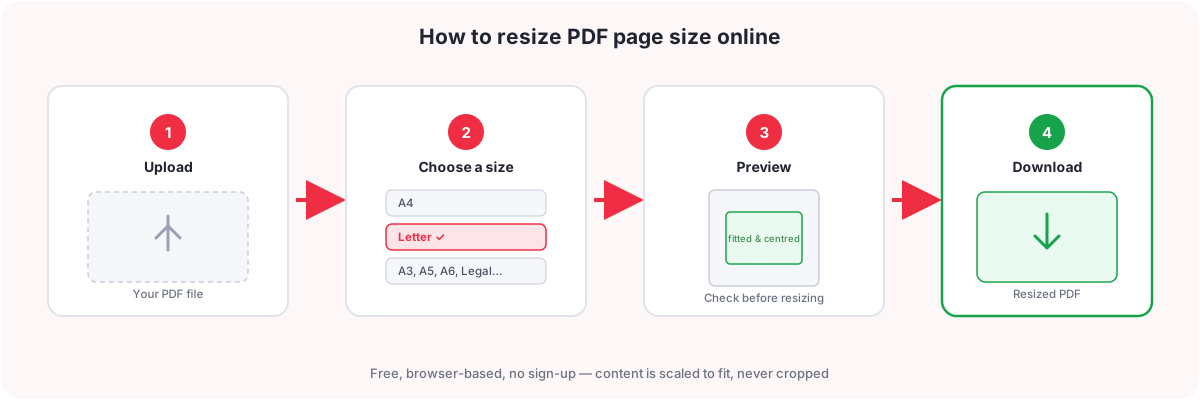
- Open Resize PDF Pages and upload your file.
- Pick a page size — A4, A3, A5, A6, Letter, or Legal.
- Choose an orientation, or leave it set to keep each page’s own orientation.
- Click Resize Pages, then download the result.
One line worth reading before you start: your content is always scaled to fit inside the new page size and centred on it — it is never cropped, and it is never stretched to fill the page.
Watch the Video
Prefer to see it first? This video walks through resizing a PDF’s page size from upload to download.
The written guide below covers the same ground, plus the parts a video cannot show easily: the exact math behind the scale-to-fit behaviour and a full paper-size reference table.
What Does PDF Page Size Mean?
Every page in a PDF has a fixed width and height, usually expressed as a paper size like A4 (210 × 297 mm) or Letter (8.5 × 11 in). That is the page’s dimensions — a completely different property from the PDF’s file size, which is how many megabytes the file takes up on disk. A page can be huge in megabytes and small in physical dimensions, or the other way round; the two numbers do not move together. Keep that distinction in mind as you read the rest of this guide, because it comes up again in more detail further down.
Page dimensions also have an orientation: portrait when the page is taller than it is wide, landscape when it is wider than it is tall. Common presets you will see when resizing a PDF include:
- A4 — 210 × 297 mm, the standard paper size across most of the world outside North America.
- Letter — 8.5 × 11 in, the standard in the United States and Canada.
- A3 — twice the area of A4, often used for posters, drawings, or spreads.
- A5 and A6 — smaller than A4, used for booklets, flyers, and notes.
- Legal — 8.5 × 14 in, longer than Letter, common for certain US legal and government documents.
Why Would You Need to Resize a PDF?
- A3 to A4. Drawings, spreadsheets, or posters built for A3 sometimes need to come down to A4 for standard printing or filing.
- Letter to A4, or A4 to Letter. Sharing a document internationally often means converting between the US Letter standard and the A4 standard used almost everywhere else.
- Standardizing a scanned document. A stack of pages scanned at different times, on different scanners, or from different source documents can end up with mismatched page sizes; resizing brings them all onto one consistent size.
- Preparing for print. A specific print shop, binder, or paper stock may require an exact page size before the file will run through their equipment correctly.
- Meeting a form or submission requirement. Some online forms, portals, or print-on-demand services will only accept a particular page size.
How to Resize PDF Page Size Online
Follow these steps in order. The whole job runs in your browser, with nothing to install.
Step 1: Upload your PDF
Open Resize PDF Pages and drag your file onto the upload box, or choose it from your device.
Step 2: Check the current page size
Take a moment to note what size your document is currently at, and what size it needs to end up at. This matters most when a document has mixed page sizes, since every page will be measured against its own original dimensions when it is placed on the new page.
Step 3: Choose a new page size
Pick a target size from the preset list: A4, A3, A5, A6, Letter, or Legal. These six presets cover the overwhelming majority of resize requests, from standardizing international paper sizes to preparing files for common print equipment.
Step 4: Understand what happens to your content
This is the part worth reading closely. Resizing does not stretch your content to fill the new page, and it does not crop anything away. Instead, each page’s content is scaled up or down — keeping its original proportions — until it fits entirely inside the new page size, and then it is centred, so any leftover space is split evenly on the sides that need it. If the new page shape is not the same shape as your original content, you will see even margins appear on two opposite sides rather than the content being squashed to match. Nothing is rasterized or recompressed by this step either — the page content is repositioned and scaled in place, so text stays text and stays sharp.
You can also choose an orientation: keep each page’s own portrait or landscape orientation automatically, or force every page to Portrait or every page to Landscape regardless of how it started.
Step 5: Preview
Before you commit, double check the size and orientation you have chosen match what you need. Since content is always fitted and centred rather than cropped, you will not lose any part of the page — but a page with a very different shape from the target size will show noticeably wider margins on two sides, which is worth knowing in advance rather than being surprised by after downloading.
Step 6: Resize
Click Resize Pages. The tool builds a brand new PDF with every page placed on the size you chose.
Step 7: Download
Download the finished file. Your original upload is never modified — resizing always produces a new, separate PDF.
How to Resize a PDF to A4
The process is identical to the general steps above, just with A4 as your target. Open Resize PDF Pages, upload your file, choose A4 from the page size list, pick an orientation (or leave it on automatic), click Resize Pages, and download. This is one of the most common conversions, since A4 is the standard size across most of the world outside North America — useful when a document arrives sized for A3, Letter, or Legal and needs to be standardized to A4 before printing, filing, or sharing internationally.

How to Resize a PDF to Letter
Same process again, with Letter as the target. Upload your file to Resize PDF Pages, choose Letter from the page size list, set your orientation, click Resize Pages, and download. This is the conversion to reach for when a document built on A4 (or another size) needs to match the 8.5 × 11 in Letter standard used in the United States and Canada, for example before submitting a file to a US-based printer or form that expects Letter-sized pages.
How to Make All PDF Pages the Same Size
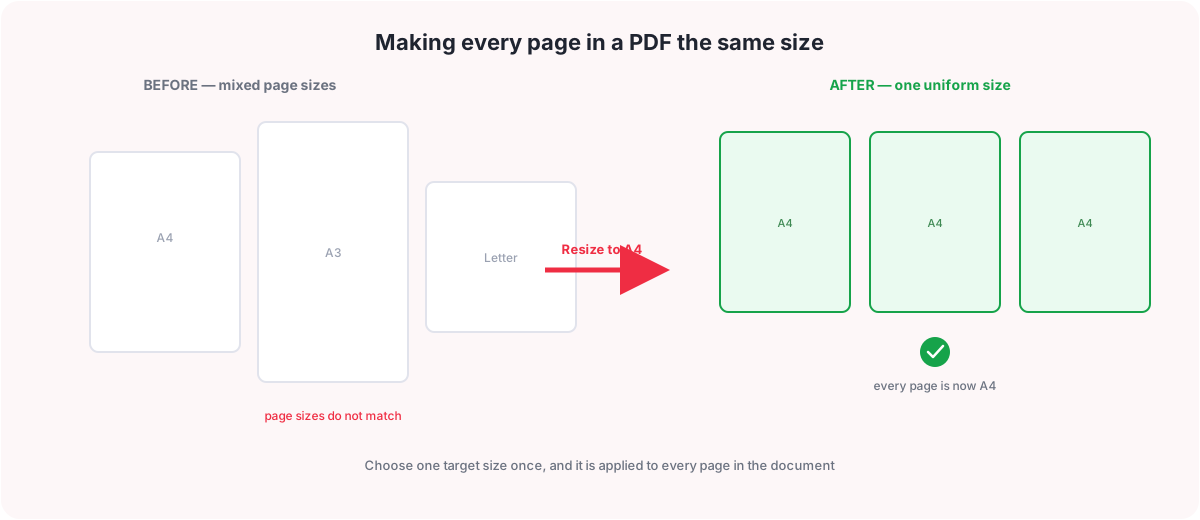
If your document has pages of different sizes mixed together — common in scanned batches assembled from more than one source — the fix is the same resize process applied once to the whole file. Choose a single target size (A4 is a safe, widely accepted default), and every page is placed onto that size individually: each page is measured against its own original dimensions, scaled to fit the target you chose, and centred, regardless of what size that particular page started at. The result is a document where every page comes out at one consistent size, even though the pages going in were not uniform.
How to Resize Only Certain PDF Pages
Being straightforward here: the Resize PDF Pages tool currently applies one page size and one orientation to the entire uploaded document — there is no option to resize just a subset of pages while leaving the rest untouched. If only part of your file needs a different page size, the practical workaround is to split the file first. Use Split PDF to pull out the pages that need a different size into their own file, resize that piece on its own, and then use Merge PDF to put the pieces back together once each part is the size you need. It is a couple of extra steps, but it gets you an accurate result today without waiting on a feature that is not there yet.
Using a Custom PDF Page Size
At the moment, Resize PDF Pages offers six fixed presets — A3, A4, A5, A6, Letter, and Legal — and does not include a custom width and height option. If your target size is one of those six presets, you are covered by the steps above. If you need a page size outside that list, this tool cannot produce it yet; check back, since tools on PDFCherry are updated over time.
PDF Page Size vs PDF File Size
This is worth its own section because it trips up a lot of people searching for a way to "resize" a PDF. There are two completely different things someone might mean by that word:
| Page size (dimensions) | File size | |
|---|---|---|
| What it is | The physical width and height of each page — A4, Letter, A3, and so on | How many megabytes the PDF file takes up on disk |
| What changes it | Resize PDF Pages, which places content on a new page size | Image compression, font handling, and other file-encoding changes |
| Right tool | Resize PDF Pages | Compress PDF |
If what you actually want is a smaller file to email or upload more easily, resizing the page dimensions is not the tool for that job, and it is not reliable for that purpose either way — changing a PDF’s page size can occasionally shift its file size a little as a side effect of rebuilding the document, but that is not what the operation is for and it is not something to count on. If your goal is genuinely a smaller file in megabytes, use Compress PDF instead, which is built specifically to reduce file size.
Paper Size Quick Reference
A quick lookup for the six sizes this tool supports, in millimetres, inches, and points (the unit PDF page boxes are actually measured in — 72 points to the inch). These are the numbers behind every conversion in this guide.
| Size | Millimetres | Inches | Points |
|---|---|---|---|
| A3 | 297 × 420 mm | 11.69 × 16.54 in | 841.89 × 1190.55 pt |
| A4 | 210 × 297 mm | 8.27 × 11.69 in | 595.28 × 841.89 pt |
| A5 | 148 × 210 mm | 5.83 × 8.27 in | 419.53 × 595.28 pt |
| A6 | 105 × 148 mm | 4.13 × 5.83 in | 297.64 × 419.53 pt |
| Letter | 215.9 × 279.4 mm | 8.5 × 11 in | 612 × 792 pt |
| Legal | 215.9 × 355.6 mm | 8.5 × 14 in | 612 × 1008 pt |
Notice that A3 through A6 all share the same aspect ratio (roughly 1:√2), which is why scaling between them never adds much margin — a page fits almost exactly into the next size up or down. Letter and Legal do not share that ratio with the A-series or with each other, which is exactly why converting between Letter and A4, or A4 and Legal, tends to leave a visibly larger strip of empty margin than staying within the A-series does.
Worked Example: Converting Letter to A4
Here is the actual math the tool runs, using a specific case: an 8-page Letter document (612 × 792 pt) resized to A4 (595.28 × 841.89 pt) in portrait.
- Compute the scale factor. The tool scales by the smaller of the two ratios, so the page fits on both axes: scale = min(595.28 ÷ 612, 841.89 ÷ 792) = min(0.9727, 1.0630) = 0.9727. The width ratio wins here because Letter is proportionally wider (relative to its height) than A4 is.
- Apply the scale. The original 612 × 792 pt content becomes 612 × 0.9727 = 595.28 pt wide (an exact fit) and 792 × 0.9727 = 770.4 pt tall.
- Centre the result. The scaled content fills the new page exactly on the width axis, so there is no horizontal margin. On the height axis, 841.89 − 770.4 = 71.49 pt of empty space is left over, split evenly: about 35.7 pt (roughly 0.5 in, or 12.6 mm) of margin at the top and bottom, and none at the sides.
All 8 pages go through this same calculation independently, so if your document has mixed page sizes, each page can end up with a slightly different scale factor and margin, even though every page lands on the same A4 target in the end. This is also the same math you would work through by hand for any other size pair in the reference table above — just substitute the target and source point dimensions.
Does Resizing Affect Readability?
Yes, in one direction. Because the whole page — text included — is scaled by the same factor, going to a smaller page size shrinks the text along with everything else. A3-to-A4 or Letter-to-A6 conversions can leave body text noticeably harder to read on screen or in print, especially anything that was already set in a small font. A few practical notes:
- Going to a larger page size does not enlarge your text — it keeps the content at its original scale (or close to it) and simply adds more margin, since the content only ever scales down to fit, or up just enough to fill the new page’s limiting dimension.
- If a downsize is making small print illegible, resizing is the wrong tool for making text bigger on its own terms; there is no independent text-scaling control here, since the whole page content stream is scaled as one unit.
- Check the preview before downloading if your original has small print, footnotes, or dense tables and you are sizing down — that is where legibility loss shows up first.
Frequently Asked Questions
What does it mean to resize a PDF page?
It means changing the physical width and height of each page — for example converting A3 pages to A4, or Letter pages to A4 — rather than changing the file size in megabytes.
How do I resize PDF page size?
Open Resize PDF Pages, upload your file, choose a page size from the presets (A4, A3, A5, A6, Letter, or Legal), pick an orientation, click Resize Pages, and download the result.
Can I resize a PDF to A4?
Yes. Choose A4 from the page size list and the tool scales every page to fit inside A4 dimensions, centred, keeping proportions intact.
Can I resize a PDF to Letter?
Yes. Choose Letter from the page size list and the same fit-and-centre process is applied using Letter dimensions as the target.
Can I resize only certain pages in my PDF?
Not currently. One page size and orientation is applied to the whole document. If only part of your file needs a different size, split that portion out first with Split PDF, resize it separately, then merge the pieces back together with Merge PDF.
Can I make all the pages in my PDF the same size?
Yes. Choose one target size and it is applied to every page in the document, so pages that started out at different sizes all come out consistent.
Will resizing my PDF reduce the file size?
Not reliably, and that is not what resizing is for. Page size and file size are different properties. Resizing may shift the file size slightly as a side effect, but if a smaller file is your actual goal, use Compress PDF instead.
Does resizing change my content?
It scales the content to fit the new page size while keeping its proportions, then centres it — it does not crop anything away and does not stretch content out of shape. If the new page shape differs from the original, you will see even margins added on two sides.
Can I use a custom PDF page size?
Not at the moment. The tool currently supports six presets: A3, A4, A5, A6, Letter, and Legal. There is no custom width and height option yet.
Can I resize a scanned PDF?
Yes. Scanned pages are ordinary PDF pages as far as resizing is concerned, and are scaled to fit and centred on the new page size the same as any other page.
Will resizing lose quality?
The resize step itself repositions and scales the existing page content rather than converting it into a flattened image, so text and vector content are not re-rendered as pixels by this operation. Results can still vary with unusual or already-rasterized PDF content, so it is worth checking the downloaded file.
Can I resize a PDF on my phone?
Yes. The tool runs in your browser on desktop, tablet, or phone, with nothing to install.
Is resizing a PDF free?
Yes. Resize PDF Pages is free to use and does not require creating an account.
Are my files kept after resizing?
No. Uploaded files and the result are deleted automatically a short time after processing.
What is the difference between resizing a PDF page and rotating it?
Resizing changes a page’s physical dimensions — the width and height in points — by scaling its content to fit a new target size. Rotating only changes the angle a page is displayed at (90°, 180°, or 270°); it does not change the page’s dimensions or scale its content at all. If your pages are sideways or upside down, use Rotate PDF instead — resizing will not fix an orientation problem on its own.
Can I resize a PDF that has forms or annotations?
You can upload one, but be aware of a real limitation: resizing works by importing each page’s content stream into a new, scaled page. Interactive form fields and annotations are stored separately from a page’s content stream, so based on how the tool is built, they are not expected to carry over — a resized copy of a fillable form is likely to come out as flat, non-interactive content rather than a form you can still fill in. This has not been separately verified against every annotation type, so if your file depends on staying fillable, check the result carefully before relying on it, or keep an unresized copy of the original as a backup.
Why did my resized PDF get bigger margins?
Because your original page and the target page are not the same shape (aspect ratio). Content is always scaled to fit entirely inside the new page without cropping or stretching, so when the shapes do not match, the leftover space is added as even margin on two opposite sides rather than being trimmed away. This is most noticeable converting between Letter/Legal and the A-series, since they do not share a common aspect ratio; converting within the A-series (A3 to A4 to A5, and so on) leaves much smaller margins because those sizes are already close to the same shape.
Is there a file size limit?
Yes, 50 MB per file. If your PDF is larger than that, shrink it first with Compress PDF, then upload the smaller copy.
What to Do Next
Once your pages are resized, a few tools pair well with the result:
- Compress PDF if what you actually need is a smaller file size
- Crop PDF to trim margins instead of changing the overall page size
- Merge PDF to combine the resized file with another document
- Split PDF to separate out pages that need a different size on their own
- Delete PDF Pages to remove pages you do not need
- Rotate PDF to fix sideways or upside-down pages
- Duplicate PDF Pages to repeat a page within the document
You May Also Like
- How to Crop a PDF Online for Free
- PDF Reverse Page Order: How to Reverse the Order of Your PDF Pages
- How to Replace a Page in a PDF
Ready to Resize Your PDF Page Size?
Upload your file, choose a size, and download. Free, with no sign-up.
Resize PDF Page Size Now