
A stack scanned in from the bottom up, a document that reads backwards, or a file where the last page should really be the first — the fix in every case is the same: reverse the PDF page order. This guide covers pdf reverse page order online, what actually happens to your pages when you do it, and how to check the result before you rely on it.
Everything below uses the PDFCherry Reverse PDF Pages tool, which lets you preview the reversed order of PDF pages before anything is downloaded.
Quick Answer
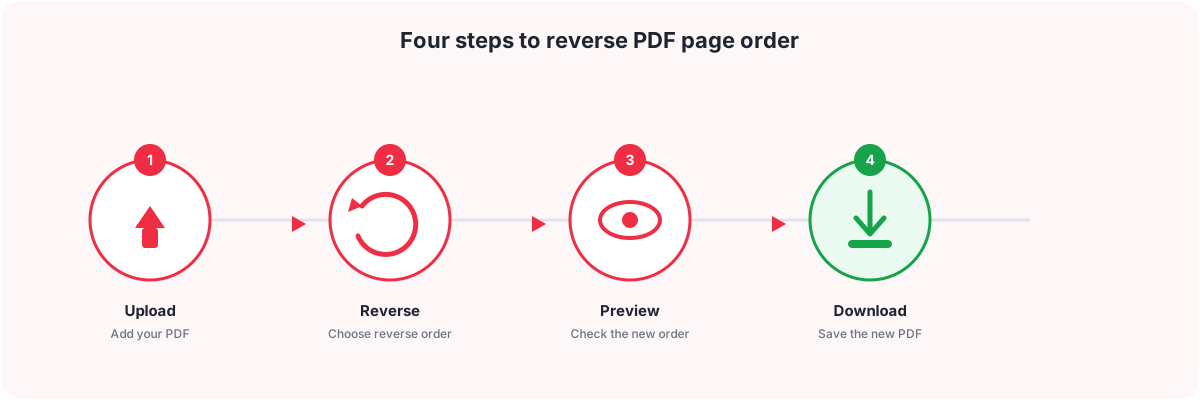
- Open Reverse PDF Pages and upload your file.
- Reversing is automatic — there is nothing to choose, every page is placed in reverse order.
- Switch to Reversed order in the preview to see the new page sequence.
- Confirm, and the tool builds a new file with that order.
- Download the reversed PDF.
Nothing on any page changes — only the order the pages appear in. Your original file is never modified.
Watch the Video
Prefer to see it first? This video shows how to reverse the order of PDF pages from upload to download, including how the before/after preview works.
The written steps below cover the same ground, plus the parts a video cannot show easily: what to check before you rely on the result, and what to do when only part of a document needs reversing.
How to Reverse PDF Page Order Online
Follow these steps in order. The whole job runs in your browser, with no software to install.
Step 1: Upload your PDF
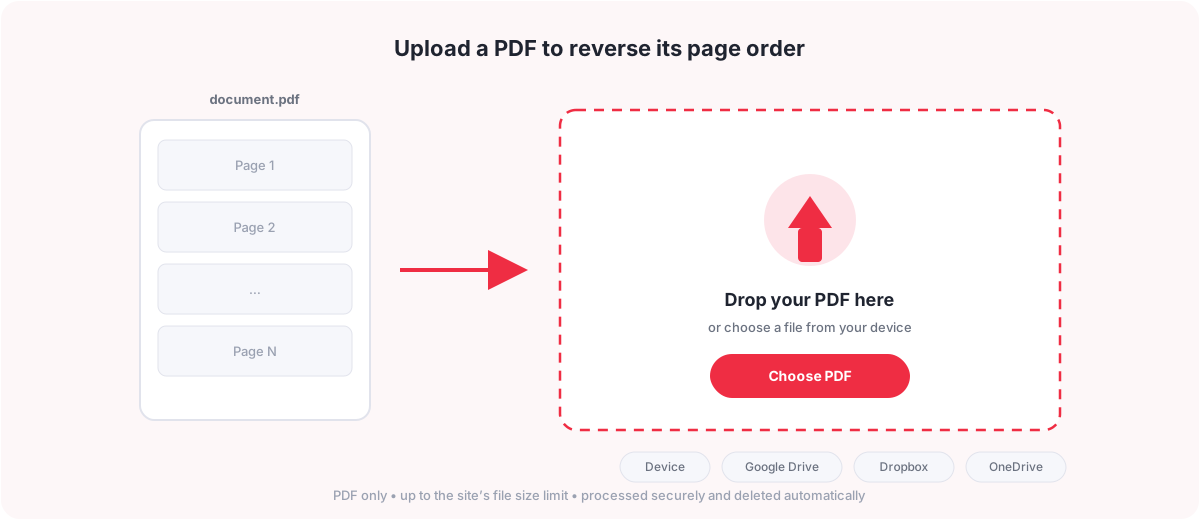
Open Reverse PDF Pages and drag your file onto the upload box, or press Choose PDF to browse for it. You can also pull the file straight in from Google Drive, Dropbox or OneDrive using the buttons under the upload box, instead of saving it to your device first. PDF files up to the site’s size limit are accepted.
You should now see every page of your document load as a thumbnail, ready for the next step.
Step 2: Choose to reverse the order
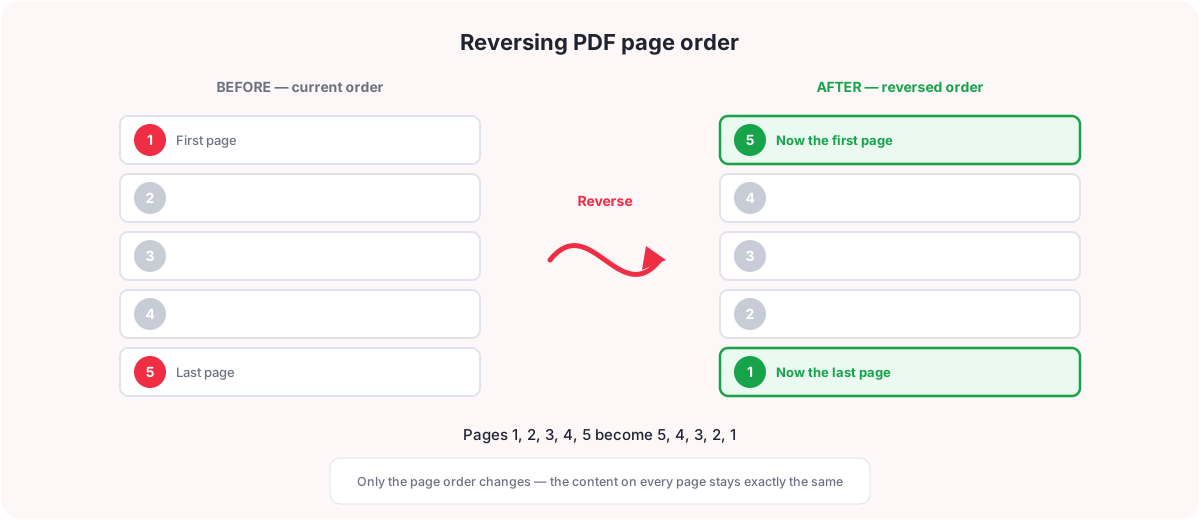
There is nothing to configure here — reversing flips the entire document end to end. If your file has pages 1, 2, 3, 4, 5 in that order, reversing turns it into 5, 4, 3, 2, 1: what was the last page becomes the first, what was the first page becomes the last, and every page in between mirrors around the middle.
Step 3: Preview the reordered pages
This is the step worth slowing down for, and it is the part this tool actually does well. The workspace shows a Current order / Reversed order toggle above the page grid. Leave it on Current order to see your file exactly as it is today, or switch it to Reversed order to scroll through the exact sequence you will get after downloading — before anything is built or saved. Previewing matters because a page count that looks right does not always mean the order is right; seeing the actual new first and last page removes the guesswork.
Step 4: Confirm the reversal
Once the reversed order looks correct, confirm. Nothing about the content of any page changes at this point — not the text, not the images, not the page size. Only the position of each page in the document changes. Your original uploaded file is left exactly as it was; the reversal always produces a separate, new file.
Step 5: Download the result
After the new file is built, a results screen appears with a download button. From there you can also preview the finished PDF in the browser, or save it directly to Google Drive, Dropbox or OneDrive instead of downloading it to your device. The file is kept for a limited time and then deleted automatically, so save or download your copy before it expires.
Can You Reverse Only Some PDF Pages?
No — not with this tool. Reverse PDF Pages always reverses the entire document; there is no option to select a range of pages and reverse only that section, and no setting to leave some pages in place. Every page you upload gets flipped into the mirrored position.
If you only need to reverse part of a document, or rearrange specific pages into a custom order (including reversing just a subsection while leaving the rest alone), use Reorder PDF Pages instead. It lets you drag individual pages into any order you like, which covers a partial reverse as one case among many possible arrangements.
How to Reverse PDF Pages Manually
If you already have a PDF editor with page-thumbnail or page-organizing support, you can reverse a document by hand. The general idea, common to most such applications:
- Open the PDF in an editor that shows page thumbnails or has a page-organize view.
- Select all the pages, or switch to a thumbnail/reorder view that lets you drag pages individually.
- Move each page so the last page becomes first, the second-last becomes second, and so on, working inward from both ends.
- Review the thumbnail order carefully once you are done — it is easy to leave one page out of place in a long document.
- Save or export the file, ideally as a new copy rather than overwriting your original.
Exact menu names, panel locations and drag-and-drop behaviour vary a lot between applications and even between versions of the same application, so treat the steps above as the general shape of the job rather than a fixed set of clicks. For anything beyond a handful of pages, dragging one page at a time by hand is slow and easy to get wrong, which is the main reason an automated reverse (or a full reorder tool for partial changes) is worth using instead.
Why Reverse PDF Pages?
- Scanned documents that read bottom-up. A stack fed into a scanner face-down, or from the back of the pile, comes out with the last page first.
- Duplex or two-pass scanning workflows. Some scanners or workflows process one side of a stack in reverse order, leaving the digitized file backwards relative to the original paper document.
- Booklets and folded layouts. Certain booklet or signature layouts are built or unpacked in reverse page order and need flipping back to a normal reading order.
- Presentation handouts. Slides exported in reverse, or a handout meant to be read back-to-front for a particular printing method, sometimes need the order flipped before distribution.
- Archival documents. Older scanned archives are sometimes digitized newest-page-first; reversing restores chronological reading order.
- Simple workflow corrections. Any time a file ends up back-to-front from an export, print, or merge step, reversing it once is faster than rebuilding the document.
How to Check the Result
Before you rely on the reversed file, run through this checklist:
- The page that used to be last is now first.
- The page count matches the original — reversing never adds or removes pages.
- The content on each page is unchanged; only its position in the document moved.
- You downloaded the new, reversed file — not the original PDF you uploaded.
Troubleshooting
| Problem | Why it happens | Solution |
|---|---|---|
| Pages are still in the wrong order after reversing | A full reverse mirrors the whole document; if the pages were not simply back-to-front, a straight reversal will not produce the order you actually need. | Use Reorder PDF Pages to arrange pages into any specific order instead of a mirrored reverse. |
| Only some pages need reversing, not the whole file | Reverse PDF Pages always flips the entire document; it has no option to reverse a range or selection. | Open Reorder PDF Pages and drag just the pages you need into the order you want. |
| The file will not upload — password protected | A password on the PDF blocks it from being processed. | Remove the password first with Unlock PDF, then upload the unlocked copy. |
| The PDF is a scanned document | This is not actually a problem — a scanned PDF is made up of ordinary pages, each one an image, and reverses exactly the same way as a text PDF. | Upload it as normal; no separate handling is needed. |
| The output file is noticeably larger than the original | Reversing only reorders existing pages and does not recompress or re-encode them, so the file size should stay about the same. A large jump would be unusual for this operation. | If the result does come out larger, try re-uploading the original file, or shrink the output afterwards with Compress PDF. |
| The file will not upload at all | The file may not be a valid PDF, may be corrupted, or may be larger than the site’s size limit. | Confirm the file opens normally elsewhere, and if it is oversized, shrink it first with Compress PDF. |
Frequently Asked Questions
How do I reverse PDF page order?
Upload your PDF to Reverse PDF Pages, preview the reversed order of PDF pages using the Current order/Reversed order toggle, confirm, then download the new file. The whole document is flipped end to end automatically.
Can I reverse PDF pages online for free?
Yes. Reverse PDF Pages runs entirely in your browser, is free to use, and does not require creating an account.
Can I reverse only selected pages in a PDF?
No, not with this tool — it always reverses the whole document. To reverse or rearrange only specific pages, use Reorder PDF Pages, which lets you drag pages into any custom order.
Does reversing a PDF change the content of the pages?
No. Reversing only changes the order pages appear in. The text, images, formatting and size of every page stay exactly as they were.
Will page numbers printed on the page change when I reverse a PDF?
No. Any page number text that is printed on a page is part of that page’s content, so it moves with the page and is not changed or renumbered. Only the physical order of the pages in the document changes.
Can I reverse the page order of a scanned PDF?
Yes. A scanned PDF is just a PDF made of image-based pages, and it reverses the same way as any other PDF.
Can I use this on mobile?
Yes. Reverse PDF Pages works in a mobile browser on phones and tablets, with no app to install.
Is reversing PDF pages free?
Yes, there is no charge and no sign-up required to reverse a PDF.
Is my PDF secure, and is it deleted afterward?
Your file is uploaded over a secure connection, processed to build the reversed file, and both the upload and the result are deleted automatically a short time after processing.
Can I undo a PDF page reversal?
There is no separate undo step once you have downloaded the file, but you can run the reversed file back through Reverse PDF Pages to flip it back to the original order, or simply keep your original file so you never need to undo anything.
What is the difference between reversing and reordering PDF pages?
Reversing always mirrors the whole document end to end with no choices to make. Reordering lets you place each page wherever you want, which covers a partial reverse, a custom sequence, or any other arrangement.
Does reversing a PDF change the page count?
No. The number of pages stays exactly the same — only their order changes.
What to Do Next
Once your pages are in the right order, you may want one more step:
- Reorder PDF Pages to rearrange specific pages into any custom order
- Merge PDF to combine the result with another document
- Split PDF to break it into smaller files
- Rotate PDF to fix a sideways or upside-down page
- Delete PDF Pages to remove pages you do not need
- Remove Blank Pages to clear out empty pages left over from scanning
- Extract PDF Pages to pull specific pages into their own file
- Compress PDF if the file needs to be smaller for sharing
You May Also Like
- How to Reorder PDF Pages
- Duplicate a Page in a PDF
- How to Replace a Page in a PDF
- How to Remove Blank Page in Google Docs and Excel
Ready to Reverse Your PDF Pages?
Upload your file, preview the reversed order, and download. Free, with no sign-up.
Reverse PDF Pages