
A blank page at the end of a document, or a printout with three empty sheets tacked onto the back of a spreadsheet — both are common, and both have a small, specific cause once you know where to look. This guide covers how to remove blank page in Google Docs and how to remove blank pages in Excel, with the exact clicks for each.
The two problems look similar but are not the same thing. Google Docs blank page issues are almost always an extra paragraph, a page break, or a section break sitting where you cannot easily see it. Excel does not really have “pages” in the file at all — what you are fighting is the print area, the used range, or a page break, and fixing those stops the blank sheets from printing.
Quick Answer
Google Docs: click onto the blank page and press Backspace (or Delete) until it collapses into the page before it. If that does not work, turn on View > Show formatting marks (or Show non-printing characters) to see the paragraph mark or page break causing it, then delete that mark directly.
Excel: blank pages almost always come from printing, not the worksheet itself. Go to Page Layout > Print Area > Set Print Area around only your real data, or File > Print > Print Active Sheets and check the page count in the preview, then remove any manual page breaks under Page Layout > Breaks > Reset All Page Breaks.
Watch the Video
Prefer to watch it? This video walks through removing a blank page in Google Docs and clearing blank pages out of an Excel printout, in order.
The written steps below cover the same ground, plus the parts a video cannot show easily: exactly which menu each option is under, and what to check when the first attempt does not work.
How to Remove a Blank Page in Google Docs
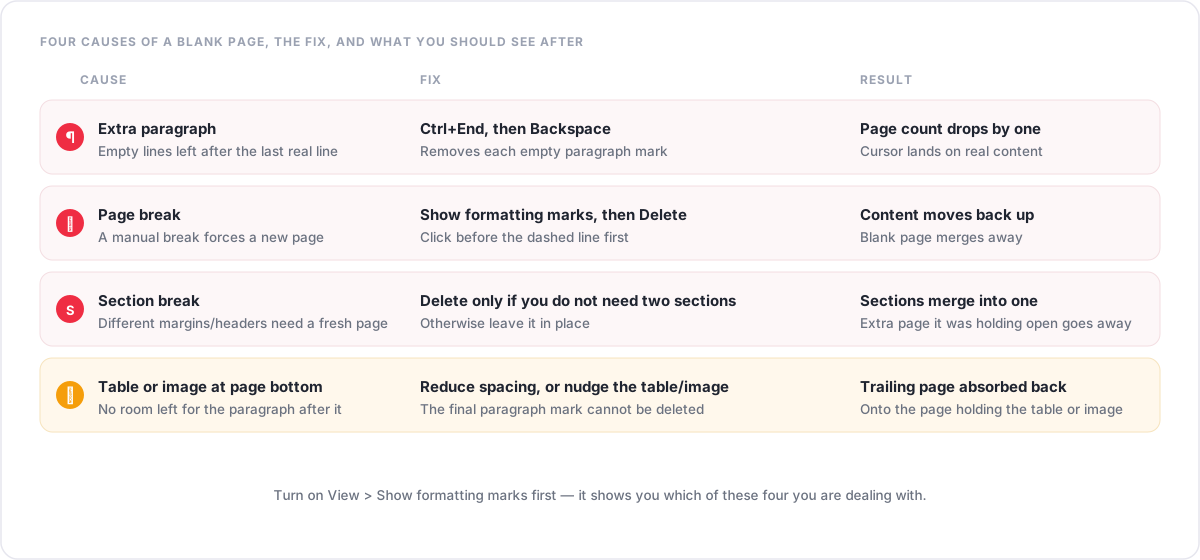
A blank page in Google Docs is always something sitting in the document — an empty paragraph, a page break, a section break, or a table or image pushing content past the last line. Work through these five methods in order; most people are fixed by the first two.
Method 1: Delete the extra content directly
- Scroll to the blank page and click anywhere on it. The cursor lands wherever you clicked.
- Press Ctrl+End (or Cmd+End on Mac) to jump the cursor to the very end of the document, so you know exactly where the last character is.
- Press Backspace repeatedly. Each press removes one empty line or character.
- You should now see the blank page disappear once the cursor reaches the end of your real content. If the page count in the bottom-left corner drops by one, it worked.
This is the fastest fix and it is the right first move for a plain empty page at the end of a document.
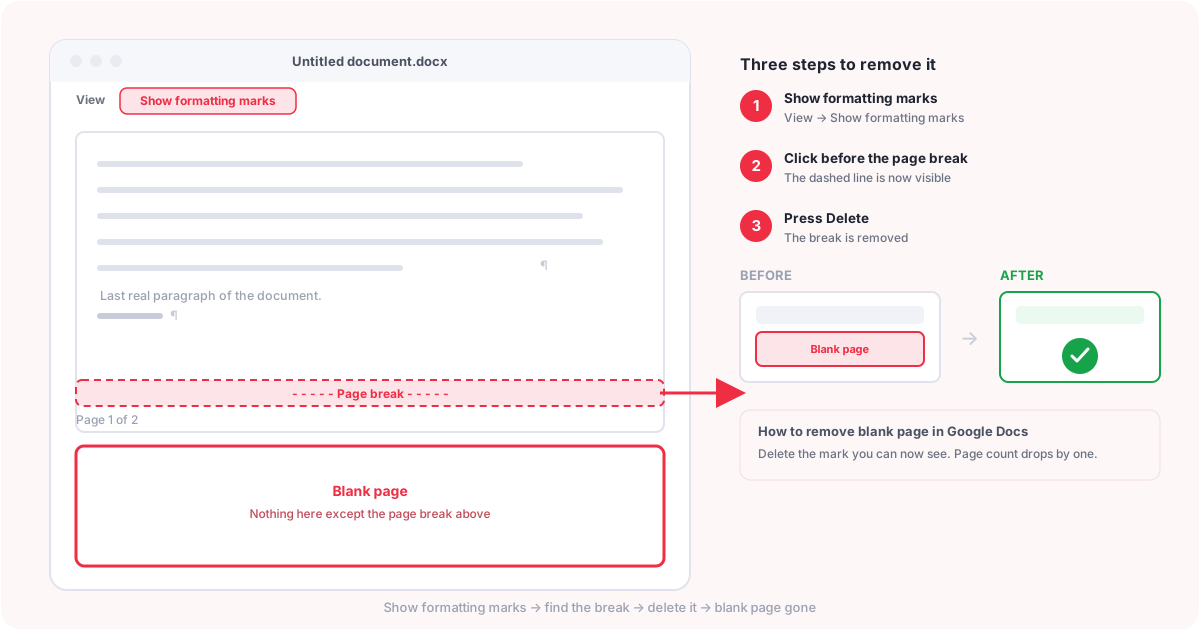
Method 2: Show formatting marks to see what is really there
Sometimes Backspace does not seem to do anything, because there is a page break or section break rather than ordinary empty paragraphs. Turning on formatting marks makes the invisible things visible.
- Go to View in the menu bar.
- Click Show formatting marks (or Show non-printing characters, depending on your version).
- You should now see small paragraph marks (¶) at the end of every line, and a dashed line labelled Page break or Section break wherever one exists.
- Click directly in front of the mark that is causing the blank page and press Delete to remove it.
Method 3: Remove a page break
A page break forces everything after it onto a new page, even if there is nothing there yet. If Method 2 showed you a page break sitting on its own near the end of the document, this is what created your blank page.
- With formatting marks on, click immediately to the left of the page break line.
- Press Delete once. This removes the page break itself, not the text around it.
- You should now see the content that was after the break move back up onto the previous page, and the blank page is gone.
If you inserted the break yourself and are not sure where, check Insert > Break in the menu — that is the same menu used to add one, so it is a useful place to remember what a page break looks like before you go hunting for it.
Method 4: Fix a section break
A section break is different from a page break: it lets one part of a document use different margins, headers, footers, or page numbering than another part. Google Docs sometimes needs a whole new page to make that change happen cleanly, and that extra page can look completely empty.
- With formatting marks visible, look for a line labelled Section break (next page).
- If you genuinely need two sections (for example, different headers before and after a cover page), leave the break in place — deleting it will merge the formatting of both sections together, which may undo work you want to keep.
- If you do not need separate sections, click at the start of the break and press Delete to remove it, the same way you would remove a page break.
- You should now see the two sections merge into one, and the extra page it was holding open disappears.
Method 5: A table or image is pushing content onto a new page
A table or image placed right at the bottom of a page can leave no room for the paragraph mark that always sits after it, so Google Docs pushes that last, invisible paragraph onto a page of its own.
- Click just after the table or image, on the line directly below it.
- Check whether that line is an empty paragraph. If it is, and it sits alone on the next page, select it and press Delete.
- If deleting it does not help because it is the very last paragraph in the document (Google Docs will not let you delete the final paragraph mark), instead reduce the table’s row height slightly, or add Format > Paragraph styles > Line & paragraph spacing > Custom spacing with a smaller value on the paragraph right after the table, so it fits back onto the previous page.
- You should now see the trailing blank page absorbed back into the page holding the table or image.
Google Docs Blank Page Troubleshooting
| Problem | Why it happens | Solution |
|---|---|---|
| Blank page at the very end of the document | One or more empty paragraphs sit after your last line of real content. | Press Ctrl+End, then Backspace until the page count drops. |
| Backspace does nothing on the blank page | The blank page is a page break or section break, not an empty paragraph. | Turn on View > Show formatting marks, click before the break, and press Delete. |
| A blank page appears in the middle of the document | A manual page break or section break was inserted there on purpose or by accident. | Show formatting marks, locate the break, and delete it if it is not needed. |
| Deleting the blank page also removes real content | The selection included text before the paragraph mark, not just the mark itself. | Undo with Ctrl+Z, then click precisely and delete one character at a time. |
| A new blank page keeps reappearing after you delete it | A table, image, or header/footer setting near the bottom of a page is forcing an extra paragraph onto a new page each time. | Check the content directly above where the blank page was; shrink spacing or move the table/image slightly rather than deleting the trailing paragraph. |
How to Remove Blank Pages in Excel
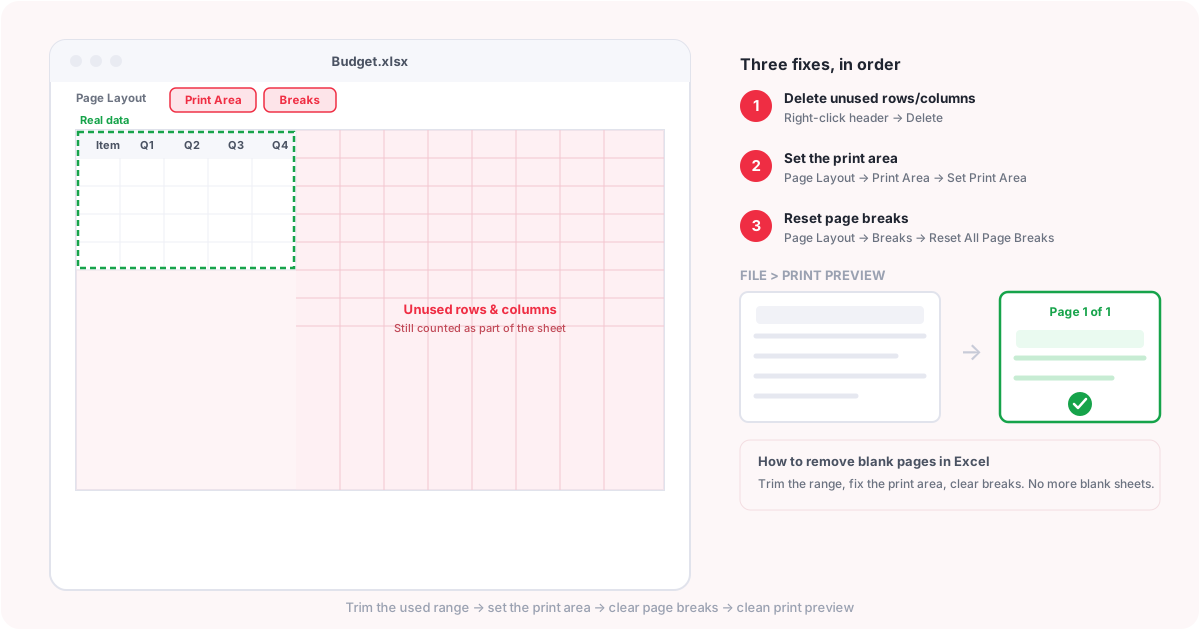
Excel does not store a document as a fixed stack of pages the way Google Docs does. A worksheet is a grid that can, in theory, go on forever, and “pages” only exist when you print it or preview a print. So the question of how to remove blank pages in Excel is really about three things: what your used range actually is, whether a print area is set, and whether any page breaks are cutting the sheet up in the wrong places. Fix those and the blank pages stop appearing.
Method 1: Remove unwanted rows and columns
- Select the empty rows or columns beyond your real data by clicking their row or column headers.
- Right-click the selection and choose Delete Rows (or Delete Columns), not just Clear Contents. Deleting removes the cells themselves; clearing only empties them, which can still leave Excel thinking data used to live there.
- You should now see the sheet’s scrollbar shrink to match your actual data, which is a good sign the used range has reset.
Method 2: Clear unwanted formatting
Excel can treat a cell as “used” just because it once had formatting applied — a fill colour, a border, a number format — even after the value is gone. This is one of the most common causes of Excel showing far more pages than the data justifies.
- Delete (pressing the Delete key, or right-click > Delete Cells) removes the cells and shifts others to fill the gap.
- Clear Contents (right-click > Clear Contents, or the Delete key on a selection without shifting cells) removes only the value, leaving formatting behind.
- Clear Formatting (Home > Clear > Clear Formats) removes fill colours, borders, and number formats without touching the values.
To fully reset a range of cells you no longer need, select it and use Home > Clear > Clear All, which removes both the content and the formatting in one go.
Method 3: Check the print area
- Select only the range you actually want to print.
- Go to Page Layout > Print Area > Set Print Area.
- To confirm it worked, open File > Print and check the page count and preview on the right.
- You should now see a preview that matches your real data, with no extra blank sheets tacked on.
If a print area was set incorrectly by someone else, or by an old version of the file, clear it first with Page Layout > Print Area > Clear Print Area, then set it again around the correct range.
Method 4: Remove page breaks
Excel adds automatic page breaks based on paper size and margins, and lets you add manual ones too. Either kind can split your data so that a near-empty sliver ends up alone on its own page.
- Go to View > Page Break Preview to see exactly where every page starts and ends. Automatic breaks show as dashed blue lines; manual ones show as solid blue lines.
- To remove a single manual break, click just below or to the right of the line, then go to Page Layout > Breaks > Remove Page Break.
- To clear every manual break at once, use Page Layout > Breaks > Reset All Page Breaks.
- You should now see the page divisions redraw themselves around your actual data.
Method 5: Adjust page layout and scaling
- Go to Page Layout > Scale to Fit.
- Set Width to 1 page so columns are not spilling over onto extra sheets.
- If rows are the problem instead, set a specific number under Height, or leave it as Automatic.
- You should now see, in File > Print preview, everything fitting onto the number of pages you expect.
Google Docs vs Excel: Why Blank Pages Behave Differently
| Google Docs | Excel | |
|---|---|---|
| What a “page” is | A fixed part of the document itself, stored as content and page/section breaks. | A print-time division of an open-ended grid; not stored as a fixed page count. |
| Most common cause of a blank page | An extra paragraph, page break, or section break. | An oversized used range, a stray print area, or a page break. |
| Where you look first | View > Show formatting marks. | View > Page Break Preview, or File > Print preview. |
| The direct fix | Delete the paragraph mark or break causing it. | Delete unused rows/columns, reset the print area, or reset page breaks. |
| Does it affect the saved file, or only printing? | Affects the document itself, whether printed, shared, or exported. | Mostly affects printing and PDF export; the raw data in the sheet is unaffected either way. |
Common Problems and How to Fix Them
1. You deleted the content but the blank page still shows
What you see: the page count has not changed even though the page looks empty.
Why it happens: an invisible paragraph mark, page break, or section break is still there — deleting visible text does not remove those.
How to fix it: turn on View > Show formatting marks and delete the mark itself, not just the space around it.
Check again: the page count in the bottom-left corner should drop by exactly one.
2. Backspace removed real content by mistake
What you see: a line or paragraph you needed has disappeared along with the blank page.
Why it happens: the cursor was placed slightly before the intended mark, so Backspace deleted one character too many.
How to fix it: press Ctrl+Z immediately to undo, then zoom in and click precisely before deleting one character at a time.
Check again: your text is back, and the blank page is still gone (or still there, ready to try again more carefully).
3. You cannot tell what is creating the blank page
What you see: a blank page with nothing obviously on it.
Why it happens: the cause is a break or a hidden paragraph mark that only shows once formatting marks are visible.
How to fix it: View > Show formatting marks reveals every paragraph mark and break, so you can see exactly what is sitting on that page.
Check again: you should now see either a paragraph mark, a page break line, or a section break line on the blank page.
4. Google Docs keeps creating another blank page
What you see: you delete the blank page, save, and a new one appears in roughly the same place.
Why it happens: a table, image, or spacing setting close to the bottom of the previous page is forcing an extra paragraph onto its own page every time.
How to fix it: check the content directly before where the blank page appears; reduce paragraph spacing there, or nudge the table/image slightly rather than repeatedly deleting the trailing paragraph.
Check again: the blank page should stop reappearing after you adjust the spacing, not just after you delete it once.
5. Excel only shows blank pages when printing
What you see: the worksheet looks fine on screen, but File > Print shows extra blank sheets.
Why it happens: the print area or used range extends further than your visible data.
How to fix it: set Page Layout > Print Area > Set Print Area around only the real data, or delete the unused rows and columns beyond it.
Check again: reopen File > Print and confirm the page count matches your actual data.
6. Excel shows more pages than the actual data
What you see: a small table somehow spans five or six printed pages.
Why it happens: leftover formatting far outside your data (a fill colour or border applied once, long ago) is still counted as part of the used range.
How to fix it: select the unused area and run Home > Clear > Clear All, then save the file so Excel recalculates the used range.
Check again: Ctrl+End should now jump to a cell near your real last row and column, not somewhere far beyond it.
7. A page looks blank but actually contains something
What you see: a printed page that appears empty but is technically part of your document or workbook.
Why it happens: in Google Docs, a single space, a small image, or white text can sit there invisibly; in Excel, a formula that returns an empty string, or a very light font colour, can make a cell look blank while it still has content.
How to fix it: in Docs, select the whole page (click and drag) to see if anything highlights; in Excel, click through the cells with the arrow keys and check the formula bar for each one.
Check again: the formula bar (Excel) or a Select All on that page (Docs) should now show nothing, confirming it is genuinely empty before you delete it.
Check Your Result
- Google Docs: the page count in the bottom-left corner matches what you expect.
- Google Docs: View > Show formatting marks no longer shows a stray break or paragraph mark where the blank page was.
- Google Docs: scrolling to the end of the document lands you on real content, not empty space.
- Excel: File > Print preview shows only the pages that contain real data.
- Excel: Ctrl+End jumps to a cell close to your actual last row and column.
- Excel: View > Page Break Preview shows breaks around your data, not cutting through empty space.
How to Prevent Blank Pages in the Future
Google Docs
- Keep View > Show formatting marks on while you are formatting a long document, so you notice a stray page break as soon as it appears.
- Use page breaks (Insert > Break > Page break) deliberately, and remove them again once they are no longer needed rather than leaving old ones in place.
- Place tables and images with a little space below them on the page, rather than flush against the bottom edge.
Excel
- Delete whole rows and columns you no longer need, instead of just clearing their contents.
- Set a print area deliberately for any sheet you plan to print or export, rather than letting Excel guess.
- Check View > Page Break Preview before printing a large sheet, so you can adjust breaks before they cause a nearly empty page.
Frequently Asked Questions
How do I remove a blank page in Google Docs?
Click onto the blank page, press Ctrl+End to reach the very end of the document, then press Backspace until the page count drops. If that does not work, turn on View > Show formatting marks to find and delete the page break or section break causing it.
Why can’t I delete a blank page in Google Docs?
Backspace only removes ordinary text and paragraph marks. If the blank page is caused by a page break or section break instead, Backspace on its own will not remove it — you need to turn on Show formatting marks, click directly before the break, and press Delete.
How do I delete an extra page in Google Docs?
Scroll to the extra page and check whether it holds a page break, a section break, or just empty paragraphs (View > Show formatting marks will show you which). Delete that specific mark and the extra page merges back into the one before it.
How do I remove a page break in Google Docs?
Turn on View > Show formatting marks so the page break line is visible, click immediately to its left, and press Delete. This removes the break without touching the text on either side of it.
Why does Google Docs have a blank page at the end?
Almost always one or more empty paragraphs, or a leftover page break, sitting after your last line of real content. Press Ctrl+End to jump there and Backspace to clear it.
How do I remove blank pages in Excel?
Delete the unused rows and columns beyond your data, set a print area around only the data you want (Page Layout > Print Area > Set Print Area), and reset any page breaks under Page Layout > Breaks > Reset All Page Breaks.
Why does Excel print blank pages?
Excel is printing based on the print area or used range, which usually extends further than your visible data because of leftover formatting or old content. Clearing that area and resetting the print area stops the blank pages from printing.
How do I remove an extra page in Excel?
Check File > Print to see which page is extra, then look at View > Page Break Preview to see what is on it. Delete the unused rows or columns causing it, or adjust the page break directly above it.
How do I remove page breaks in Excel?
Go to View > Page Break Preview to see all breaks. Click near a manual break (a solid blue line) and choose Page Layout > Breaks > Remove Page Break, or use Reset All Page Breaks to clear every manual break at once.
Why does Excel show blank pages even with no data?
Excel remembers a cell as “used” if it ever had formatting applied, even after the value is deleted. That expands the used range far beyond your actual data. Select the unused area and use Home > Clear > Clear All to reset it.
Can I remove blank pages from a PDF?
Yes. Once a Google Docs or Excel file has been exported or printed to PDF, use Remove Blank Pages to detect and delete any empty pages directly in the PDF, free and without installing anything.
What if deleting the blank page also deletes my content?
Press Ctrl+Z straight away to undo it. Then zoom in, click precisely right before the mark you actually want to remove, and delete one character at a time instead of holding the key down.
What If Your File Is Already a PDF?
PDFCherry works on PDF files, not directly on Google Docs or Excel files, so it is not the right tool for editing the document or spreadsheet itself. It becomes useful once you have exported or printed that file to PDF and the blank page has come along with it — which does happen, since a page break or print area problem in the original file is usually still there after export.
In that case, open Remove Blank Pages, upload the PDF, and it finds and removes empty pages automatically. A few related tools are useful for the same PDF once the blank pages are gone:
- Delete PDF Pages to remove specific pages by number, not just blank ones.
- Reorder PDF Pages if the export left pages in the wrong order.
- Merge PDF to combine the cleaned-up document with another file.
- Split PDF to break a long export into smaller files.
- Compress PDF if the exported file is now larger than you need for emailing.
- PDF to JPG if you need the cleaned-up pages as images instead.
You May Also Like
- Remove Blank Pages from a PDF
- Insert Blank Pages Into a PDF
- How to Delete Pages from a PDF
- Duplicate a Page in a PDF
- How to Merge PDF Files
- How to Split a PDF
Already Have a PDF with Unwanted Blank Pages?
Use PDFCherry to remove them online, free, with no sign-up.
Remove Blank Pages Now