
When only one page of a PDF is wrong — a corrected paragraph, an updated signature page, a rescanned sheet that came out crooked, or a cover page with last year’s date on it — rebuilding the whole document from scratch is wasted effort. This guide covers how to replace a page in a PDF document, and how to replace a cover page online free, using nothing but a browser.
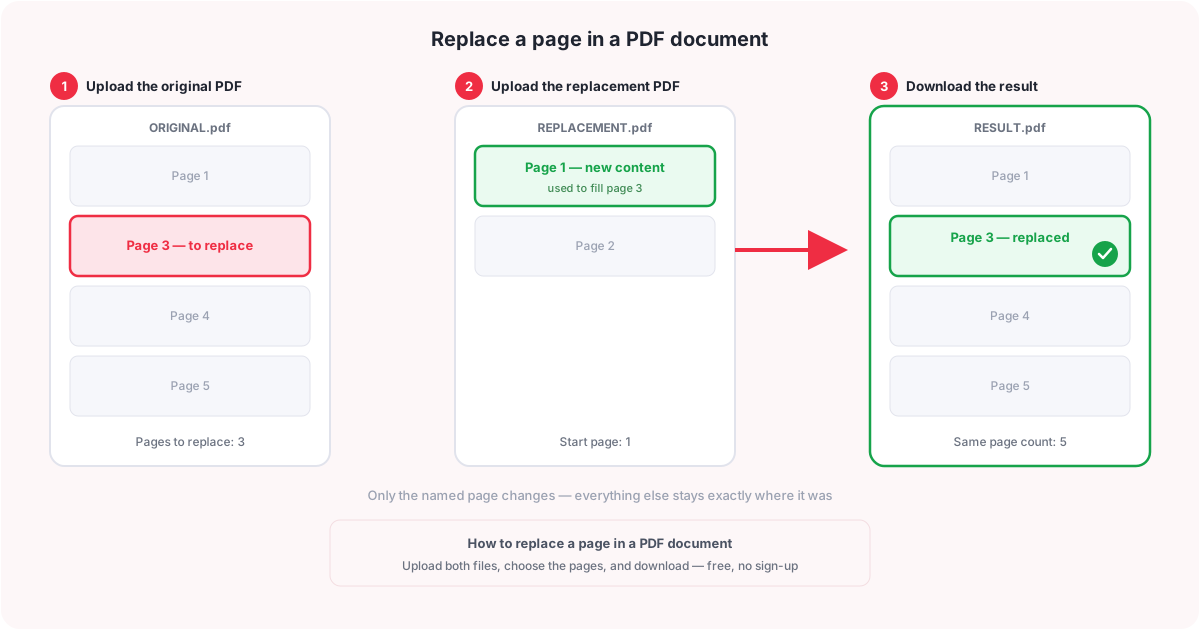
Everything below uses the PDFCherry Replace PDF Pages tool. You upload the original PDF and a replacement PDF, name the page or pages to swap, and download a new file with only those pages changed. Nothing else in the document moves.
Quick Answer
Open Replace PDF Pages, upload your original PDF and the replacement PDF that has the new content, tell it which page (or pages) in the original to swap and which page of the replacement file to start from, then download the result. The page count never changes — only the pages you named are different.
Watch the Video
Prefer to see it first? This video walks through replacing a page in a PDF from upload to download, including swapping a cover page.
The written steps below cover the same ground, plus the parts a video cannot show easily: what each message means and what to do if the first attempt does not work.
How to Replace a Page in a PDF Document
Follow these steps in order. They work whether you are swapping one page or several.
- Upload the original PDF. This is the document that contains the page you want to change.
- Upload the replacement PDF. This is the file that holds the new content — it can be a single page or several.
- Choose which page (or pages) in the original to replace. Enter a single page number, a list such as 2,5, or a range such as 3-6.
- Choose which page of the replacement file to start from. By default this is page 1. If the new content is not the first page of the replacement file, set the start page to match.
- Review, then download. The finished PDF has the same number of pages as the original — only the pages you named have new content, filled in order from the start page you chose.
That last point is worth repeating: replacing a page in a PDF never changes how many pages the document has. If you replace pages 3-6, four pages come out of the replacement file starting at your chosen start page, and they are dropped into positions 3 through 6 of the original. Everything before and after those pages, including bookmarks and page order, stays exactly where it was.
How to Replace the Cover Page of a PDF for Free
Swapping just the first page is one of the most common reasons people reach for a page-replacement tool. A few situations where it comes up:
- A branding update means the title page needs a new logo or template.
- A cover page has the wrong year, version number, or date on it.
- A draft cover needs to be swapped for the final, approved one before sending a document out.
- A contract or report needs a freshly signed signature page swapped in at the end.
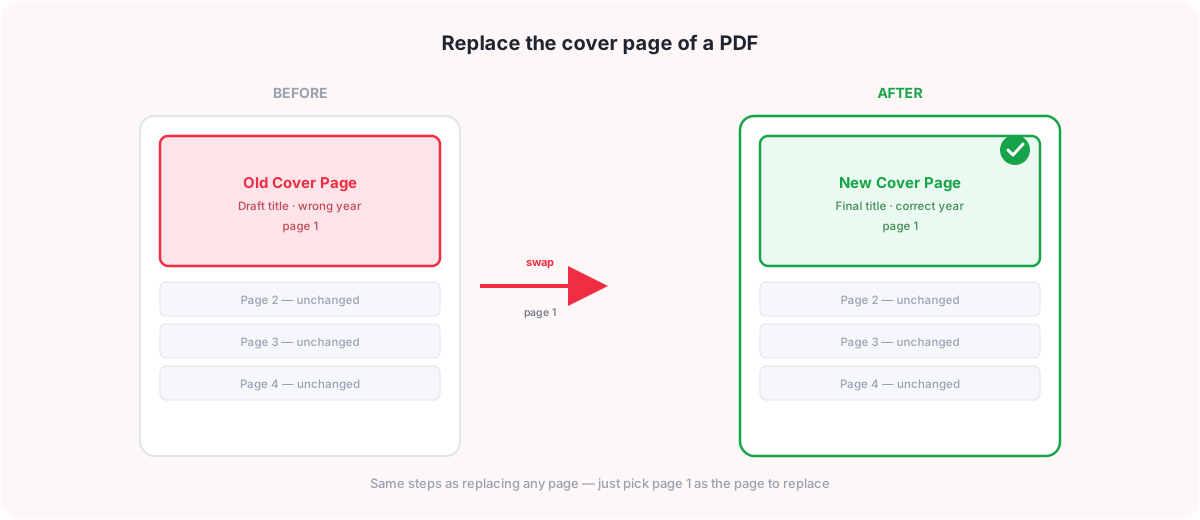
The good news is that replacing a cover page uses exactly the same process described above — there is nothing special about page 1. Upload the original PDF, upload a replacement PDF containing the new cover, set the page to replace to 1, and leave the start page at 1 unless your new cover sits further into the replacement file. Download the result, and the document opens with the new cover in place while every other page is untouched.
Replacing a signature page at the end works the same way, just with the last page number of your document as the page to replace instead of page 1.
Troubleshooting
| Problem | Why it happens | Solution |
|---|---|---|
| Not enough pages in the replacement file | You are replacing more pages than the replacement file has left, counting from the start page you chose. | Lower the number of pages you are replacing, or lower the start page so more pages are available. |
| Page numbers out of range | A page number you entered does not exist in the original PDF. | Check the original file’s page count and enter numbers between 1 and that total. |
| The replaced page looks like the wrong page | The start page for the replacement file was set to the wrong number, so the wrong page of that file was used. | Check which page of the replacement file actually has the new content, and set the start page to match it. |
| The file will not upload — password protected | One of the PDFs is locked with a password, which blocks processing. | Remove the password first with Unlock PDF, then upload the unlocked copy. |
| The file will not upload — too large | The file is over the 50 MB size limit. | Shrink it first with Compress PDF, then upload the smaller copy. |
What You Will Get
- The same page count as the original — replacing pages never adds or removes pages.
- The same page order, formatting, and bookmarks on every page you did not name.
- Only the pages you chose are different, filled from the replacement file starting at the page you set.
- Your original files are never modified. The result is always a new, separate PDF.
Frequently Asked Questions
How do I replace a page in a PDF?
Upload your original PDF and a replacement PDF, enter the page number (or numbers) in the original to swap, choose which page of the replacement file to start from, then download the result. The page count stays the same.
Can I replace more than one page at once?
Yes. Enter a list such as 2,5 or a range such as 3-6, and the pages are filled in order from the replacement file, starting at the start page you set.
Does replacing a page change the total page count?
No. Each page you name is swapped one for one with a page from the replacement file, so the original document’s page count never changes.
Which page of the replacement file gets used?
Page 1 by default. Set the start page to a different number if the content you want is further into the replacement file, and the tool fills the replaced pages in order from there.
Can I replace just the cover page?
Yes. Set the page to replace to 1 and upload a replacement PDF containing the new cover. The process is identical to replacing any other page.
Can I replace the last page, such as a signature page?
Yes. Enter the last page number of your document as the page to replace, and upload a replacement PDF with the new signature page.
Is my original file changed?
No. Both the original and replacement files you upload are left exactly as they were. You always get a new, separate PDF back.
Are my uploaded files kept or deleted?
Uploaded files and the result are deleted automatically a short time after processing. Nothing is stored longer than needed to build your file.
Is there a file size limit?
Yes, 50 MB per file. If either the original or the replacement PDF is larger than that, shrink it first with Compress PDF.
Can I use this on mobile?
Yes. The tool runs in your browser on desktop, tablet, or phone, with nothing to install.
What if the replacement file does not have enough pages?
You will be asked to lower either the number of pages you are replacing or the start page, so there are enough pages left in the replacement file to fill every page you named.
Can I replace a page with one of a different size or orientation?
The tool is built for swapping page content, and behaviour with mismatched page sizes or orientations has not been separately verified, so for the most consistent-looking result it is safest to use a replacement page close in size and orientation to the page it is replacing.
What to Do Next
Once your pages are replaced, you may want one more step:
- Merge PDF to combine the result with another document
- Delete PDF Pages to remove pages you no longer need
- Reorder PDF Pages to move pages into a different order
- Extract PDF Pages to pull specific pages into their own file
You May Also Like
- Duplicate a Page in a PDF
- How to Remove Blank Page in Google Docs and Excel
- How to Delete a Page from a PDF for Free
- How to Reorder PDF Pages
- Insert Blank Pages Into a PDF
- How to Extract Pages from a PDF
Ready to Replace a Page in Your PDF?
Upload your original and replacement files, name the pages to swap, and download. Free, with no sign-up.
Replace a PDF Page Now